AI Remediation Agent
Generates risk analysis and ready-to-run PowerShell remediation scripts for identity access changes, powered by your choice of AI provider.
Requires role: Admin Related: Over-Permission Analytics | Risk Posture Dashboard | User Management & RBAC
Overview
The AI Remediation Agent analyzes proposed access changes in your identity graph and produces two outputs: a plain-language risk analysis explaining why the change matters, and a PowerShell script that performs the remediation safely.
When you right-click a node in the graph and open the Remediation Drawer via the context menu, the agent automatically identifies the relevant slice of your environment — the shortest connection between the two identities and any high-criticality accounts nearby — and sends that focused context to a configured AI model. The model returns a structured response that the platform displays directly in the drawer.
All generated scripts include a -WhatIf flag, which means they describe what they would do without making any changes until you remove that flag and run the script in your domain environment. Scripts also include pre-checks (for example, confirming group membership before attempting removal) so that running them multiple times produces the same result.
The agent itself never modifies your directory or graph. It is a read-only analysis and script generation tool. Execution of any script is always a manual step performed by an administrator outside the platform.
Using the Remediation Panel
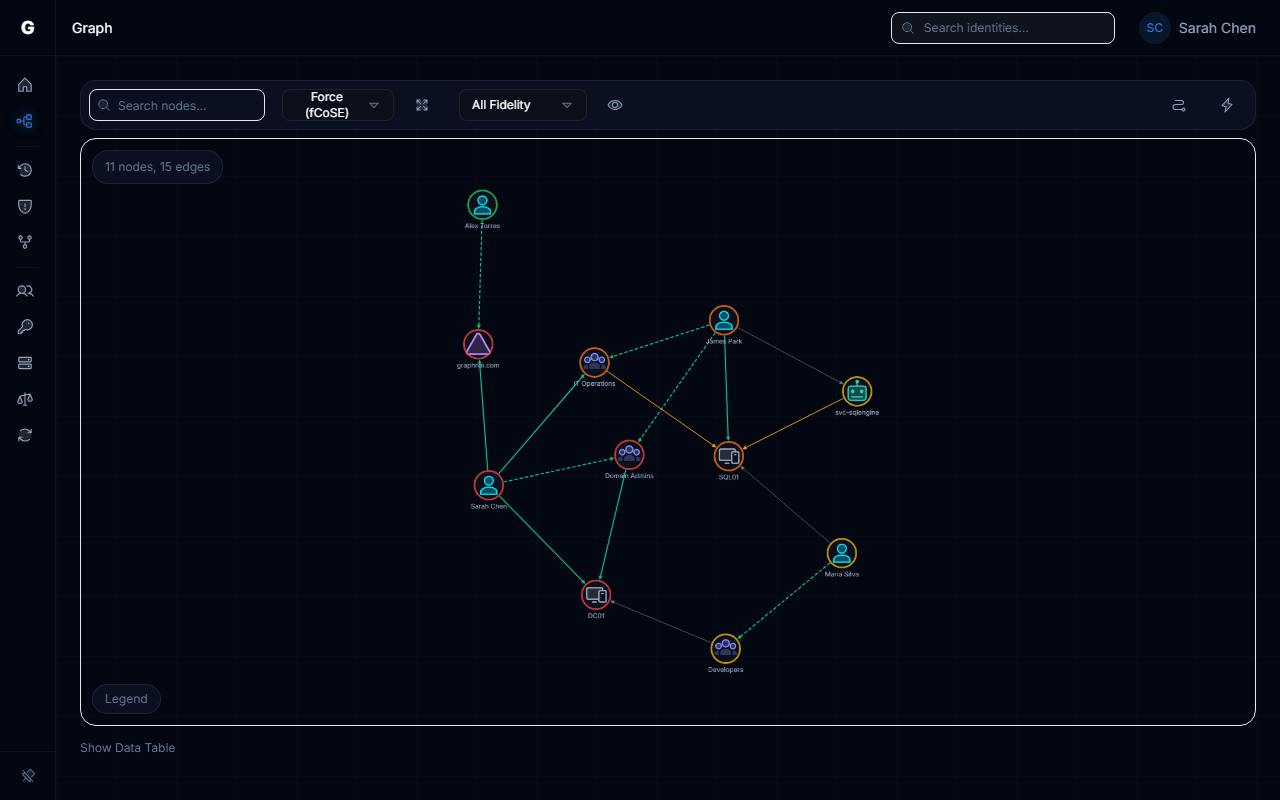
Step 1: Open the Graph Explorer
Navigate to the graph view. Ensure at least one identity sync has completed so that nodes are visible.
Step 2: Open the AI Remediation Drawer
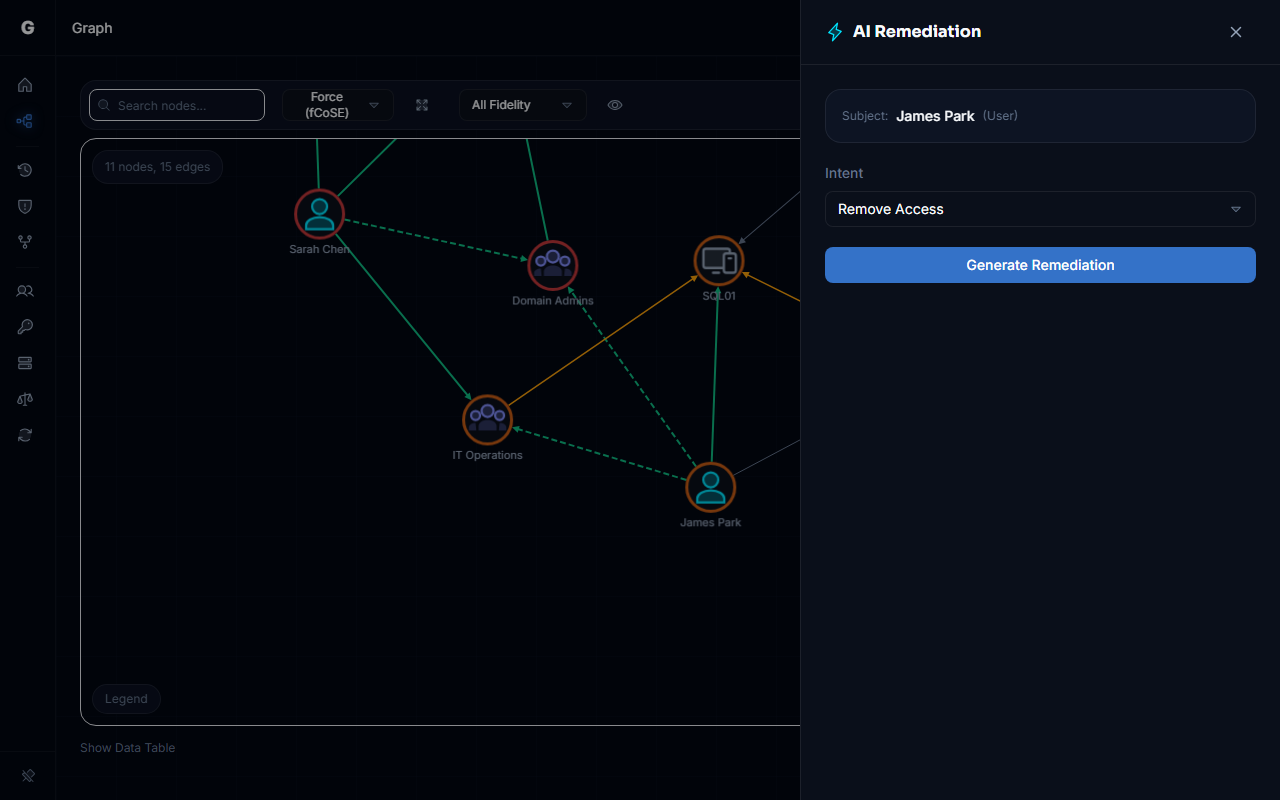
Right-click on a node in the graph to open the context menu, then select AI Remediation. The Remediation Drawer slides in from the right side of the screen.
Step 3: Choose an Intent
Select what you want the AI to analyze from the Recommendation Intent dropdown:
| Intent | When to Use |
|---|---|
| Remove Access / Remediate Risk | You want to revoke a specific access relationship and need a safe script to do so |
| Safe Access Provisioning | You want to add access and need guidance on doing so with least-privilege in mind |
| Explain Attack Path | You want to understand how one identity could reach another and what the risk means |
Step 4: Generate Recommendations
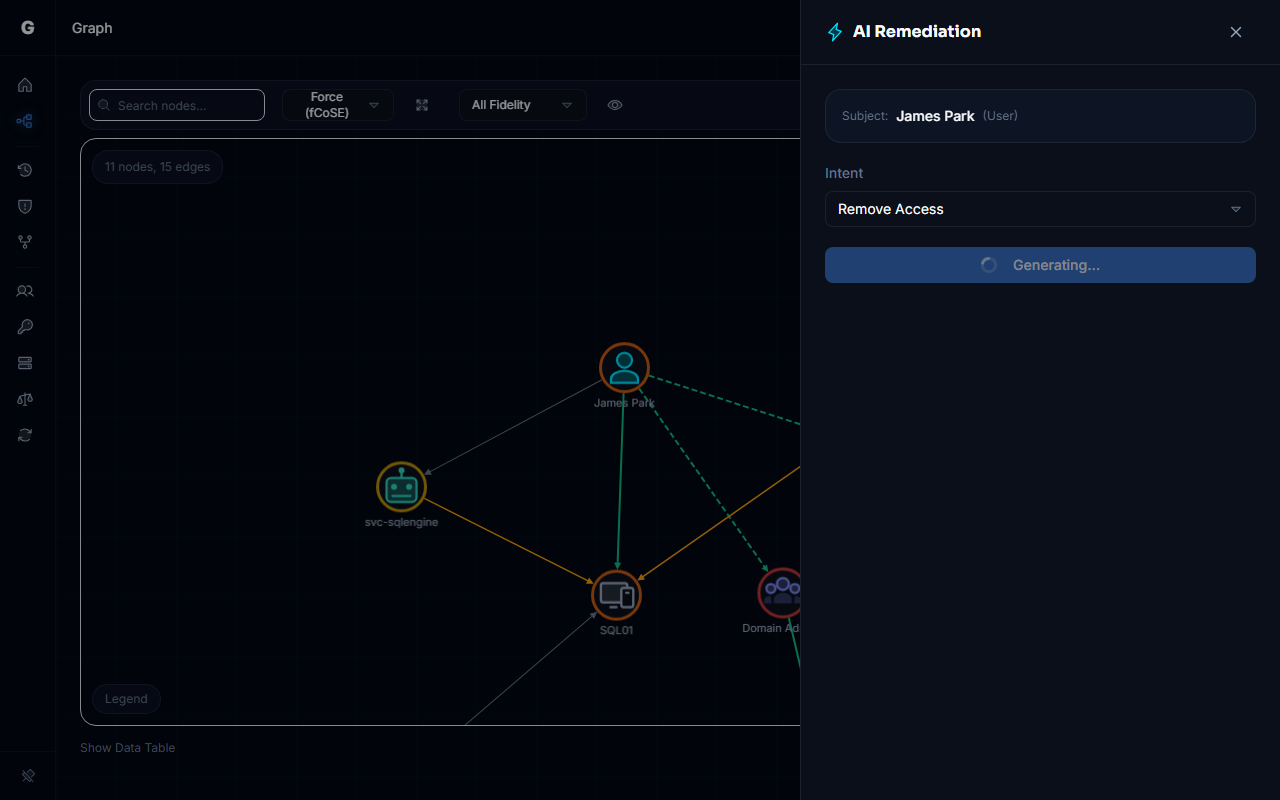
Click Generate Recommendations. The drawer shows "Analyzing..." while the request is processed. Response time depends on your AI provider and model — local models typically respond in 5-30 seconds; cloud providers are usually faster.
Step 5: Review the Output
The drawer displays two sections:
Risk Analysis — A plain-language explanation of the security risk. This covers why the relationship between the two identities is significant, what an attacker could do if this path existed (or was exploited), and what the impact of changing it would be.
Script — A PowerShell script that performs the remediation. The script header shows the language (PowerShell). A Copy button lets you copy the script to the clipboard for use in your domain environment.
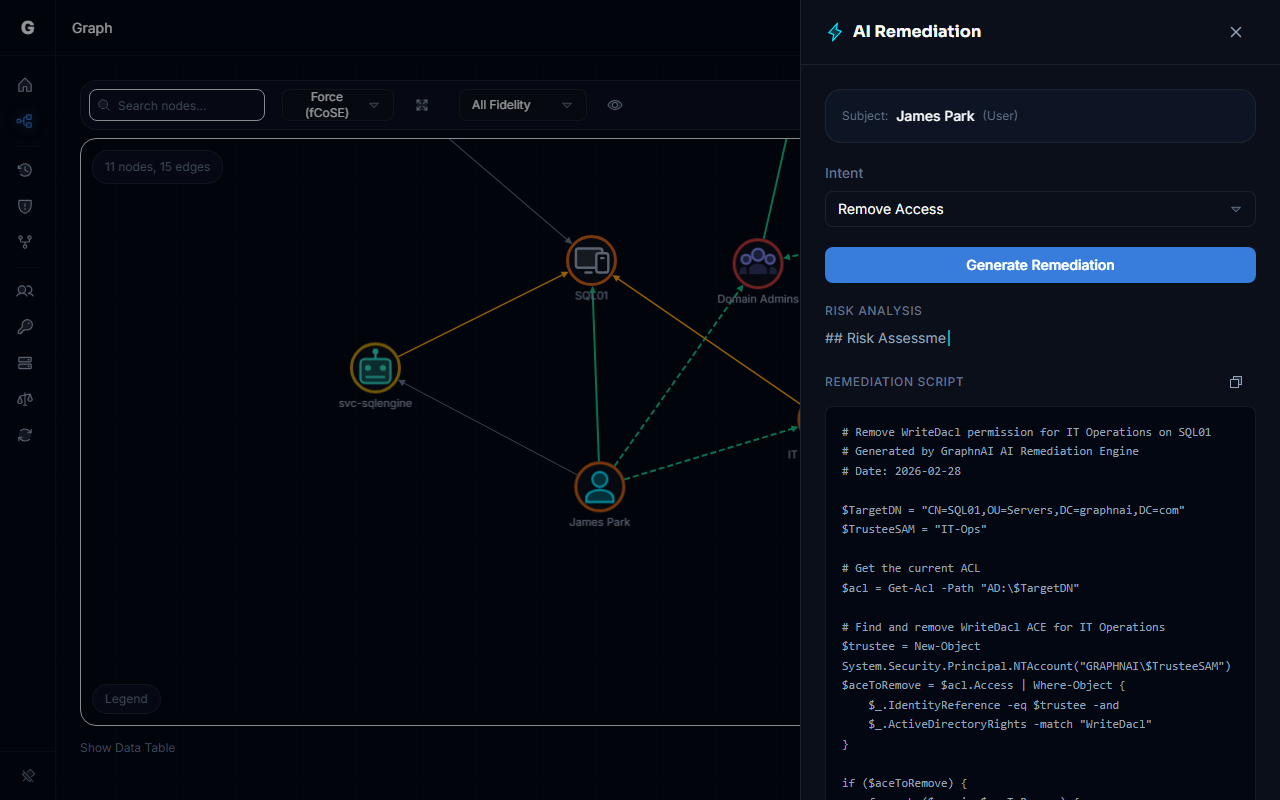
Always review and test scripts in a non-production environment before running them in production. The script includes
-WhatIfby default, which means it will only describe its actions — remove-WhatIfwhen you are ready to execute for real.
Step 6: Start Over (Optional)
Click Start Over at the bottom of the results to clear the output and run a different intent against the same subject/target pair.
Understanding the Generated Script
All scripts produced by the AI Remediation Agent follow a consistent pattern:
- Pre-check: A
Get-AD*query confirms the current state before attempting any change. If the condition is already resolved, the script does nothing. - Action: The remediation action, such as
Remove-ADGroupMemberorSet-ADUser, is called with-WhatIfincluded. - No placeholders: Scripts do not use placeholder server names or domain variables. They assume execution in a domain-joined environment where the current machine has connectivity to a domain controller.
Example output:
powershell
# Verify current membership before removal
$isMember = Get-ADGroupMember -Identity 'Domain Admins' | Where-Object { $_.SamAccountName -eq 'jsmith' }

if ($isMember) {
    Remove-ADGroupMember -Identity 'Domain Admins' -Members 'jsmith' -WhatIf
} else {
    Write-Host "jsmith is not a member of Domain Admins. No action required."
}
To execute this script for real, remove -WhatIf from the Remove-ADGroupMember line and run it from a domain-joined machine with the ActiveDirectory PowerShell module installed.
Troubleshooting
AI Remediation option does not appear in the context menu
Cause: You may not have an Admin role, or the node does not support remediation.
Resolution:
- Confirm your account has the Admin role. Navigate to your profile or ask your platform administrator to verify your role assignment.
- Ensure you have right-clicked on a valid identity node. Not all node types support the AI Remediation context menu action.
The generated script contains errors or is incomplete
Cause: AI models can occasionally produce imperfect output, especially for complex access scenarios with deeply nested group structures or unfamiliar object types.
Resolution:
- Review the script carefully before execution. The platform displays a warning reminding you to verify scripts before running them.
- Try a different intent (for example, "Explain Attack Path" often produces clearer context that can inform a manual remediation).
- The script always includes
-WhatIf, so a dry run before live execution will reveal any errors before they cause changes.
Response is very slow or times out
Cause: Large or complex graphs between the subject and target identities can take longer to process.
Resolution:
- The request uses the HTTP request timeout as its limit. If your environment requires longer AI processing times, check the server's timeout configuration.
Best Practices
- Start with "Explain Attack Path" — Before remediating, use the explain intent to understand the full context of a relationship. This ensures you understand what you are removing and why.
- Always run with
-WhatIffirst — Copy the generated script and run it against your domain in a test environment or with-WhatIfto confirm the output before removing the flag. - Review the risk analysis, not just the script — The risk analysis often surfaces context that is not obvious from the graph alone, such as which other accounts share the same access or what downstream systems would be affected.
- Use for access reviews — Combine AI Remediation with the Over-Permission Analytics page: identify over-permissioned accounts in the analytics view, then use the graph to select the specific excess relationships and generate targeted remediation scripts for each.