User Management & Role-Based Access Control (RBAC)
Role-based access control (RBAC) in GraphnAI: choose who can sign in and what each person can do, with three roles for users and groups.
On this page
Overview
GraphnAI is deny-by-default. A person can sign in only after they get a role. The role comes from their own grant, a group, an invite, or an auto-created account, also called just-in-time (JIT) provisioning. Nobody reaches any data without signing in.
Roles
GraphnAI has three roles: Viewer, Operator and Admin. Each role can do everything the roles below it can.
The server enforces the role on every request. Hiding a button in the UI is only a convenience, not a security boundary.
| What you can do | Viewer | Operator | Admin |
|---|---|---|---|
| Browse the graph, search identities, open identity details | Yes | Yes | Yes |
| Manage your own profile and sessions | Yes | Yes | Yes |
| Read risk posture, analysis pages and detection alerts | No | Yes | Yes |
| Ask Graphne and start investigations | No | Yes | Yes |
| Run what-if simulations and clear them | No | Yes | Yes |
| Change criticality rules and overrides | No | Yes | Yes |
| See bridge status, start and stop syncs | No | Yes | Yes |
| Run a fix from a Critical or High finding plan in Select Fire | No | Yes | Yes |
| Change detection alert status | No | No | Yes |
| Run a fix you build yourself, or one Graphne proposes | No | No | Yes |
| Use the Admin pages: users, sessions, identity providers, API keys, bridge setup, license | No | No | Yes |
The Admin section of the sidebar appears only for Admins. Graphne, Security Posture, Boundary Escape, Local Administrators and Investigations appear for Operators and Admins.
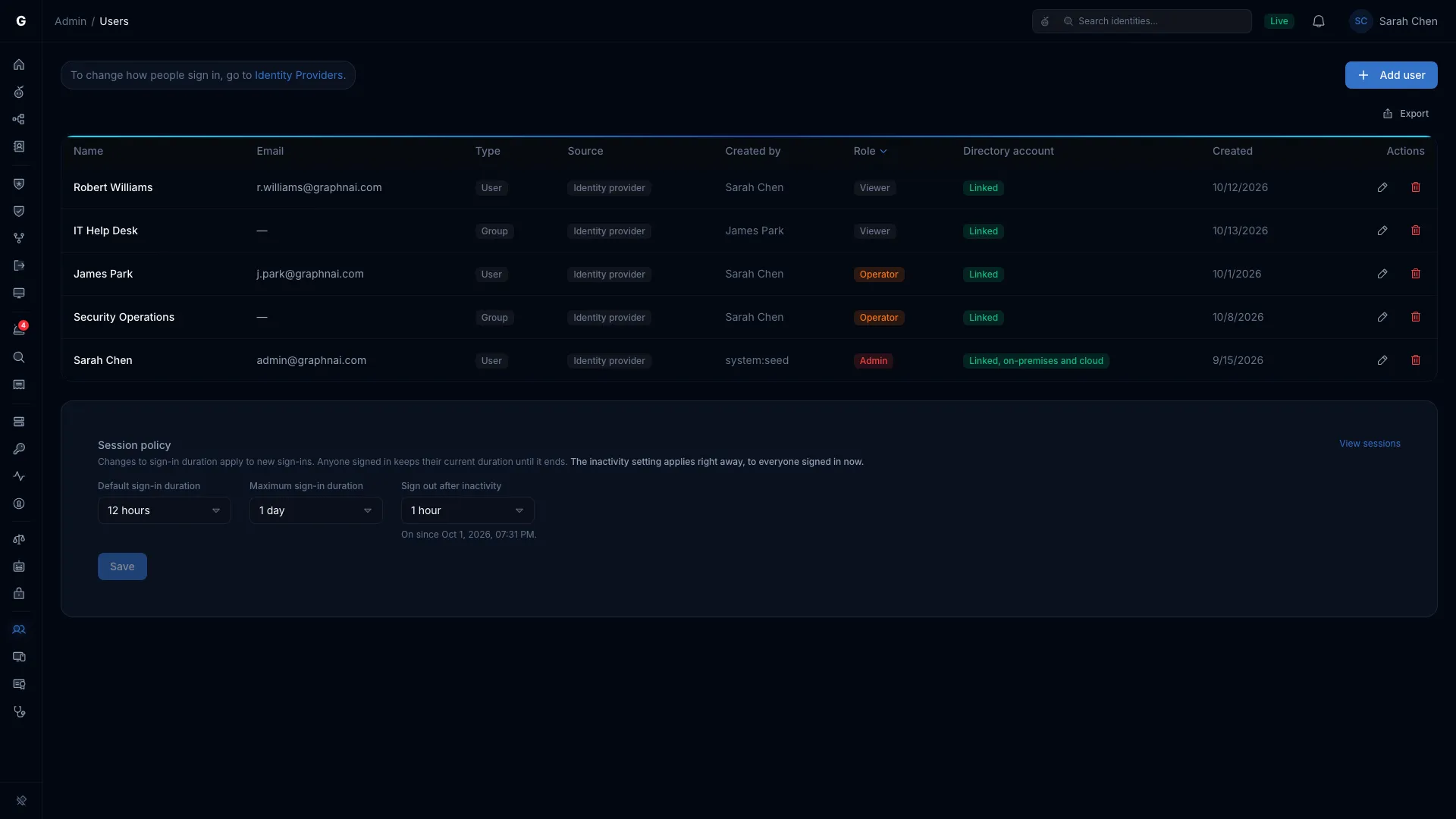
Adding Users
Requires role: Admin
Select Admin > Users in the sidebar, then select Add user. What the dialog asks for depends on how people sign in.
Active Directory Accounts and Groups
When directory sign-in (LDAPS) is active, the dialog searches Active Directory. If cloud sign-in is active too, select the Active Directory tab first.
- Choose a Type: User or Group.
- In Search the directory, type the start of a name. Group results list security groups only.
- Select the account or group.
- Choose a Role, then select Add.
A group grant follows the group's SID, so renaming the group in AD keeps its access. See On-Premises Directory Sign-In.
Okta, AWS and Generic OIDC Provider Users
These providers have no directory for GraphnAI to search. The dialog searches the people who already have access and offers to invite someone by email. An invite lasts 14 days. It gives the person their role the first time they sign in with that email, verified by the identity provider. Open invites are listed on the Invites tab of Admin > Users. See Inviting People by Email.
Entra ID Users and Groups
On a deployment that signs in through Entra ID, the dialog searches your Entra directory through Microsoft Graph. When directory sign-in is also active, use the Identity provider tab.
- Choose a Type: User or Group.
- In Search the directory, type at least two characters. The search matches the start of names.
- Select the user or group.
- Choose a Role, then select Add user.
The grant follows the Entra object ID, so it survives a rename. See Identity Mapping.
How GraphnAI Decides a Role at Sign-In
For a cloud identity provider, GraphnAI checks these in order and stops at the first match:
- Your own grant: a user entry that matches your user ID at the identity provider.
- Seed Admin (Entra ID only): the first sign-in of the setup administrator becomes an Admin. The account qualifies when its user name is
GRAPHNAI_SEED_ADMIN_EMAIL, or its email is that address on a domain Microsoft has verified for the tenant. Guests don't qualify. GraphnAI remembers that account. To hand the role to someone else, change the variable, restart, and sign in with the new account right away. - Group grant: a group entry that matches one of your groups. When several match, the highest role applies.
- Invite: an open invite for your verified email.
- Auto-created account: when the provider has Auto-create accounts on first sign-in (just-in-time provisioning) turned on.
- Refused: "Your account doesn't have access to GraphnAI. Ask your administrator to add you."
Directory sign-in checks your own grant, then your groups, then auto-created accounts. It has no seed Admin and no invites.
[!TIP] Grant access to groups where you can. Members of a group with access don't need their own entries.
Changing a Role
- On Admin > Users, find the user or group.
- Select the pencil icon on its row.
- In Edit role, choose the new role, then select Save.
Changing a role signs that person out of every session. They sign in again with the new role. For a group, every member is signed out. You can't change your own role. Ask another Admin.
Removing Access
- On Admin > Users, find the user or group.
- Select the trash icon on its row.
- In Delete user, select Delete.
The person is signed out and loses access. For a group, its members lose the access it gave them. You can't undo this.
[!CAUTION] You can't delete your own account. This stops an Admin from locking themselves out.
The Users Table
| Column | What it shows |
|---|---|
| Name and Email | The user or group. A group has no email. |
| Type | User or Group. |
| Source | Active Directory, or the identity provider people sign in with. |
| Created by | Who added the entry. Entries can also say "Auto-created at first sign-in", "Setup administrator" or "Invited by" an Admin. |
| Role | Viewer, Operator or Admin. |
| Directory account | Admins only. Whether the entry matches a directory account. See Operator Identity Resolution. |
| Created | When the entry was added. |
The Session policy card below the table sets how long sign-ins last. See Profile & Sessions.
Identity Mapping
GraphnAI matches each person by a user ID their identity provider never reuses:
| Sign-in method | User ID | Group ID |
|---|---|---|
| Entra ID | Object ID (oid claim) |
Group object ID, from the groups claim or Microsoft Graph |
| Okta, generic OIDC | Subject (sub claim) |
Group name from the groups claim |
| Amazon Cognito | Subject (sub claim) |
Group name from the cognito:groups claim |
| Active Directory | Security identifier (SID) | Group SID |
For Entra ID, GraphnAI uses the object ID and not the sub claim. The sub claim is pairwise: unique per application, so it differs from the ID Microsoft Graph returns. The object ID is the same across the whole tenant.
Security Notes
- CSRF protection. An OIDC sign-in carries a random
statevalue, checked against an HttpOnly cookie, and uses PKCE. - Sessions are tracked on the server. A session token is a JWT with the
iat,nbfandjticlaims, signed with HMAC-SHA256. Each one maps to a server-side session, so signing out or a role change ends it at once. - Email verification: a sign-in is refused when the identity provider marks
email_verifiedasfalse, for example an unverified guest account. Entra ID managed accounts leave the claim out, which is accepted.