Entra ID (Azure AD) OIDC Setup: App Registration, Graph API Permissions and Admin Consent
[!TIP] Self-hosted customers: If you deployed GraphnAI from a deployment bundle, you don't need this guide. The setup wizard configures Entra ID at first start. See the Quick Start Guide. This guide sets up Entra ID sign-in by hand, in the server's deployment configuration. Use it for development environments and custom deployments. If you have an app registration but no rights to let the wizard create one, select No Microsoft Entra admin rights? Use an existing app registration in the wizard instead.
On this page
- Prerequisites
- Step 1: Register the Application
- Step 2: Configure Client Authentication
- Option A: Client Secret (Development)
- Option B: Client Certificate (Production/Recommended)
- Step 3: Add Graph API Permissions
- Step 4: Configure GraphnAI
- Required Settings
- Client Secret Auth
- Client Certificate Auth
- Step 5: First Sign-In (Setup Administrator)
- Step 6: Directory Sync Schedule
- Troubleshooting
- "Sign-in didn't finish" after you sign in
- "Your account doesn't have access to GraphnAI"
- "Your identity provider didn't send a verified email address"
- Permissions don't show as granted
Set up OpenID Connect (OIDC) sign-in with Microsoft Entra ID (formerly Azure AD) by hand. Register an app, add Microsoft Graph API application permissions, grant admin consent, and point GraphnAI at the app registration.
Prerequisites
- A Microsoft Entra ID tenant, and an account that can create app registrations, such as an Application Administrator or Global Administrator.
- A Global Administrator or Privileged Role Administrator to grant admin consent for Microsoft Graph application permissions.
- Access to the Microsoft Entra admin center.
- The URL GraphnAI runs at, for example
https://graphnai.yourcompany.com.
Step 1: Register the Application
- In the Microsoft Entra admin center, go to Identity > Applications > App registrations.
- Select New registration.
- In Name, enter
GraphnAI Platformor a name you prefer. - Under Supported account types, select Accounts in this organizational directory only.
- Under Redirect URI, choose the Web platform and enter
https://graphnai.yourcompany.com/v1/auth/callback. Replacehttps://graphnai.yourcompany.comwith your deployment URL. - Select Register.
[!IMPORTANT] Copy the Application (client) ID and the Directory (tenant) ID from the overview page. You need both in Step 4.
Step 2: Configure Client Authentication
The app proves its identity to Microsoft with a client secret or a certificate. Use a certificate in production.
Option A: Client Secret (Development)
- Go to Certificates & secrets > Client secrets.
- Select New client secret.
- Enter a description and choose when it expires.
- Copy the Value right away. The admin center shows it only once.
Option B: Client Certificate (Production/Recommended)
- Generate an RSA key pair and a self-signed certificate:
openssl req -x509 -nodes -days 365 -newkey rsa:2048 \ -keyout graphnai-client.key \ -out graphnai-client.crt \ -subj "/CN=GraphnAI Platform" - Go to Certificates & secrets > Certificates.
- Select Upload certificate and upload
graphnai-client.crt. - Copy the Thumbprint shown after the upload.
Step 3: Add Graph API Permissions
GraphnAI reads your directory through Microsoft Graph with application permissions. These are the same permissions the setup wizard requests.
-
Go to API permissions > Add a permission > Microsoft Graph > Application permissions.
-
Add the five required permissions:
Permission What GraphnAI reads User.Read.AllUsers Group.Read.AllGroups and their members Application.Read.AllApp registrations and service principals RoleManagement.Read.DirectoryDirectory role assignments and Privileged Identity Management eligibility Organization.Read.AllThe tenant's name and verified domains -
Add any of the six optional permissions. Each one adds a data set or unlocks a posture check, and everything else works without them:
Permission Adds AuditLog.Read.AllSign-in activity. The tenant also needs Microsoft Entra ID P1 or P2. Policy.Read.AllConditional Access policies, and the settings the tenant checks read: authorization policy, security defaults, authentication strengths and cross-tenant access settings Directory.Read.AllDelegated permission grants. It also lets GraphnAI confirm the tenant's license for sign-in activity. Domain-InternalFederation.Read.AllFederation settings of your federated domains. It unlocks the check on whether a federated domain trusts its identity provider's multifactor check. OnPremDirectorySynchronization.Read.AllDirectory synchronization settings. It unlocks the hard-match and soft-match takeover check on a tenant synced from on-premises. PrivilegedAssignmentSchedule.Read.AzureADGroupPrivileged Identity Management for Groups assignments. It lets the permanent admin role check judge role-assignable groups. The tenant also needs Microsoft Entra ID P2 or Microsoft Entra ID Governance. The setup wizard requests all six. Without the last three, the matching checks read Not assessed. See Entra ID and Hybrid Checks.
-
Select Grant admin consent for [your tenant].
If your app registration predates any optional permission, you don't need to remove and re-add the tenant. On the Identity Providers page, the Data collected from this tenant card shows each missing permission as Not requested. Add them in the Microsoft Entra admin center, or select Update the app registration on that card. See Entra ID Directory Accuracy.
Step 4: Configure GraphnAI
Set these values in your deployment configuration. The server reads them when it starts, so restart it after a change.
Required Settings
| Setting | Description | Example |
|---|---|---|
| OIDC issuer URL | Your Entra ID issuer | https://login.microsoftonline.com/{tenant-id}/v2.0 |
| OIDC client ID | Application (client) ID | 9e5d0323-e788-49a2-8846-8c7752caebff |
| OIDC redirect URL | Callback URL. It must match the app registration's redirect URI. | https://graphnai.yourcompany.com/v1/auth/callback |
| Frontend URL | Base URL of the frontend | https://graphnai.yourcompany.com |
GRAPHNAI_SEED_ADMIN_EMAIL |
Email of the first Admin | [email protected] |
Client Secret Auth
| Setting | Description |
|---|---|
| OIDC client secret | The client secret value |
Client Certificate Auth
| Setting | Description |
|---|---|
| Client key file | Path to the private key PEM file |
| Client certificate thumbprint | Certificate thumbprint in hex, from the Microsoft Entra admin center |
[!CAUTION] Never commit secrets to source control. In production, mount the private key as a file, such as a Docker secret, and point the client key file setting at it. GraphnAI creates its own session signing and encryption keys on the host at first start. You never set them.
These settings set up sign-in only, and they don't appear on the Identity Providers page. If you later turn on a sign-in provider on Admin > Identity Providers, it takes over from them.
Step 5: First Sign-In (Setup Administrator)
- Start the GraphnAI server.
- Open the frontend URL in your browser.
- Select Sign in with SSO.
- Sign in to Microsoft with the setup administrator account. Its user name is
GRAPHNAI_SEED_ADMIN_EMAIL, or its email is that address on a domain Microsoft has verified for your tenant. Guest accounts don't qualify.
GraphnAI registers that account as an Admin at its first sign-in and remembers it. The match ignores letter case. To hand the role to someone else, change GRAPHNAI_SEED_ADMIN_EMAIL, restart, and sign in with the new account right away. Add everyone else on Admin > Users. See User Management & RBAC.
Step 6: Directory Sync Schedule
These settings don't collect your directory. To collect the tenant's users, groups, roles and applications, add the tenant on Admin > Identity Providers with Add provider. See Managing Sign-In Methods After Setup. A tenant added in the setup wizard is already collected.
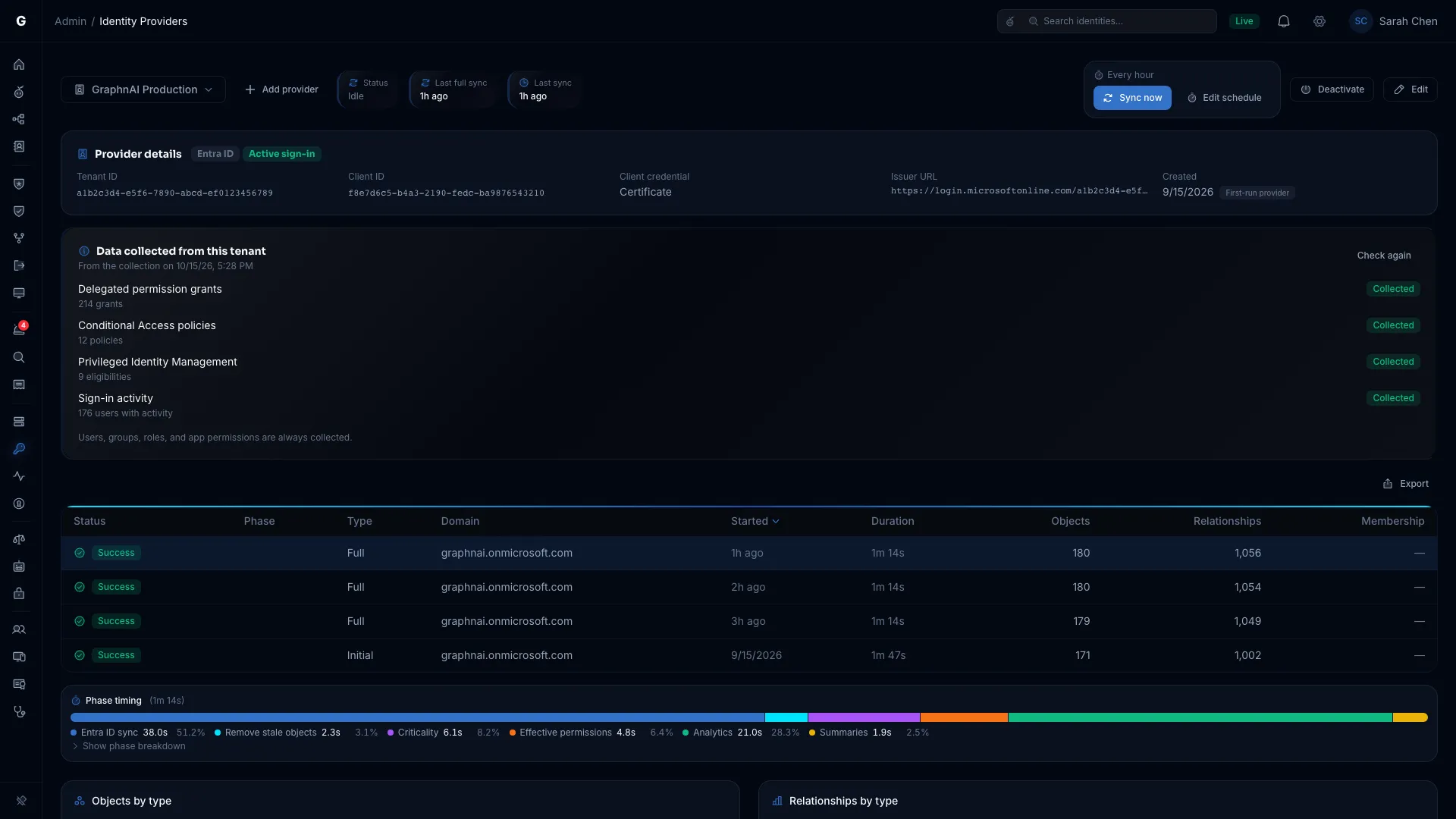
Each tenant syncs on its own interval. The default is every hour. Entra ID sync has no delta mode, so every run reads users, groups, service principals, roles and app role assignments in full.
To change the interval (Admin only):
- Open Admin > Identity Providers and choose the tenant from the provider menu.
- Select Edit schedule.
- In Sync interval, enter a duration such as
30m,2hor1d. It must be between 5 minutes and 7 days. - Select Save schedule.
The next run starts when the interval has passed since the tenant's last sync. The line above the buttons shows the interval in use, such as "Every hour".
Select Sync now to start a full read without waiting.
[!NOTE] Every run is a full read of Microsoft Graph, so a short interval on a large tenant means many more Graph requests. A tenant without admin consent yet doesn't sync on schedule.
Troubleshooting
"Sign-in didn't finish" after you sign in
- Check the server log for the cause.
- Check that the app registration's redirect URI matches the OIDC redirect URL setting exactly.
- Check that admin consent is granted for the Graph permissions.
"Your account doesn't have access to GraphnAI"
The account signed in, but it has no role in GraphnAI. For the first sign-in, use the account whose user name is GRAPHNAI_SEED_ADMIN_EMAIL, or whose email is that address on a domain verified for your tenant. For anyone else, an Admin adds them on Admin > Users.
"Your identity provider didn't send a verified email address"
Entra ID sent the account's email_verified claim as false. This happens with guest accounts. Accounts created in your tenant don't carry the claim, and they sign in normally.
Permissions don't show as granted
- Open the app registration's API permissions page.
- Check that every permission shows a green check and Granted for [your tenant].
- If you granted consent a moment ago, wait a few minutes. Microsoft takes time to apply a new grant.