Automated Entra ID Setup Walkthrough
This feature enables a zero-touch setup experience for the GraphnAI Platform. The server includes a built-in Setup Wizard that automatically provisions an Entra ID Application, generates certificates, and configures OIDC authentication — no manual file editing or server restarts required.
Prerequisites (self-hosted only)
Deployment Bundle
If you deployed using a GraphnAI deployment bundle, all required environment variables are pre-configured in the bundled docker-compose.yml. No manual setup is needed — just start the stack and open the browser. See the Quick Start Guide for the full walkthrough.
How it Works
- Initial Discovery: When you access the web interface (e.g.,
https://platform.yourcompany.com), the application detects that no OIDC provider is configured. - Redirect to Setup: You are automatically redirected to the
/setupwizard instead of the login page. - Email Gatekeeper:
- You will see a prompt to enter the "Initial Admin Email".
- Enter the email address matching
GRAPHNAI_SEED_ADMIN_EMAIL. - Security Note: If the email does not match, the setup will not proceed, preventing unauthorized users from triggering the flow.
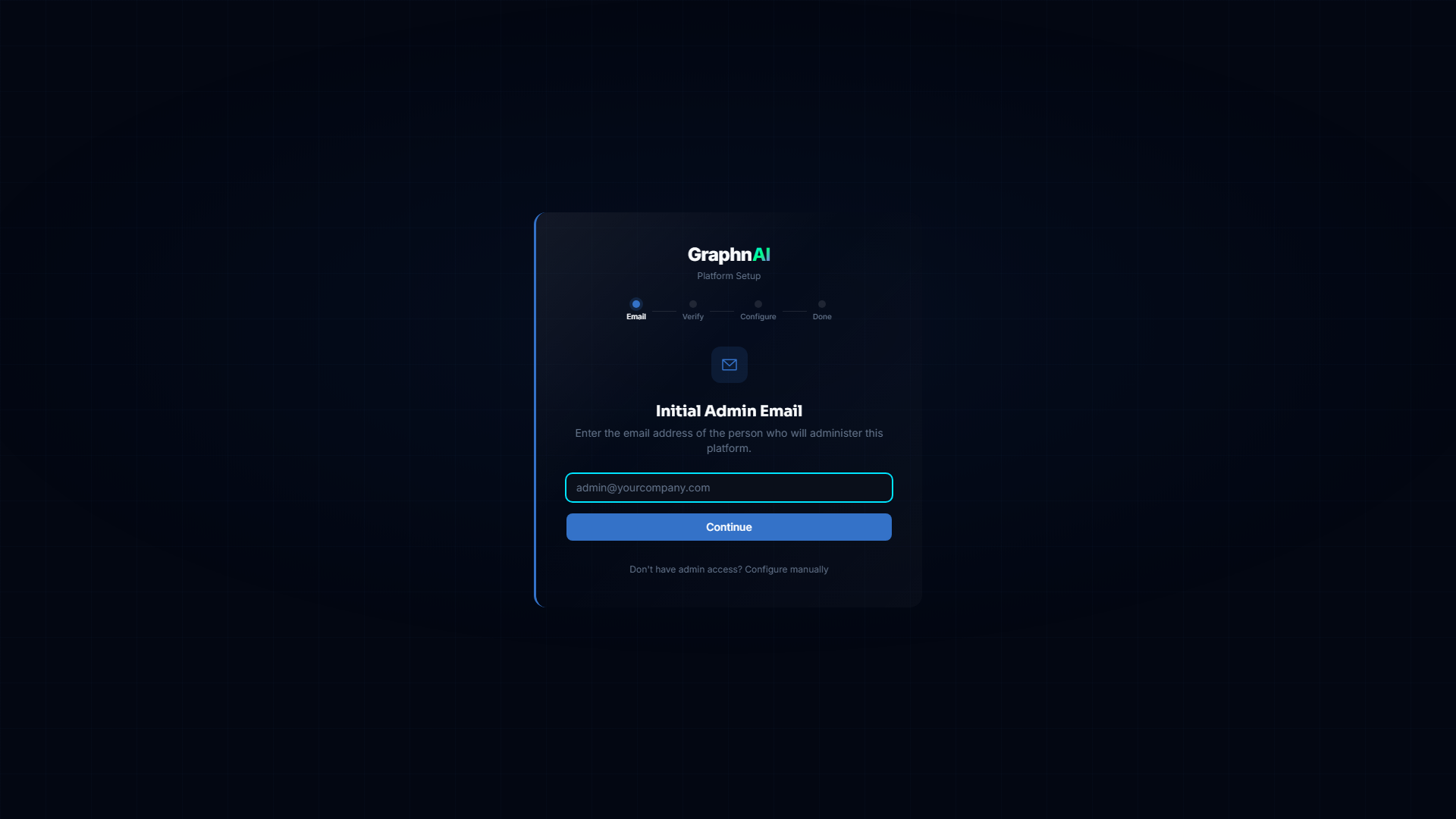
- Device Login:
- The wizard displays a Microsoft Device Code (e.g.,
ABCD-1234). - Click the link to
microsoft.com/deviceloginand enter the code. - Authenticate with your Microsoft Entra ID account.
- Note: You must accept the "GraphnAI Setup" permission request (CLI scope) if prompted.
- The wizard displays a Microsoft Device Code (e.g.,
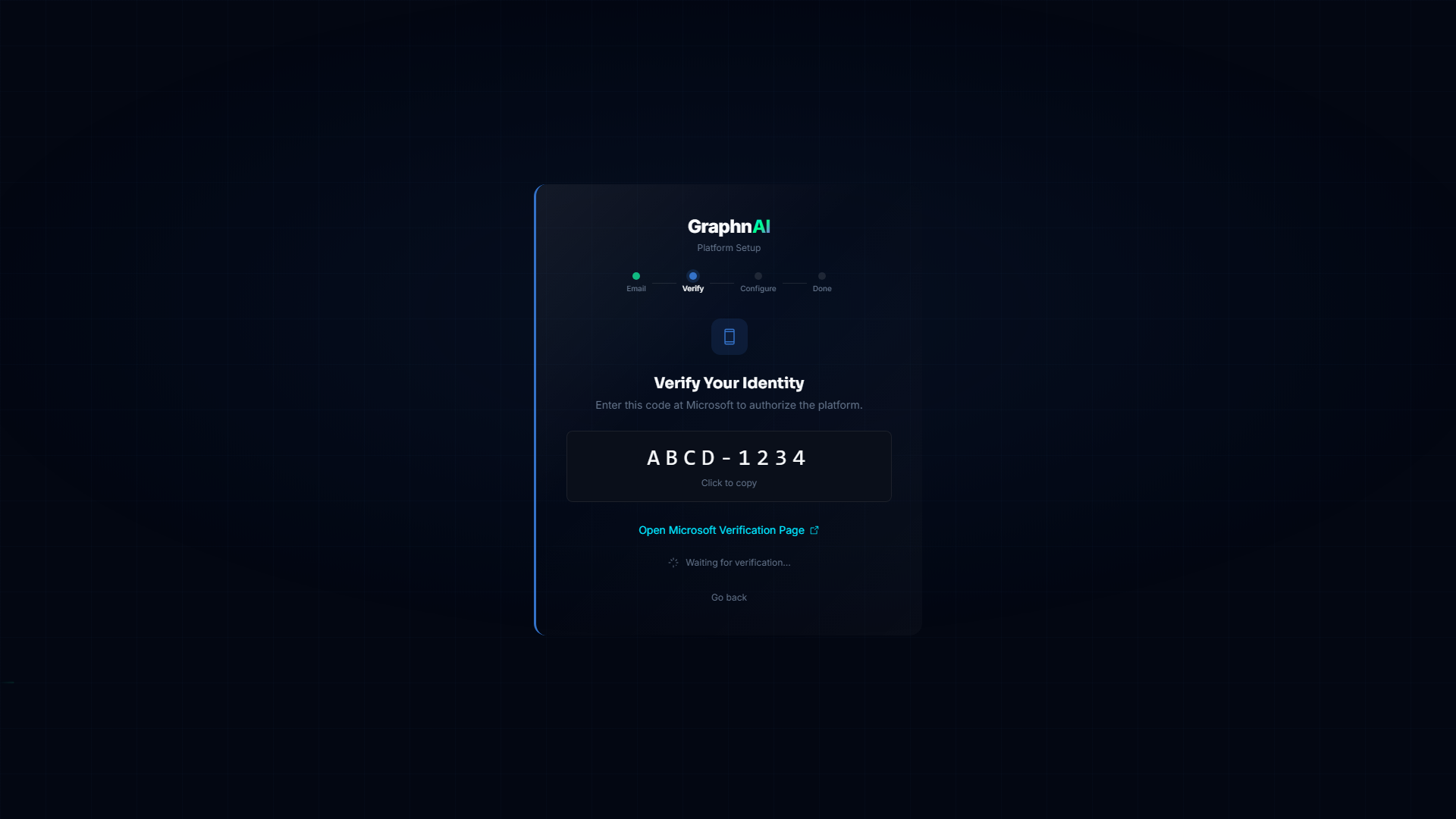
Provisioning (Automated):
- Once authenticated, the server verifies your email again.
- The server communicates with Microsoft Graph API to:
- Create a new App Registration ("GraphnAI Platform").
- Create a Service Principal.
- Generate a self-signed certificate.
- Upload the certificate to the App.
- Configure the Redirect URI (e.g.,
https://platform.yourcompany.com/auth/callback).
Admin Consent (Important):
- After the setup completes, you may need to log into the Azure Portal.
- Go to Enterprise Applications > GraphnAI Platform > Permissions.
- If you see "Grant admin consent for <Tenant>", click it.
- Note: The automated setup adds the permissions, but some tenants require manual approval for high-privilege application roles.
Completion:
- The configuration is saved to the internal database (
oidc_providerstable). - The Authentication Service hot-reloads the new configuration.
- You are redirected to the Login page and can now sign in using the newly created App.
- The configuration is saved to the internal database (
Troubleshooting
"Invalid admin email"
Ensure the email you entered matches the GRAPHNAI_SEED_ADMIN_EMAIL environment variable exactly. This is a security feature to prevent unauthorized setup. For bundle deployments, this was set to the contact email on file with GraphnAI.
"Account not authorized" after login
The setup process adds your user as an Admin if your email matches the seed email. If you are signed in but see an error, check the server logs for RBAC denial reasons.
"Pending..." stuck on Device Code
Ensure you have completed the login flow in the popup/new tab. Microsoft's device code flow can sometimes take a moment to propagate.
Setup Wizard does not appear
The wizard only appears when no OIDC provider is configured. If you previously completed setup, the server skips the wizard and goes directly to the login page. To re-trigger the wizard, remove the OIDC provider from the database and restart.
Technical Details
- Store: OIDC configurations are stored in ArangoDB collection
oidc_providers. - Security: Client Keys (Private Keys) are stored encrypted (if encryption is enabled in store layer) or protected by the database ACLs.
- Certificates: The system uses Certificate-based authentication (Client Assertion) for OIDC, which is more secure than Client Secrets.
- Hot Reload: The
AuthServicepolls or is triggered to reload configuration from the database without requiring a process restart. - Bootstrap Client ID: A GraphnAI-owned multi-tenant Entra ID application used solely for the device code flow during initial setup. It is not used after OIDC is provisioned.