Attribute Sync Configuration: Choose LDAP Attributes and Entra ID Properties
Choose which LDAP attributes (Active Directory) and Microsoft Graph properties (Entra ID) each sync collects, including which personal data fields to leave out for GDPR or HIPAA.
On this page
- Overview
- Prerequisites
- Open Sync Attributes
- For Active Directory (Bridge)
- For Entra ID (Identity Provider)
- Understanding Attribute Categories
- Required Attributes
- Recommended Attributes
- Optional Attributes
- Sync Features (Entra ID)
- Configure Attributes
- Review the Current Settings
- Turn Attributes On or Off
- License and Permission Notes
- Entra ID signInActivity Attribute
- Active Directory Attributes
- Example: Collecting Less Personal Data for GDPR
- Example: Peer Group Analytics
- Example: Collecting HR Employee IDs
- When Changes Take Effect
- Troubleshooting
- A Newly Turned-On Attribute Doesn't Show in the Identity Flyout
- Entra ID Users Have No Sign-In Activity
- A Turned-Off Personal Data Attribute Still Shows
- The Gear Icon Doesn't Show
- Best Practices
- Security Considerations
- Related Documentation
Overview
A sync from Active Directory or Entra ID collects many attributes for each user, group, computer and service principal. Some are essential to the security analysis, such as group memberships and security descriptors. Others add context, such as job titles and office locations. Some are personal data, such as phone numbers and home addresses.
Sync attributes lets you choose which attributes each sync collects. Use it to:
- Collect less personal data for GDPR, HIPAA or other requirements.
- Shrink syncs by turning off optional attributes you don't need.
- Collect context for investigations, such as manager and office location.
- Avoid license requirements by turning off attributes that need a higher Entra ID license.
Attributes fall into three categories:
- Required: Always collected. You can't turn them off, because core features depend on them.
- Recommended: On by default. You can turn them off.
- Optional: Off by default. You can turn them on. Most are personal data or niche fields.
Prerequisites
- Role: Admin.
- Data source: A bridge (for Active Directory) or an Entra ID provider (for Entra ID).
Open Sync Attributes
For Active Directory (Bridge)
- Select Admin > Bridges in the sidebar.
- Choose the bridge in the bridge selector.
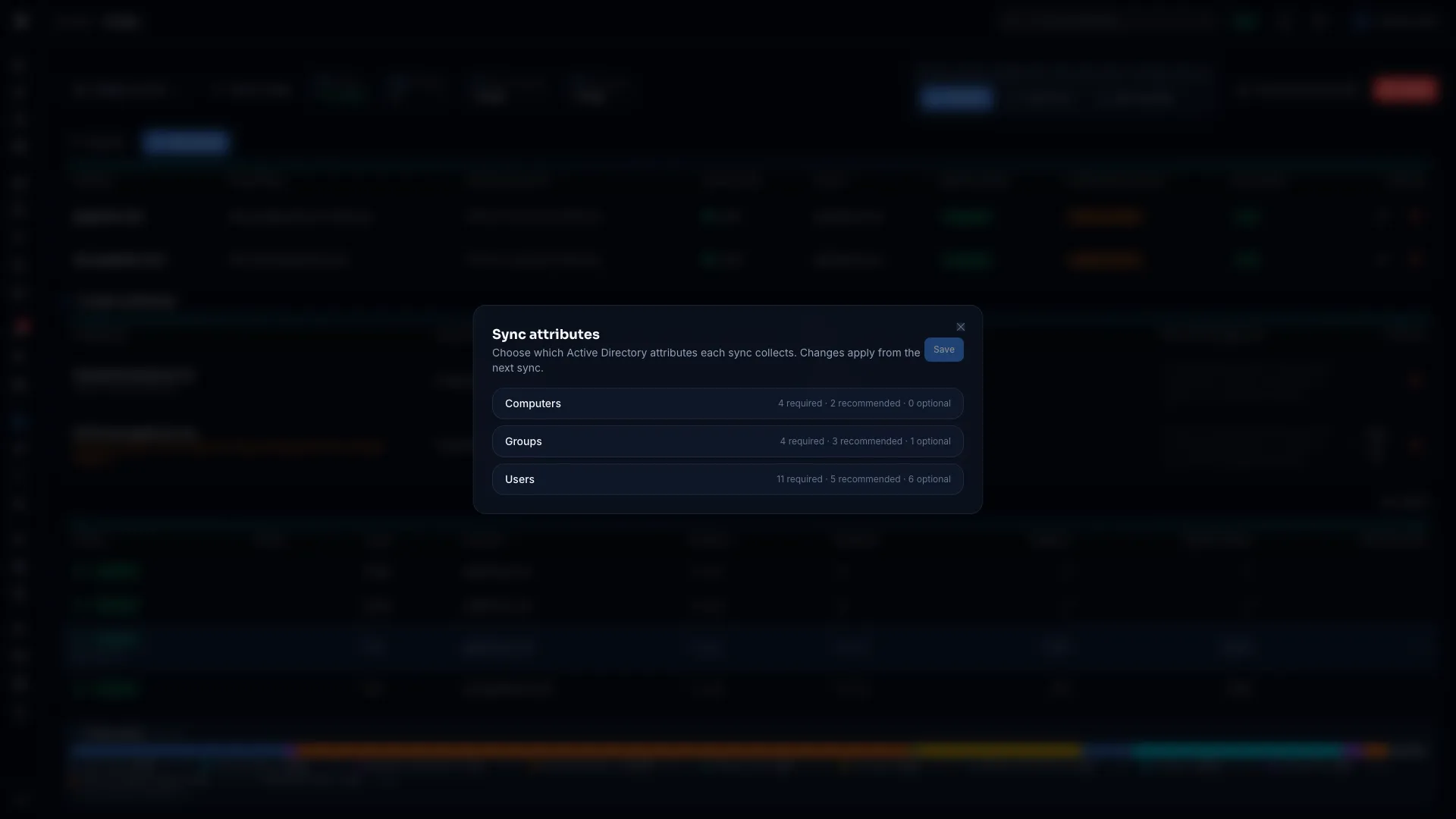
- Select the gear icon at the top right of the page. Sync attributes opens.
For Entra ID (Identity Provider)
- Select Admin > Identity Providers in the sidebar.
- Select the Entra ID provider.
- Select the gear icon at the top right of the page. Sync attributes opens.
The gear icon shows only for Admins, and on Identity Providers only while an Entra ID provider is selected.
Understanding Attribute Categories
Required Attributes
Required attributes carry a lock icon and can't be turned off. They include:
| Purpose | Active Directory | Entra ID |
|---|---|---|
| Core identity | objectGUID, objectSid, sAMAccountName, displayName, distinguishedName | id, displayName, userPrincipalName, mail (users) |
| Graph structure | memberOf, primaryGroupID, groupType | groupTypes, isAssignableToRole (groups) |
| Security analysis | nTSecurityDescriptor (who holds which permissions), adminCount (protected admin accounts), servicePrincipalName (Kerberoasting exposure), userAccountControl, msDS-AllowedToDelegateTo and msDS-AllowedToActOnBehalfOfOtherIdentity (delegation), msDS-KeyCredentialLink, msDS-SupportedEncryptionTypes, sIDHistory | appRoles (service principals) |
| Stale account detection | lastLogonTimestamp, lastLogon | approximateLastSignInDateTime (devices) |
| Peer grouping | department, title | department, jobTitle |
| Credential age | pwdLastSet | lastPasswordChangeDateTime (users), keyCredentials and passwordCredentials (applications and service principals) |
Over-Permission Analytics groups peers by department and title.
For Active Directory, the Domain (recorded by GraphnAI) group lists values GraphnAI records on each domain itself, such as its trusts. They're read every sync and can't be turned off.
Recommended Attributes
Recommended attributes are on by default. They add context for investigations and the identity flyout, and most need no special permission or license.
Active Directory examples:
- Users: description, email, manager, userPrincipalName, account expiration
- Groups: description, owner (managedBy), creation date
- Computers: description, owner (managedBy)
Entra ID examples:
- Users: employee type, company name, office location
- Groups: visibility, classification, dynamic membership rule
- Service principals: tags, notes
- Devices: manufacturer, model, registration date
Most recommended attributes hold no sensitive personal data, so you can leave them on.
Exception: The Entra ID attribute signInActivity is recommended but needs a license and a permission. See License and Permission Notes.
Optional Attributes
Optional attributes are off until you turn them on. Most fall into two groups:
-
Personal data, marked with an orange note beside the name, such as "Personal data (GDPR)":
- Personal names (givenName, sn)
- Phone numbers (telephoneNumber, mobile, mobilePhone, businessPhones)
- Physical addresses (streetAddress, city, state, postalCode, country)
- HR data (employeeHireDate)
- Photos (thumbnailPhoto, marked "Biometric data")
-
Niche technical fields:
- Windows profile paths (homeDirectory, scriptPath, profilePath)
- Intune enrollment details (enrollmentType, mdmAppId)
- Application permission requests (requiredResourceAccess)
Turn on an optional attribute only when you have a use for it. For example, to match identities with an HR system, turn on employeeID (Active Directory) or employeeId (Entra ID).
Sync Features (Entra ID)
For Entra ID, Sync attributes also lists Sync features. Each one is a whole collection step, and each is on by default:
| Feature | What it collects | Needs |
|---|---|---|
| OAuth 2.0 delegated grants | Delegated permission grants between service principals and users | DelegatedPermissionGrant.ReadWrite.All or Directory.Read.All |
| Conditional Access policies | Conditional Access policy assignments | Policy.Read.All |
| PIM eligible role assignments | Privileged Identity Management eligible (just-in-time) role assignments | RoleEligibilitySchedule.Read.Directory, and an Entra ID P2 or Governance license |
Turn a feature off if your tenant can't grant its permission or license.
Configure Attributes
Review the Current Settings
- In Sync attributes, select an object type, such as Users or Groups, to expand it. Its header counts the required, recommended and optional attributes.
- The expanded group shows the Required, Recommended and Optional attributes.
- Each attribute shows:
- Name: The LDAP attribute name (Active Directory) or Microsoft Graph property name (Entra ID).
- Description: What the attribute holds.
- State: A switch for recommended and optional attributes, or a lock for required ones.
- Notes: A personal data note in orange, or a license note with a blue info icon.
Turn Attributes On or Off
- Expand the object type.
- Find the attribute under Recommended or Optional.
- Select the switch beside it. On means each sync collects it. Off means syncs skip it.
- Change any other attributes you need. An Unsaved badge shows while you have changes.
- Select Save at the top of the dialog.
To discard your changes, close the dialog without saving.
License and Permission Notes
Entra ID signInActivity Attribute
signInActivity is recommended, but it needs:
- License: Microsoft Entra ID P1 or P2 for your tenant.
- Permission: The
AuditLog.Read.AllMicrosoft Graph permission, with admin consent.
If the tenant lacks either one, the sync collects users without signInActivity and logs a warning. It doesn't fail. Stale account detection then shows those Entra users as Not yet observed and never counts them as stale.
What to do:
- With P1 or P2 and the permission, leave it on for accurate stale account detection.
- Without them, turn it off to skip the attempt and the warning.
If you're unsure about your license, you can leave it on.
Active Directory Attributes
A standard domain user can read every required and recommended Active Directory attribute in a default configuration. No elevated permissions or special licenses are needed.
In hardened environments that restrict read access to security descriptors, nTSecurityDescriptor may be unreadable for some objects. GraphnAI then finds no permissions on those objects, and the rest of the sync runs as usual.
Example: Collecting Less Personal Data for GDPR
Your organization is subject to GDPR and wants GraphnAI to hold as little personal data as it can.
- Select Admin > Bridges and choose your Active Directory bridge.
- Open Sync attributes and expand Users.
- Under Recommended, turn off what you don't need:
mail, if you don't match users by email addressmanager, if you don't use the reporting line in investigations
- Check that every Optional attribute is still off. They're off by default.
- Select Save.
- Select Admin > Identity Providers, select each Entra ID provider, and open Sync attributes.
- Under Users, check that the optional personal data fields are off:
streetAddress,city,state,postalCode,countrymobilePhone,businessPhonesemployeeId,employeeHireDate
- Select Save.
After your changes reach each source, syncs stop collecting these fields. See When Changes Take Effect. Values already in the graph stay until you clean them up. See A Turned-Off Personal Data Attribute Still Shows.
Example: Peer Group Analytics
Your security team wants Over-Permission Analytics to find users with more permissions than their peers. It groups peers by department and title.
- Both are required, so every sync collects them:
- Active Directory:
departmentandtitle. - Entra ID:
departmentandjobTitle, which fill the same peer groups.
- Active Directory:
- No setting needs to change.
- Run a full sync of each bridge so existing identities have current values.
- When the sync finishes, open Identity Inventory to see the peer comparison. See Over-Permission Analytics.
Example: Collecting HR Employee IDs
Your team is building automation that matches GraphnAI identities with an HR system by employee ID.
- Open Sync attributes for the bridge or Entra ID provider.
- Expand Users.
- Under Optional, find
employeeID(Active Directory) oremployeeId(Entra ID). - Turn it on.
- Select Save.
- Run a full sync to collect the attribute for every existing user.
- The value appears in the Identity details section of each user's flyout.
When Changes Take Effect
For Entra ID providers:
- GraphnAI stores the settings when you save.
- The next Entra ID sync, scheduled or started by hand, asks Microsoft Graph for the attributes that are on.
- Attributes you turned off stop updating in the graph.
For Active Directory bridges:
- GraphnAI stores the settings when you save.
- The bridge gets them the next time it receives its settings: when it reconnects, or when you save its domains or schedule. Syncs before that use the attributes the bridge had.
- From then on, full and delta syncs collect the attributes that are on.
- Attributes you turned off stop updating, but their values stay in the graph until you clean them up.
Collecting a newly turned-on attribute for everyone: A delta sync only reads identities that changed since the last sync. After you turn an attribute on, run a full sync to collect it for every existing identity.
Troubleshooting
A Newly Turned-On Attribute Doesn't Show in the Identity Flyout
Possible causes:
- No sync has run since the change. Changes apply from the next sync.
- The bridge doesn't have the change yet. An Active Directory bridge gets new attribute settings when it next receives its settings.
- Only delta syncs have run. A newly turned-on attribute needs a full sync to reach every identity.
- The attribute is empty in the source. It's on, but Active Directory or Entra ID holds no value for that identity.
Fix:
- For a bridge, save its schedule or domains again while it's online, so it receives the new settings.
- In Sync history on the bridge's or provider's page, check that a sync finished after the change reached the source.
- If only delta syncs have run, run a full sync.
- Check the object in Active Directory or Entra ID to confirm it has a value.
Entra ID Users Have No Sign-In Activity
Cause: The tenant has no Entra ID P1 or P2 license, or the app registration lacks AuditLog.Read.All with admin consent. The sync then collects users without sign-in activity.
Fix:
- Select Admin > Identity Providers and select the Entra ID provider.
- Find the Sign-in activity row in the Data collected from this tenant card.
- Act on its badge:
- Not requested or Not approved: Select Update the app registration or Grant admin consent.
- Not on this license: The tenant needs Microsoft Entra ID P1 or P2.
- Turned off: Turn
signInActivityback on in Sync attributes.
- Run a sync.
If you can't get the license or the permission, turn signInActivity off. Stale account detection then shows Entra users as Not yet observed and never counts them as stale.
A Turned-Off Personal Data Attribute Still Shows
Cause: Turning an attribute off stops future syncs from updating it. It doesn't delete values already in the graph.
Fix:
To remove values already collected, you have two options:
-
Clean up by hand, if you have direct access to the database:
- Use a database query to remove the property from every affected identity.
-
Wait for the identities to go:
- Syncs no longer update the attribute, but they keep the value the graph already holds.
- A value leaves the graph only when its identity is deleted from the directory and a full sync removes it.
- This needs no action, but most values stay for as long as their accounts exist.
The Gear Icon Doesn't Show
Cause: Your account doesn't have the Admin role. On Identity Providers, the gear also needs an Entra ID provider selected.
Fix: Select an Entra ID provider, or ask an Admin to either:
- Give you the Admin role on Admin > Users, or
- Make the change for you.
Best Practices
-
Start with the defaults. Required plus recommended suits most organizations. Change them only for a specific compliance or performance need.
-
Keep stale account data on. Stale Identity Detection uses
lastLogonTimestamp(required) and, for Entra ID users,signInActivity(recommended). LeavesignInActivityon when your tenant has the license. -
Collect as little personal data as you can. If you don't need phone numbers, addresses or photos for security analysis, leave them off.
-
Record your changes. When you turn off a recommended attribute or turn on an optional one, write down why in your runbook.
-
Test before production. If you're unsure whether turning off a recommended attribute breaks a workflow, try it in a test environment first.
-
Follow a new attribute with a full sync. A full sync collects it for every existing identity.
-
Check the first sync after a change. Confirm in Sync history that it finished, then open a few identities to check the attribute.
Security Considerations
- Personal data: Each optional personal data attribute adds to your compliance scope. Turn one on only with a documented business need.
- Licenses:
signInActivityneeds Entra ID P1 or P2. Check your licensing before you rely on it. - Required attributes: Core features depend on them, so they're locked.
- Retention: Turning an attribute off doesn't delete values already collected. Plan a cleanup if you must remove personal data.
Related Documentation
- Stale Identity Detection: Uses
lastLogonTimestampandsignInActivity. - Over-Permission Analytics: Uses
departmentandtitleorjobTitle.