Risk Posture Dashboard: Identity Risk Score, Outliers and Tiered Fidelity™ Coverage
See your identity risk as one score built from eight factors, with its trend, the identities behind it, and the health of the data it's measured from.
On this page
- Overview
- Prerequisites
- Open the Dashboard
- Score and Trend
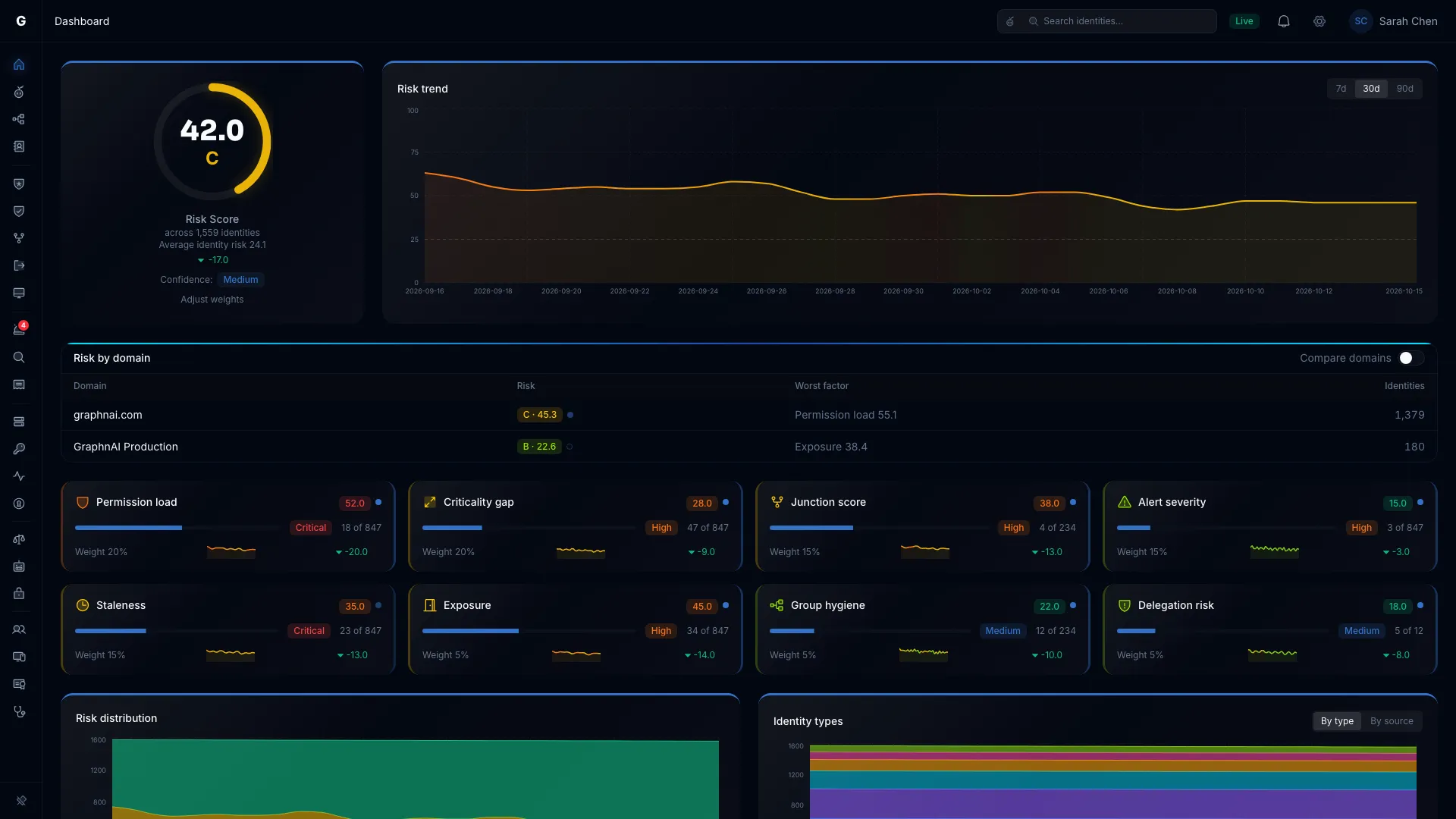
- Identity Risk Score
- Risk Trend
- Risk by Domain
- Factor Cards
- Permission Load
- Criticality Gap
- Junction Score
- Alert Severity
- Staleness
- Exposure
- Group Hygiene
- Delegation Risk
- History Charts
- Top Findings
- Open a Finding
- Change the Factor Weights
- Platform Health
- Telemetry Coverage
- Sync Freshness
- License Use
- Permissions by Fidelity
- Domains Seen but Not Connected
- Audit Policies to Turn On
- Audit Coverage
- Operational Warnings
- Non-Human Identities
- Reading Unusual Values
- Troubleshooting
- The dashboard says "No identity data yet"
- The dashboard says "Couldn't load the risk posture"
- The score seems too high or too low
- Permission load is 0
- Platform Health doesn't appear
- Telemetry coverage shows 0%
- An audit policy entry stays after you turned on the policy
- Sync freshness is red but there's no warning
- License use shows "No license applied"
- Best Practices
Overview
The dashboard combines eight risk factors into one Identity risk score from 0 to 100. Lower is better. It opens after you sign in, unless you chose a different Start page on your profile.
The page reads from top to bottom:
- Score and trend: the score gauge with its letter grade, and the Risk trend chart.
- Risk by domain: one row per domain, shown when you have more than one.
- Factor cards: one card for each of the eight factors.
- History charts: Risk distribution and Identity types.
- Top findings: the identities with the highest risk.
- Platform Health: how complete and current the data behind the score is.
- Non-human identities: service accounts, service principals, applications, devices and computers.
The eight factors and their default weights:
| Factor | What it measures | Default weight |
|---|---|---|
| Permission load | Outliers: identities with permission counts far above their peer group's mean | 20% |
| Criticality gap | Identities that can reach assets above their own criticality | 20% |
| Junction score | Identities that sit where many attack paths meet, by betweenness centrality | 15% |
| Alert severity | Open detection alerts and standing signs of compromise | 15% |
| Staleness | Accounts inactive past the limit for their type | 15% |
| Exposure | Open findings from the security posture checks | 5% |
| Group hygiene | Identities nested deep in groups | 5% |
| Delegation risk | Custom Active Directory delegations that break best practice | 5% |
Prerequisites
- Role: Operator or Admin. A Viewer can open the page, but the risk data doesn't load for Viewers.
- Data: At least one finished sync from a bridge or from Entra ID.
- Analysis: The analysis that runs after a sync must have finished once. It runs after every full sync, and after a delta sync that collected changes.
[!NOTE] The score appears after the first analysis. The trend starts after that: a point is added after each day's sync.
Open the Dashboard
Select Dashboard in the sidebar.
The numbers reload when you return to the browser tab and they're more than 5 minutes old.
Score and Trend
Identity Risk Score
The gauge on the left shows:
- The score, from 0 to 100, with one decimal place.
- The letter grade.
- How many identities the score covers.
- Average identity risk: the average of the per-identity risk scores in Identity Inventory. It shows only when you view all domains.
- How far the score moved over the selected range. Up is red, down is green.
- Confidence: how much of your access telemetry has seen in use. See Confidence.
- Adjust weights: opens the weights dialog. See Change the Factor Weights.
| Score | Grade | Color |
|---|---|---|
| 0 to 10 | A | Green |
| Above 10, up to 25 | B | Lime |
| Above 25, up to 50 | C | Yellow |
| Above 50, up to 75 | D | Orange |
| Above 75 | F | Red |
A factor that has no data yet is left out of the score, and the other weights are scaled up to fill its share. When no factor has data, the gauge shows a dash and "No factor observed yet. The score appears after the first analysis."
Confidence
The Confidence chip under the gauge reads High, Medium or Low. It says how sure the score is, based on the share of your permissions that telemetry has seen in use. Hover over the chip for the percentage. Confidence never changes the score.
A dash in place of the chip means too few permissions were collected to grade confidence. Its tooltip gives the reason. To raise confidence, add telemetry coverage. See Telemetry Coverage.
Risk Trend
The Risk trend chart plots the score for each day. Choose 7d, 30d or 90d in the chart's header. The default is 30 days.
The range you choose also sets the change under the gauge, the factor cards' sparklines and changes, and both history charts.
The dashed line at 25 is the boundary between grades B and C. A day with no graded score shows as a gap in the line.
Risk by Domain
When you have more than one domain, the Risk by domain table appears under the score. It lists the worst domain first.
| Column | Description |
|---|---|
| Domain | The domain or Entra ID tenant |
| Risk | The domain's grade and score, with a confidence dot beside it |
| Worst factor | The factor with the highest score in that domain, and its score |
| Identities | How many identities the domain holds |
Select a row to show only that domain. The gauge, the factor cards, the history charts and Top findings switch to it, and the gauge names the domain. Select the row again to go back to all domains. The address bar keeps the domain, so you can share the link.
A domain with too little data to grade shows a dash in the Risk column.
Turn on Compare domains in the table's header to replace the factor cards with one row of cards per domain.
Factor Cards
Eight cards show each factor's share of the score. Each card shows:
- Score: the factor's score from 0 to 100. Hover over it to see whether the worst finding or the average across all identities set it.
- Confidence dot: how much of the population this factor measured. Hover over it for the count of identities not yet observed.
- Worst finding: a band such as High or Critical, when the factor has findings.
- Findings: how many identities have a finding, out of how many it applies to, for example "23 of 4,200".
- Weight: the factor's share of the score.
- Sparkline and change: the factor's trend over the selected range.
A factor with no data shows a dash in place of its score. It isn't counted in the score until it's observed.
Select a card to open the page behind it.
Permission Load
Outliers: identities whose permission count is at least 2σ (two standard deviations) above their peer group's average. The count includes permissions granted directly and permissions inherited through group membership. Peers share a domain, identity type, department and title.
Opens: Identity Inventory, Users, filtered to over-permissioned identities (the outliers).
Criticality Gap
Identities that can reach assets at least one criticality level above their own. A Low identity with a path to a Critical asset breaks the principle of least privilege.
Opens: Identity Inventory, Users, sorted by risk.
Junction Score
Identities flagged as Critical Junctions: points in the access graph where low-privilege and high-privilege access meet, found by betweenness centrality. Each identity's junction score comes from the Critical Junctions analysis.
Opens: Critical Junctions.
Alert Severity
Identities with open detection alerts, weighted by the alerts' severity and number. An open indicator of compromise from a posture check also counts. The factor takes whichever of the two is worse.
Opens: Detection Alerts.
Staleness
Accounts that haven't been used within the limit for their type:
| Identity type | Stale after |
|---|---|
| Users | 90 days |
| Computers and devices | 30 days |
| Service accounts and service principals | 180 days |
Groups, roles and applications don't sign in, so they aren't counted.
Opens: Identity Inventory, Users, filtered to stale identities.
Exposure
Identities with open findings from the security posture checks: credential hygiene, stale privileged accounts, AD CS misconfigurations, cross-tier credential exposure and the rest of the check library. The worst open finding sets the card's band. Every identity's own risk score carries an Exposure factor from the same findings. See Exposure Risk Factor.
Opens: Security Posture.
Group Hygiene
Identities nested three or more levels deep in groups. Deep nesting makes access hard to audit and widens what a compromise reaches. Empty groups don't count toward this factor.
Opens: Identity Inventory, Groups, filtered to group hygiene findings.
Delegation Risk
How well custom delegations on OUs and containers follow Microsoft's best practices. The analysis weighs breadth, severity, scoping, trustee health and cross-plane delegations. See Delegation Risk.
Opens: Delegation Risk.
History Charts
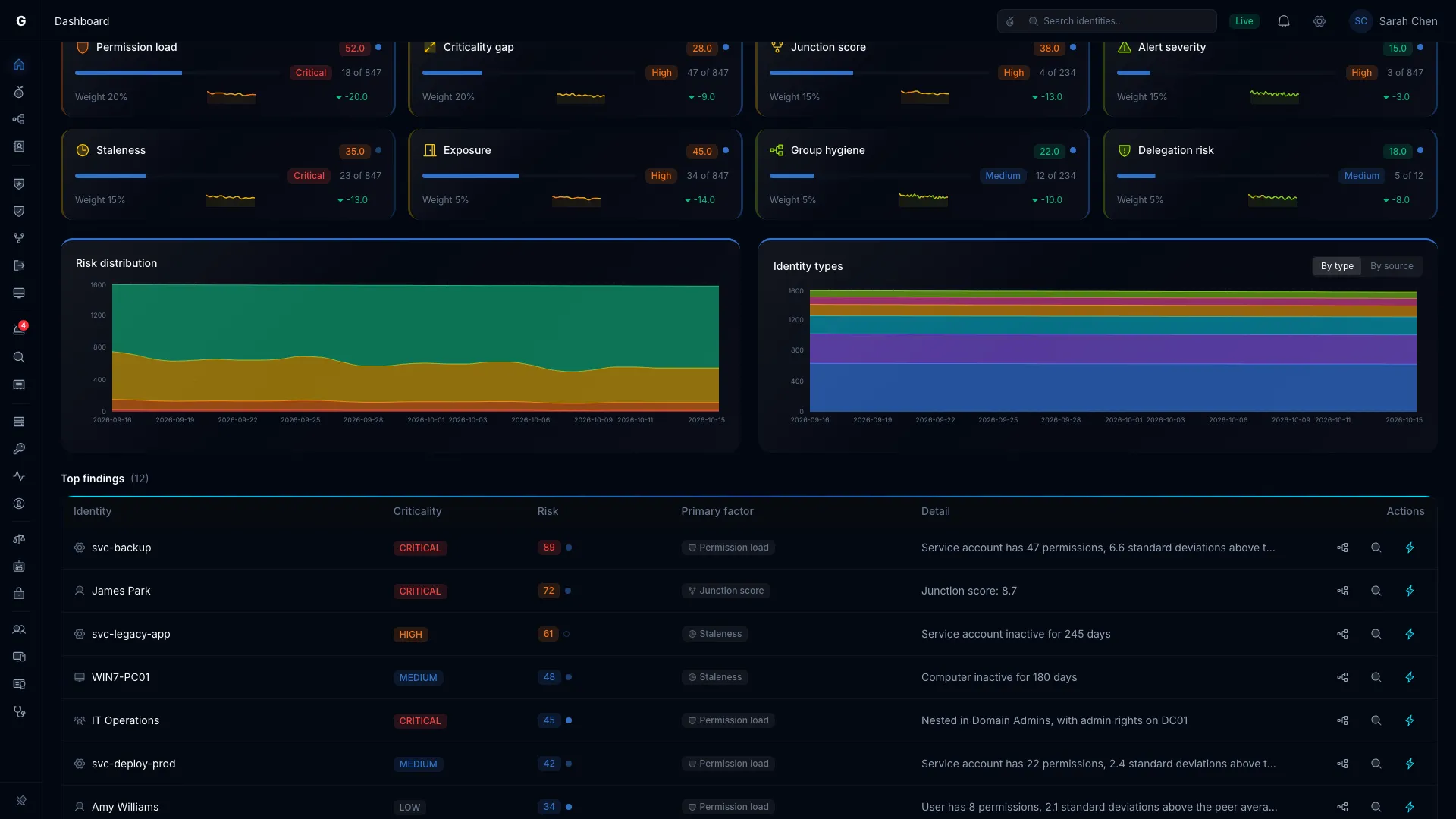
Both charts use the range you chose on the Risk trend chart.
- Risk distribution: how many identities sit at each risk level (Critical, High, Medium, Low) over time. It shows whether high-risk identities are being fixed or piling up.
- Identity types: identity counts over time. Select By type to split them by identity type, or By source to split them into on-premises, cloud and hybrid.
Both charts start after the first daily snapshot.
Top Findings
Top findings lists the identities with the highest risk, across all factors.
| Column | Description |
|---|---|
| Identity | The identity's name and type icon |
| Criticality | The identity's criticality level |
| Risk | The identity's risk score and level. Hover over it for the breakdown by factor. |
| Primary factor | The factor that contributes most to the identity's risk |
| Detail | A short description of the finding |
| Actions | Open in Graph Explorer (tree-structure icon), Start investigation (magnifying glass, Operator), Explain with Graphne (Graphne icon) and Select Fire (lightning bolt, Operator) |
The table lists active accounts before disabled ones. Within each group, it sorts by risk, then criticality, then confidence. Select a column header to sort by that column instead.
Open a Finding
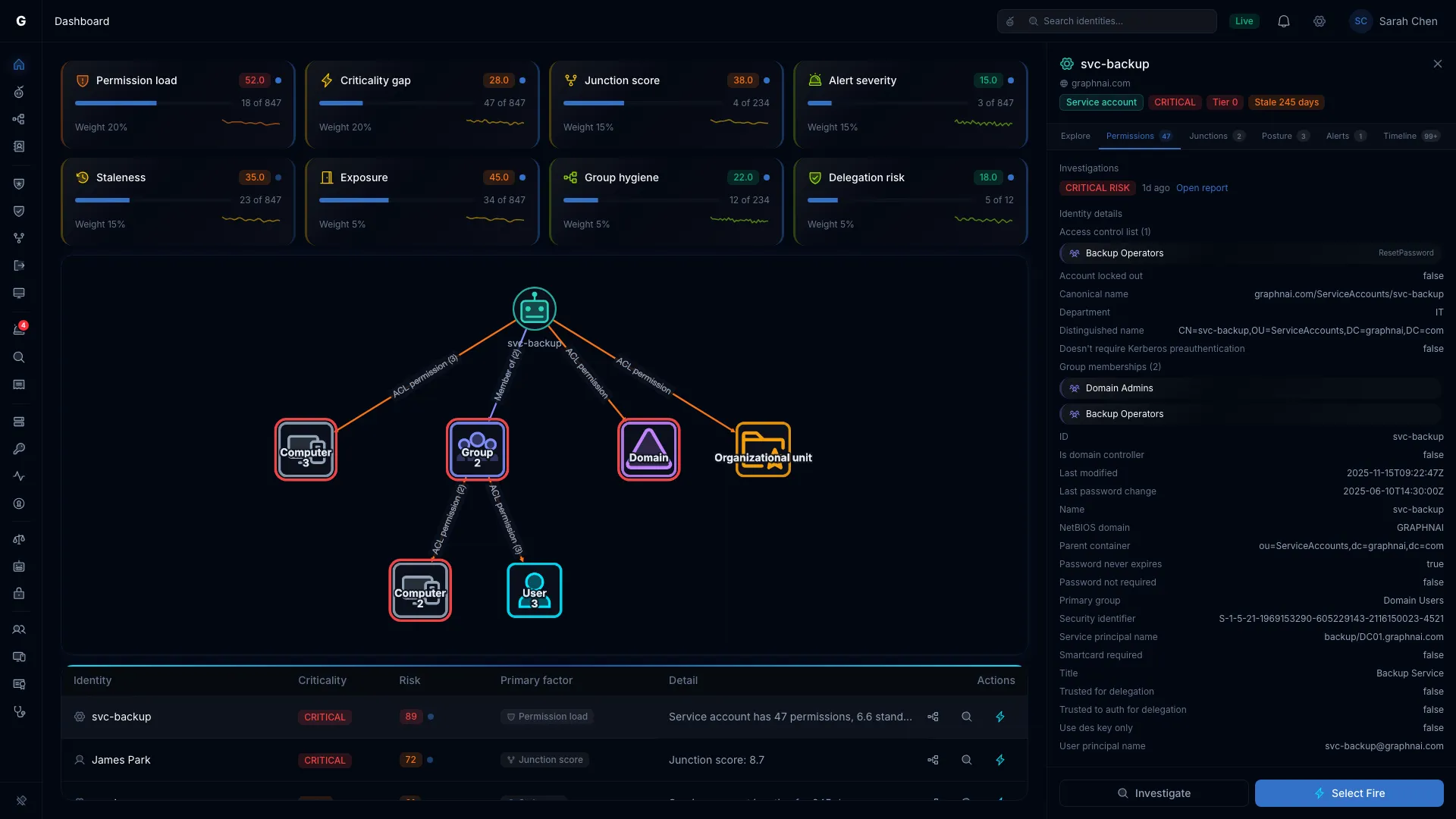
Select a row to open the finding. The page switches to a split view:
- The factor cards stay at the top.
- The middle shows a graph that fits the finding: its blast radius, its permissions, or the junction flow.
- The findings table stays below the graph.
- The identity's details open on the right, with tabs to investigate it (Explore, Permissions, Membership, Junctions, Posture, Alerts, Timeline). A link at the bottom opens the full list for the finding's category, such as View all stale identities.
A finding whose primary factor is Permission load opens on the Permissions tab, beside its permission graph. The tab shows what the Permissions tab shows in Identity Inventory: Inventory metrics, Over-permission analysis, Permission breakdown, Peer group, and AdminSDHolder protection when it applies. Selecting Permissions again keeps you on the dashboard. The other tabs open their own pages, and Timeline opens in place.
Select the row again, or close the details, to return to the full dashboard.
To get an explanation from Graphne, select the text in the Detail column. This needs the Operator role and a configured AI provider.
Change the Factor Weights
Each factor's weight sets how much it counts toward the score.
- Select Adjust weights under the gauge, or the settings icon in the top bar.
- In Risk score weights, drag the slider for each factor. The factors are grouped under Security risk, Posture health and Hygiene.
- Select Apply.
Each slider shows its share as a percentage, and the shares always add up to 100%. No factor can go to zero. Score with these weights previews the result while every factor has data. Select Reset to defaults to go back to the default weights.
Your weights are saved in this browser and apply only to your view. If the factors change in an update, saved weights go back to the defaults and a message says so.
Some reasons to change a weight:
- Raise Exposure when posture hygiene is your top priority.
- Raise Alert severity during an active incident.
- Lower Staleness when your offboarding runs long by design.
Platform Health
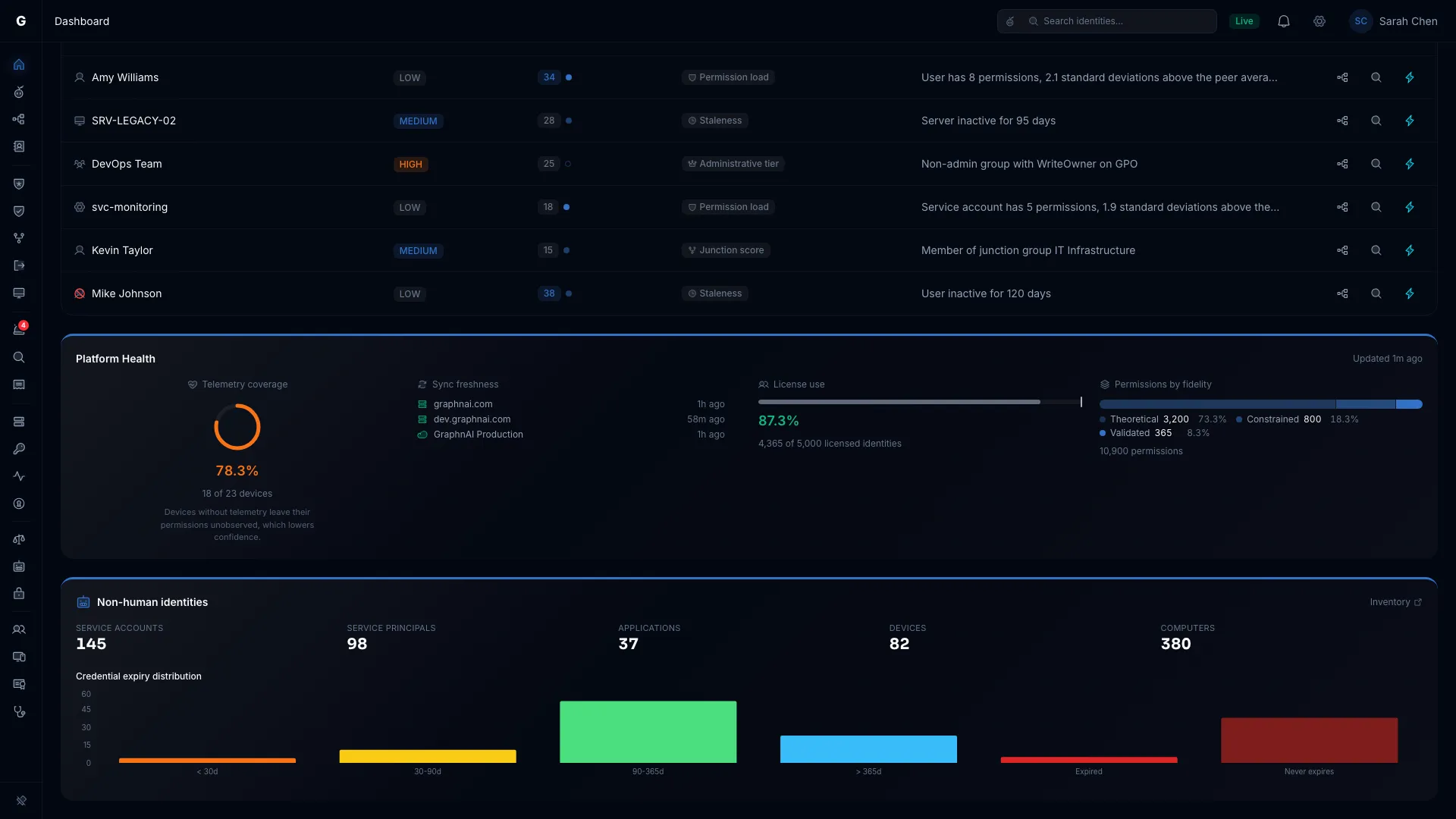
Platform Health shows how complete and current the data behind the score is. It isn't part of the score. It appears after your first sync finishes. Updated in its corner shows when the analysis last ran.
Telemetry Coverage
The gauge shows the share of your enabled computers and devices that had a session observed on them in the last 90 days. The same window applies to the cross-tier credential exposure check. A device whose collection stops drops out of the count 90 days after its last session. Privilege observations don't count, because some of them come from Group Policy with no collector involved.
| Color | Coverage |
|---|---|
| Green | 80% or more |
| Orange | 50% to 79% |
| Red | Below 50% |
Under the gauge, "142 of 180 devices" gives the counts. Behavioral detections can't fire for a device without telemetry, and its permissions stay unobserved, which lowers confidence.
To raise coverage, set up telemetry collection on your domain controllers and the machines you want to monitor. See Telemetry Pipeline.
Sync Freshness
Each domain has a row with:
- An icon for its source: a hard drive for on-premises Active Directory, a cloud for Entra ID.
- The domain's name.
- Failed or Stale when the last sync failed or is more than 72 hours old.
- When it last synced, for example "3 hours ago".
| Color | Last sync |
|---|---|
| Green | Within 24 hours |
| Orange | 24 to 72 hours ago |
| Red | More than 72 hours ago, or failed |
Admins can select a row to open its source: the bridge for an on-premises domain, or Admin > Identity Providers for Entra ID. A failed sync also adds an entry under the operational warnings.
License Use
The bar compares the users you've synced with your license limit. On a license issued before the user count, it compares identities instead.
| What you see | What it means |
|---|---|
| Green percentage | You use 80% or more of the limit. |
| Blue percentage | You use less than 80%. Some domains may not be synced yet. |
| Red percentage, "Over the license limit" | You've synced more users than your license allows. |
| A count and "No limit" | Your license has no limit. A preview license is one. |
| A dash and "Counting users…" | GraphnAI hasn't finished the first user count. |
| A count and "No license applied." | No license is applied. |
If you're over the limit, contact GraphnAI about a larger license. On a paid license, collection continues and the difference is settled at renewal. See License Enforcement.
Permissions by Fidelity
The bar splits your permissions by Tiered Fidelity™ level. A deeper blue means a stronger level.
| Level | What it means |
|---|---|
| Theoretical | The permission is granted but hasn't been checked against a control or seen in use. Every new permission starts here. |
| Constrained | The permission was checked against a control, such as a Conditional Access policy, a Group Policy setting or a delegation, whether the control allows it or blocks it. |
| Validated | Telemetry saw the permission in use, through an authentication or logon event, or a privilege-use event. |
The bar counts only permissions that grant access: ACL grants, app role and directory role assignments, ownership, delegation rights, gMSA password reads and SID history. Group memberships and containment describe the shape of the directory, so they aren't counted.
A new domain, or one with light telemetry coverage, shows 0% or close to 0% Validated. That's expected. The share grows as telemetry sees permissions in use, and no setting promotes a permission directly. Full-Auto removes a permission on its own only when GraphnAI has shown that nobody uses it, so a low Validated share doesn't block it by itself. See Full-Auto Execution.
To raise the Validated share, collect telemetry from your domain controllers. See Telemetry Pipeline.
Domains Seen but Not Connected
This list shows domains GraphnAI has seen but has no sync set up for. Each entry shows:
- The domain's name.
- Where it was seen: DNS discovery, Entra ID sync or Telemetry.
- An identity count for a domain seen through Entra ID, or an event count for one seen in telemetry.
Admins see Configure, which opens Bridges. To clear an entry, set up a bridge or identity provider that covers the domain, then run a full sync.
Built-in names such as NT AUTHORITY, BUILTIN and NT SERVICE are left out.
Audit Policies to Turn On
This list appears when a domain is sending telemetry but none of the events a detection rule needs have arrived. GraphnAI checks a domain after it has sent telemetry for 7 days or more. Each entry names the rule and the audit subcategory to turn on, then the domain and how long it has gone without the events, for example "corp.local, no events in 12 days". Hover over that part to see the missing event IDs.
| Detection rule | Event IDs it needs | Audit subcategory |
|---|---|---|
| Brute force | 4625, 4771, 4776 | Audit Logon and Audit Kerberos Authentication Service |
| Password spray | 4625 | Audit Logon |
| Kerberoasting | 4769 | Audit Kerberos Service Ticket Operations |
| DCSync | 4662 | Audit Directory Service Access |
| Tier 0 group change | 4728, 4729, 4732, 4733, 4756, 4757 | Audit Security Group Management |
| Audit tampering | 4719 | Audit Policy Change |
To clear an entry, turn on the audit subcategory through Group Policy on your domain controllers. The entry goes away after the events start arriving.
Audit Coverage
Audit coverage shows whether GraphnAI is receiving each domain controller's authentication events. It appears for Operators and Admins, and Viewers don't see it. It lists on-premises Active Directory domains only.
For each domain, one bridge signs in to every domain controller as the domain's sync account, and once with a name that doesn't exist. GraphnAI then looks for the events those sign-ins should produce. If the events arrive, that kind of auditing is proven. The checks repeat on their own, so a gap that opens later shows up here.
Each domain has a block. Its header names the bridge doing the checking, for example "Checked by bridge-east". Select Hide or Show to collapse or expand its table. A domain opens expanded while any domain controller has a gap.
These meters sit under the header:
- Kerberoasting detection: how many of the domain's domain controllers prove that Kerberos service ticket auditing works. Kerberoasting detection needs those events.
- Credential Validation (Failure): how many prove that failed NTLM sign-ins are audited. It appears once at least one domain controller proves it.
Each reads like "3 of 4 domain controllers". If the audit policy list above already shows a Kerberoasting gap for the domain, that meter appears there instead.
The table has one row per domain controller. A read-only domain controller (RODC) carries an RODC tag. A domain controller that GraphnAI hasn't synced yet shows Not synced yet, and its coverage counts after the next sync. Domain controllers with a gap sort first. Larger domains show the first 10 rows. Select Show all to see the rest.
The columns are grouped under the audit subcategory names:
| Column group | Columns |
|---|---|
| Event forwarding | One column |
| Kerberos Authentication Service | Success, Failure |
| Kerberos Service Ticket Operations | Success, Failure |
| Credential Validation | Success, Failure |
A cell reads Proven, with a Since line giving the date and the days of unbroken coverage, when the events arrive. Otherwise it reads Not proven with a short reason. Hover over a cell for the full sentence and when the last check ran. A red Not proven means the check ran and the events didn't arrive. An orange one means the check couldn't run. If one domain controller has the same reason in every column, the row shows it once.
The two Kerberos Failure columns always read Not tested. That's expected and isn't an error. The audit check doesn't test this outcome.
| Reason | What to do |
|---|---|
| Events not received | Check the domain controller's audit policy and event forwarding. |
| Unreachable | The bridge can't reach the domain controller. If it was retired, remove it from the directory. |
| Not in the directory's list | The directory doesn't list this domain controller. If it was retired, remove it from the directory. |
| Not a listed controller | The bridge allows plain LDAP, so it checks only the controllers on the domain's list. Add the controller to the list, or switch the bridge to LDAPS. |
| Identity not verified | The host didn't prove it's this domain controller, so the bridge sent no credentials. Check its DNS record, its certificate and SMB signing. |
| Sync account rejected | The domain controller rejected the sync account's password, or the account is locked or disabled. Checks resume after the next successful sync. |
| Sync account not confirmed | GraphnAI hasn't confirmed the sync account's identity yet. This clears after the next successful sync. |
| Sync account in another domain | Use a sync account from this domain. |
| NTLM blocked | The domain controller refused NTLM, so Credential Validation can't be tested. Kerberos checks still run. |
| Account restricted | The sync account isn't allowed to use NTLM here, for example because it's in Protected Users. |
| No AES keys | Change the sync account's password once so the domain stores AES keys for it. |
| Unknown name accepted | The domain controller accepted a sign-in for an account that doesn't exist, which usually means the Guest account is enabled. |
| Clock skew | Sync the bridge host's time. |
| Couldn't read the clock | Check that the domain controller answers directory queries. |
| GraphnAI unavailable | GraphnAI was down or not accepting events during the check. It doesn't count against the domain controller. |
| Check skipped | The bridge started the check too late. It doesn't count against the domain controller. If it keeps happening, check the bridge host's load and network. |
| No report | The bridge didn't report the check. Check that it's online and connected. |
| Bridge error or Test couldn't finish | The bridge's log has the details. |
| No bridge assigned | No online bridge is checking this domain. Check that a bridge for the domain is online. |
| Bridge update needed | Update the domain's bridge. See Bridge Configuration. |
A domain-wide reason such as No bridge assigned appears once under the header, and each row shows only Not proven. When no domain has a bridge assigned, the card says "No bridge is checking audit coverage yet." and lists each domain's reason.
A line under the meters reads: "Automatic containment needs 30 days of unbroken coverage on every domain controller before it runs without approval." It shows until every checked column on every domain controller has held 30 days. Coverage starts after the upgrade and isn't backfilled. A gap restarts the 30 days for that column. See Full-Auto Execution.
Operational Warnings
Warnings appear at the bottom of the section when something needs attention. Each one shows its source, the domain, the message and when it happened.
| Source | What it reports |
|---|---|
| Bridge | A bridge that isn't connected or reports an error for the domain |
| Sync | A sync that failed or finished with gaps in the last 3 days |
| Group membership | Group memberships that weren't fully collected |
| Analysis | Domains left out of Platform Health because their analysis didn't finish |
| Classification rules | Built-in criticality rules that are missing. Restart the server to load them. |
Non-Human Identities
The Non-human identities section at the bottom shows:
- Counts of Service accounts, Service principals, Applications, Devices and Computers. Select a count to open that type in Identity Inventory.
- Credential expiry distribution: how many credentials expire in under 30 days, 30 to 90 days, 90 to 365 days or more than 365 days, and how many have expired or never expire.
The riskiest non-human identities appear in Top Findings alongside every other identity type. Select Inventory to open the service accounts in Identity Inventory. See NHI Discovery.
Reading Unusual Values
| What you see | What it means |
|---|---|
| A score of 0 and grade A | No findings. |
| A factor score of 0 | That factor has no findings. Common in small environments. |
| A dash on a factor card | No data for that factor yet. It isn't counted in the score. |
| "No trend yet. A point is added after each day's sync." | No daily snapshot exists yet. |
| "Analysis didn't finish. Some numbers below may be missing or out of date." | An analysis step failed for the named domain. Run the sync again from Bridges. |
Troubleshooting
The dashboard says "No identity data yet"
Cause: No sync has finished.
Fix: If you haven't connected a bridge, select Set up a bridge. If a sync is running, select View sync progress and wait for it to finish.
The dashboard says "Couldn't load the risk posture"
Cause: The server couldn't be reached, or your account is a Viewer.
Fix: Refresh the page. If you're a Viewer, ask an Admin for the Operator role. If the error stays, an Admin can check the server logs and the /ready endpoint.
The score seems too high or too low
- Check the factor cards to see which factor drives the score.
- Hover over a factor's score. The worst finding can set a factor's score even when most identities are clean. The finding count on the card tells the two cases apart.
- Change the factor weights if one factor counts too much for your environment.
Permission load is 0
Cause: The over-permission results are built by the analysis after a sync. If it hasn't run, there's nothing to show.
Fix: Run a full sync. Check the sync's phase timeline for the analytics phase.
Platform Health doesn't appear
Cause: The section stays hidden until a sync has finished.
Fix:
- Open Bridges in the sidebar and confirm a bridge is set up.
- Start a sync from the bridge.
- Wait for the sync to finish.
- Return to the dashboard.
Telemetry coverage shows 0%
Cause: No computer or device had a session observed on it in the last 90 days. Collection either hasn't started or has stopped.
Fix:
- Confirm telemetry collection is running. See Telemetry Pipeline.
- Check the server logs for telemetry ingestion messages.
- In Graph Explorer, look for computers or devices with session edges.
An audit policy entry stays after you turned on the policy
Cause: The entry clears only when the events arrive, and turning on a policy doesn't create events by itself.
Fix:
- Confirm the policy applied, for example with
gpresult /ron a domain controller. - Wait for activity that produces the events.
- The entry clears at the next analysis after the events arrive.
Sync freshness is red but there's no warning
Cause: The last sync succeeded, but it's more than 72 hours old.
Fix: Open Bridges and start a sync for the domain.
License use shows "No license applied"
Cause: No license is applied to the server.
Fix: An Admin imports the license file on Admin > License. See License Enforcement.
Best Practices
- Set a target. Aim for a score of 25 or less (grade B), and share the target with your security team.
- Check the trend every week. An upward drift is easier to stop early.
- Fix Tier 0 findings first, even when the overall score is low.
- Weight what you answer for. Raise the weights of the factors your compliance requirements care most about.
- Open the factor cards. The score tells you how much risk you carry. The cards tell you where it is.
- Report with the grade and the trend. They show the direction of your risk to people who don't work in the product.