Identity Bridge: Collect Active Directory over LDAPS, Outbound-Only
Connect GraphnAI to your on-premises Active Directory without opening inbound firewall ports. The bridge collects over LDAPS and SMB, and connects out to GraphnAI with mutual TLS (mTLS).
On this page
- Overview
- Prerequisites
- Service Account Requirements
- Create a Bridge
- Deployment
- Option A: Docker (Recommended)
- Option B: Standalone Binary
- Configuration
- Required Settings
- Certificate Files (mTLS)
- Safety and Security Settings
- Legacy Single-Domain Settings
- mTLS Certificate Setup
- What Each File Does
- Trusting Custom Enterprise CAs (for LDAPS)
- Configuring Domains
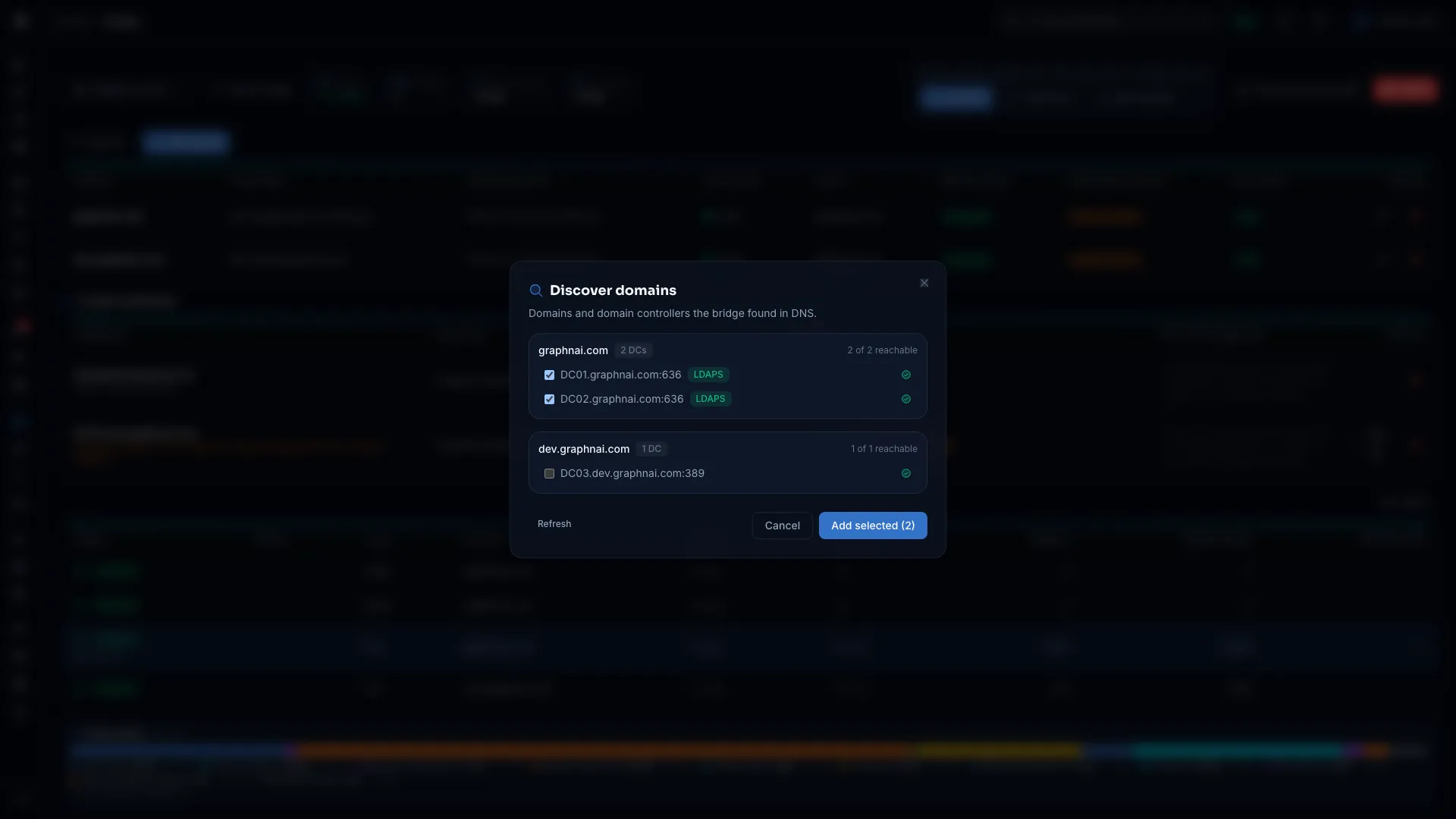
- Discover Domains
- Multi-Domain Support
- Sync Behavior
- Sync Types
- Reconciliation
- On-Demand Sync
- What the Bridge Collects
- Identity Objects
- Relationships
- Permission Edges (ACL Analysis)
- GPO Policy Data
- Read-Only Mode
- Sync History and Monitoring
- Troubleshooting
- The Bridge Doesn't Show Online
- Test Connection Fails
- The Sync Finishes but No Objects Appear in the Graph
- Changes in Active Directory Don't Show in the Graph
- SYSVOL or GPO Collection Fails
- Access Denied (403 Forbidden)
- Best Practices
Overview
The Identity Bridge is an agent that runs inside your network, usually as a Docker container, and collects identity data from Active Directory. It connects out to GraphnAI over a mutual TLS (mTLS) connection. You open no inbound firewall ports and need no VPN.
The bridge collects users, groups, computers, organizational units, security descriptors and Group Policy data. GraphnAI builds the identity graph's edges (memberships and permissions) from that data, at the Theoretical and Constrained fidelity levels. The bridge also carries out remediation actions that GraphnAI sends, such as disabling a user or removing a group membership, with safety checks before each change.
The bridge keeps one outbound WebSocket connection to GraphnAI and sends a heartbeat every 30 seconds. If the connection drops, the bridge tries to reconnect every 30 seconds.
Prerequisites
- Admin role in GraphnAI to create the bridge.
- A host with Docker (recommended), or a Linux or Windows host for the binary. Plan 2 to 4 GB of RAM and 2 to 4 CPU cores. See Hardware Sizing.
- An Active Directory service account with read access to the directory. See Service Account Requirements.
- Network paths from the bridge host:
- To your domain controllers on port 636 (LDAPS) or 389 (LDAP), and on port 445 (SMB) for Group Policy collection.
- To GraphnAI on port 8443, outbound only.
Service Account Requirements
The service account the bridge uses must have:
- Read access to every identity object: users, groups, computers, OUs and containers.
- Read access to the
nTSecurityDescriptorattribute on every object. GraphnAI needs it to find who holds which permissions. - Access to the SYSVOL share for Group Policy collection. Standard domain member access is enough.
- No write permissions, unless you plan to use remediation actions.
A standard domain user with "Read all properties" delegated at the domain root is enough for most environments. Don't use a Domain Admin or another privileged account.
Create a Bridge
Creating a bridge gives it an identity and the certificates it uses to prove that identity to GraphnAI. You do this once for each bridge. It takes the Admin role.
- Select Admin > Bridges in the sidebar.
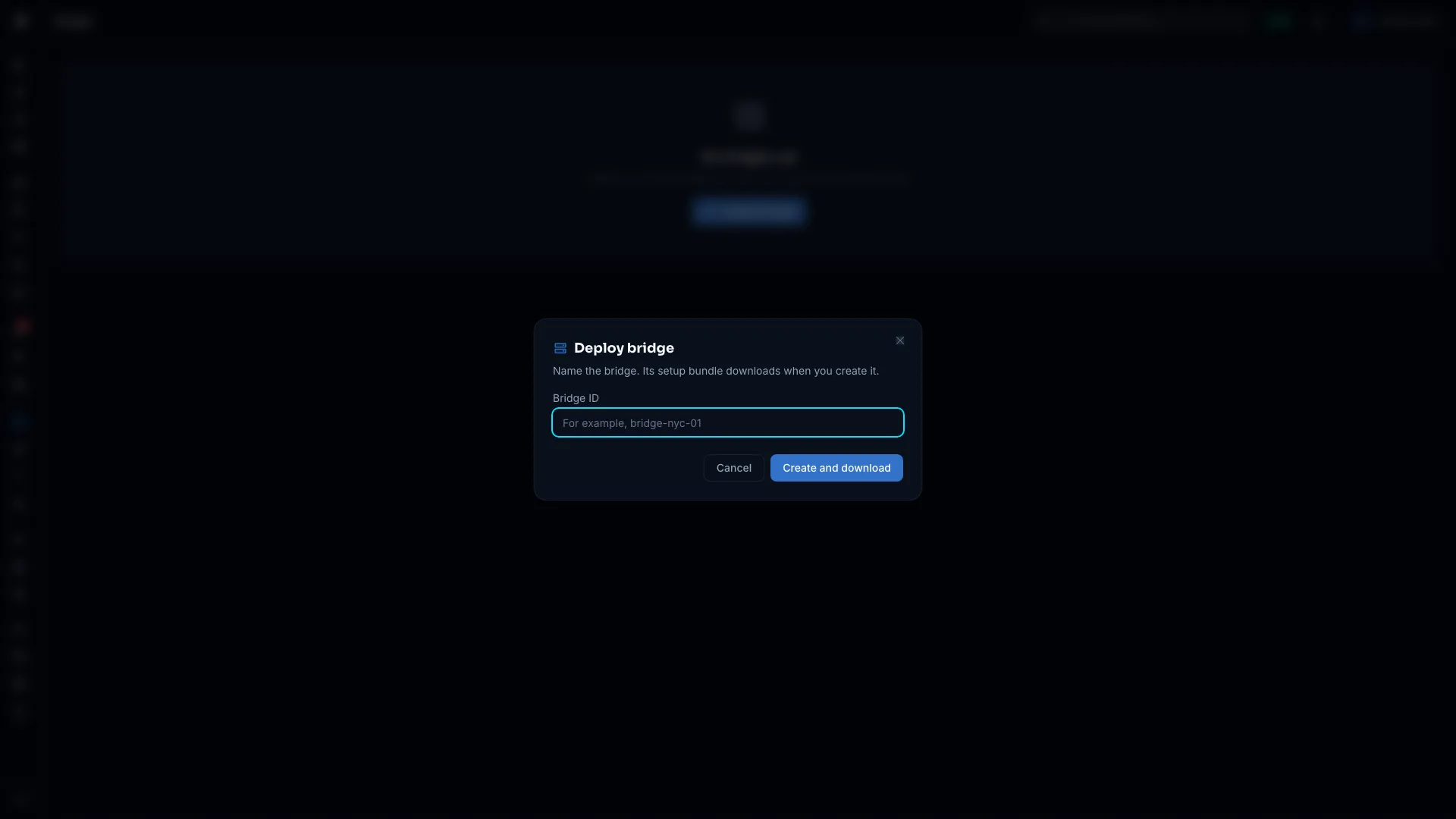
- Select Deploy bridge.
- Enter a Bridge ID, such as
bridge-nyc-01. Use letters, numbers, hyphens and underscores. You can't change the ID later. - Select Create and download.
A ZIP file named bridge-<id>-setup.zip downloads. It contains:
| File | Contents |
|---|---|
cert.pem |
The bridge's client certificate |
key.pem |
The bridge's private key |
ca.crt |
GraphnAI's root certificate, which the bridge uses to verify the server |
docker-compose.yml |
A ready-to-use Docker Compose file |
README.md |
Quick-start steps |
The new bridge's page opens with its status Offline until the bridge connects.
[!IMPORTANT] Store the ZIP file securely. It holds the bridge's private key (
key.pem), and GraphnAI keeps no copy. If you lose it, select Download setup bundle on the bridge's page for a new bundle with a new key and certificate. A bundle's certificate is valid for one year. A new bundle doesn't revoke the old certificate, which stays valid until it expires.
Deployment
Option A: Docker (Recommended)
The Compose file in the bundle already sets the bridge ID, the server address and the certificate paths.
- Copy the ZIP file to the host that will run the bridge.
- Extract it into a directory, such as
/opt/graphnai-bridge/. - Start the bridge:
cd /opt/graphnai-bridge
docker compose up -d- Check that it connected:
docker compose logs -fLook for a log line like this one:
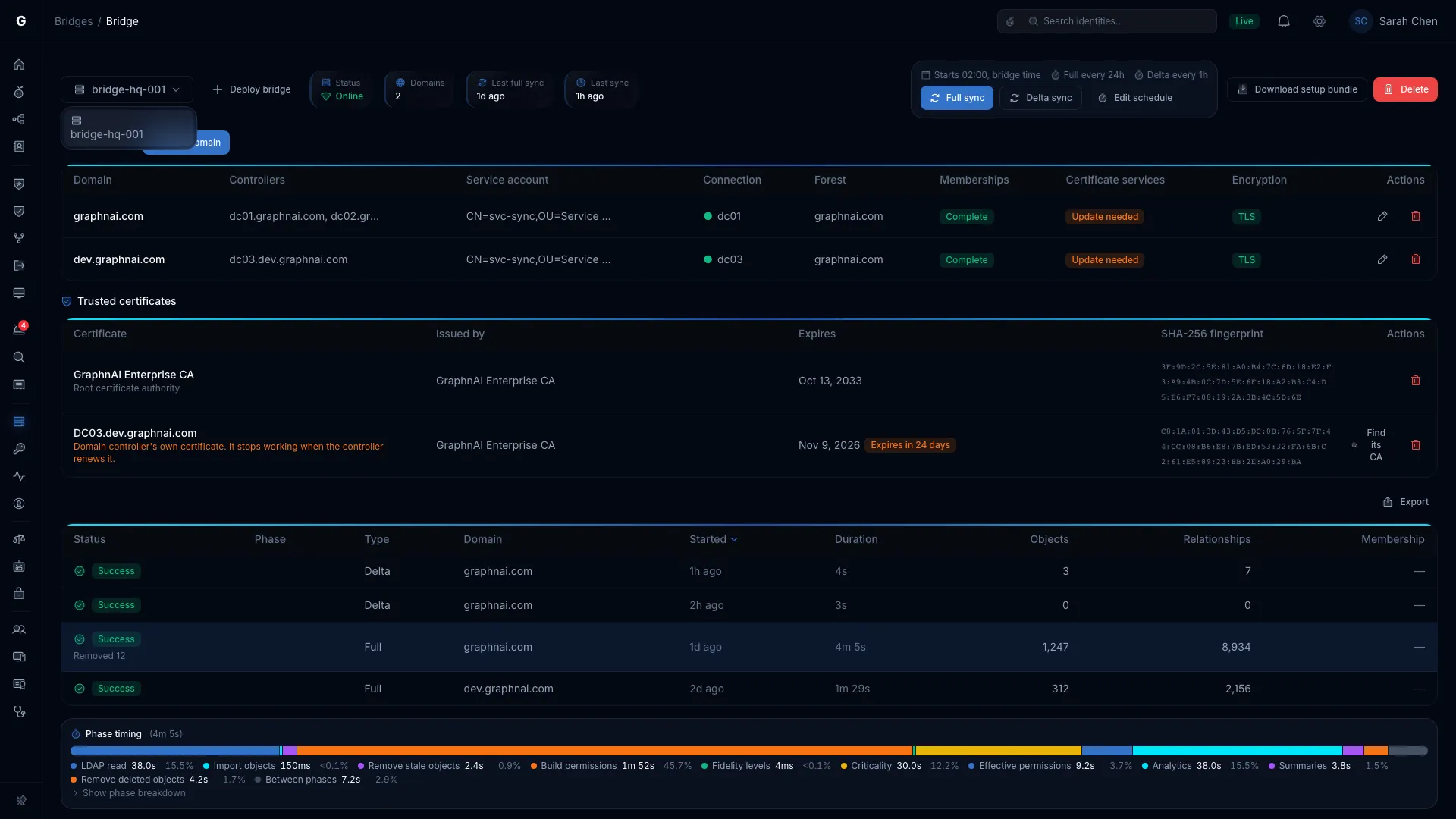
{"level":"INFO","msg":"Connected to Cloud C2"}Within 30 seconds, Status on the bridge's page reads Online.
State Across Restarts
The bridge saves its sync position for each domain (the USN watermark) in state.json. After a restart, it resumes with a delta sync instead of a full sync. It also keeps the certificates you trust in GraphnAI in trusted_cas.pem.
The bundle's Compose file keeps both on the bridge-data volume, mounted at /app/data:
volumes:
  - ./cert.pem:/app/cert.pem:ro
  - ./key.pem:/app/key.pem:ro
  - ./ca.crt:/app/ca.crt:ro
  - bridge-data:/app/data   # Persists state.json and trusted_cas.pem
Keep that volume when you recreate the container. If it's lost, the bridge gets its sync positions and trusted certificates back from GraphnAI when it reconnects.
Option B: Standalone Binary
Where Docker isn't available, run the bridge binary directly.
- Download the
graphnai-bridgebinary for your platform from the releases page. - Put
cert.pem,key.pemandca.crtin the binary's directory. - Set the bridge ID and server address from the bundle. See Configuration.
- Run the binary:
./graphnai-bridgeIn production, run the binary as a service (systemd on Linux, NSSM or Task Scheduler on Windows) so it restarts on its own.
Configuration
The bridge reads its settings from its environment when it starts. The setup bundle's docker-compose.yml fills in the bridge ID, the server address and the certificate paths. The bridge exits at startup if the bridge ID or the server address is missing.
Required Settings
| Setting | Description | Example |
|---|---|---|
| Bridge ID | The bridge's ID. The bundle's docker-compose.yml sets it. |
prod-corp-dc01 |
| Server address | GraphnAI's bridge address. The bundle sets it. | wss://graphnai.example.com:8443 |
Certificate Files (mTLS)
| File | Default | Description |
|---|---|---|
| Bridge certificate | cert.pem |
Path to the bridge's client certificate |
| Bridge private key | key.pem |
Path to the bridge's private key |
| GraphnAI root certificate | ca.crt |
Path to GraphnAI's root certificate, used to verify the server |
Safety and Security Settings
| Setting | Default | Description |
|---|---|---|
| Read-only mode | Off | Turn it on to skip every remediation action. The bridge makes no LDAP writes. See Read-Only Mode. |
| Insecure LDAP | Off | Turn it on to allow unencrypted LDAP on port 389. For lab use only. |
| Trust store path | trusted_cas.pem |
Where the bridge keeps the certificates you trust in GraphnAI. The bundle sets it to /app/data/trusted_cas.pem. The bridge rewrites the file with GraphnAI's list each time it receives its settings, so don't edit it. |
| Operator trust store path | None | A PEM file of extra CA certificates for LDAPS, which you place on the bridge host. The bridge reads it and never changes it. Use it to pre-provision an air-gapped bridge. Otherwise, trust certificates in GraphnAI. |
Legacy Single-Domain Settings
These settings set up one domain for standalone or development use. In production, you add domains in GraphnAI and it sends them to the bridge after it connects. See Configuring Domains. You don't need these settings then.
| Setting | Description | Example |
|---|---|---|
| LDAP URL | LDAP URL of the domain controller | ldaps://dc01.corp.local:636 |
| Bind DN | Service account distinguished name or UPN | CN=svc-graphnai,OU=Service Accounts,DC=corp,DC=local |
| Bind password | Service account password. In production, read it from a file. | |
| Base DN | Base distinguished name for directory searches | DC=corp,DC=local |
The bind DN and bind password can also come from a file, for Docker and Kubernetes secrets. The bridge reads the file at startup and trims whitespace from both ends.
mTLS Certificate Setup
The bridge and GraphnAI verify each other with mutual TLS (mTLS). Each presents a certificate signed by GraphnAI's internal certificate authority. The setup bundle holds everything the bridge needs, so you create no certificates by hand.
What Each File Does
| File | Purpose |
|---|---|
cert.pem |
The bridge's identity certificate, signed by GraphnAI's certificate authority. It names this bridge. |
key.pem |
The private key for cert.pem. Keep it secret: it proves the bridge is who it claims to be. |
ca.crt |
GraphnAI's root certificate. The bridge uses it to check that it's talking to your GraphnAI server. |
Trusting Custom Enterprise CAs (for LDAPS)
If your domain controllers use LDAPS certificates from an internal certificate authority, the bridge must trust that authority. Trust it in GraphnAI:
- On the bridge's page, add or edit a domain and select Test connection.
- If the test reports an untrusted certificate, select Review certificate. The bridge reads the controller's chain and completes it to the root certificate authority where it can.
- Compare the root's SHA-256 fingerprint with your certificate authority's, then select Trust root certificate.
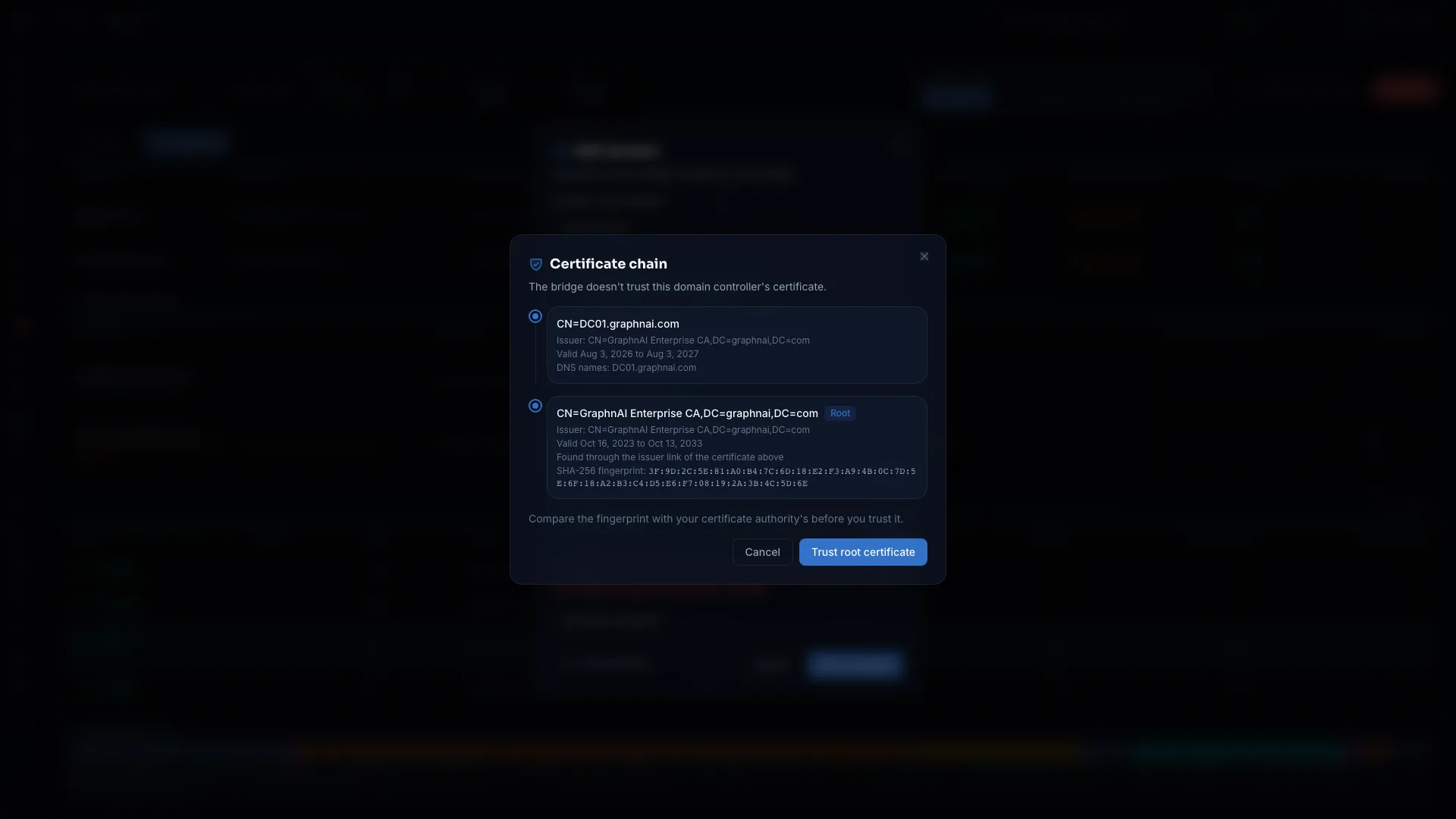
Trust the certificate authority itself. A controller's own certificate stops working when Windows renews it, every year. When the bridge can't find the root, the dialog asks you to paste or upload it. For the whole flow and the Trusted certificates list, see Trust the Certificate Authority for LDAPS.
Pre-Provision an Air-Gapped Bridge
If the bridge must trust a certificate authority before it can reach GraphnAI, put the CA certificate in a PEM file on the bridge host, mount it, and set the operator trust store path to it. The bridge reads that file and never changes it. The Trusted certificates list doesn't show those certificates. It says how many the bridge trusts from its host.
Upgrade a Bridge From an Earlier Version
Nothing in docker-compose.yml changes. The first time an upgraded bridge receives its settings, its trusted certificates become exactly GraphnAI's list. If trusted_cas.pem held a certificate GraphnAI doesn't list, such as one added to the file by hand, the bridge stops trusting it and logs a warning that names it. To keep it, trust it in GraphnAI, or put it in the operator trust store file.
Earlier versions of this guide suggested mounting your own CA file and pointing the trust store path at it. If you did, move that file to the operator trust store path before you upgrade, and point the trust store path at a file the bridge can write. With a read-only file, a trust change lasts only until the bridge restarts, and GraphnAI says so when you trust or remove a certificate. Don't point both settings at the same file. The bridge then ignores the operator trust store and never writes that file.
Configuring Domains
After the bridge connects, add the Active Directory domains it collects from. You add them in GraphnAI, which sends them to the bridge. The bridge doesn't restart. This takes the Admin role.
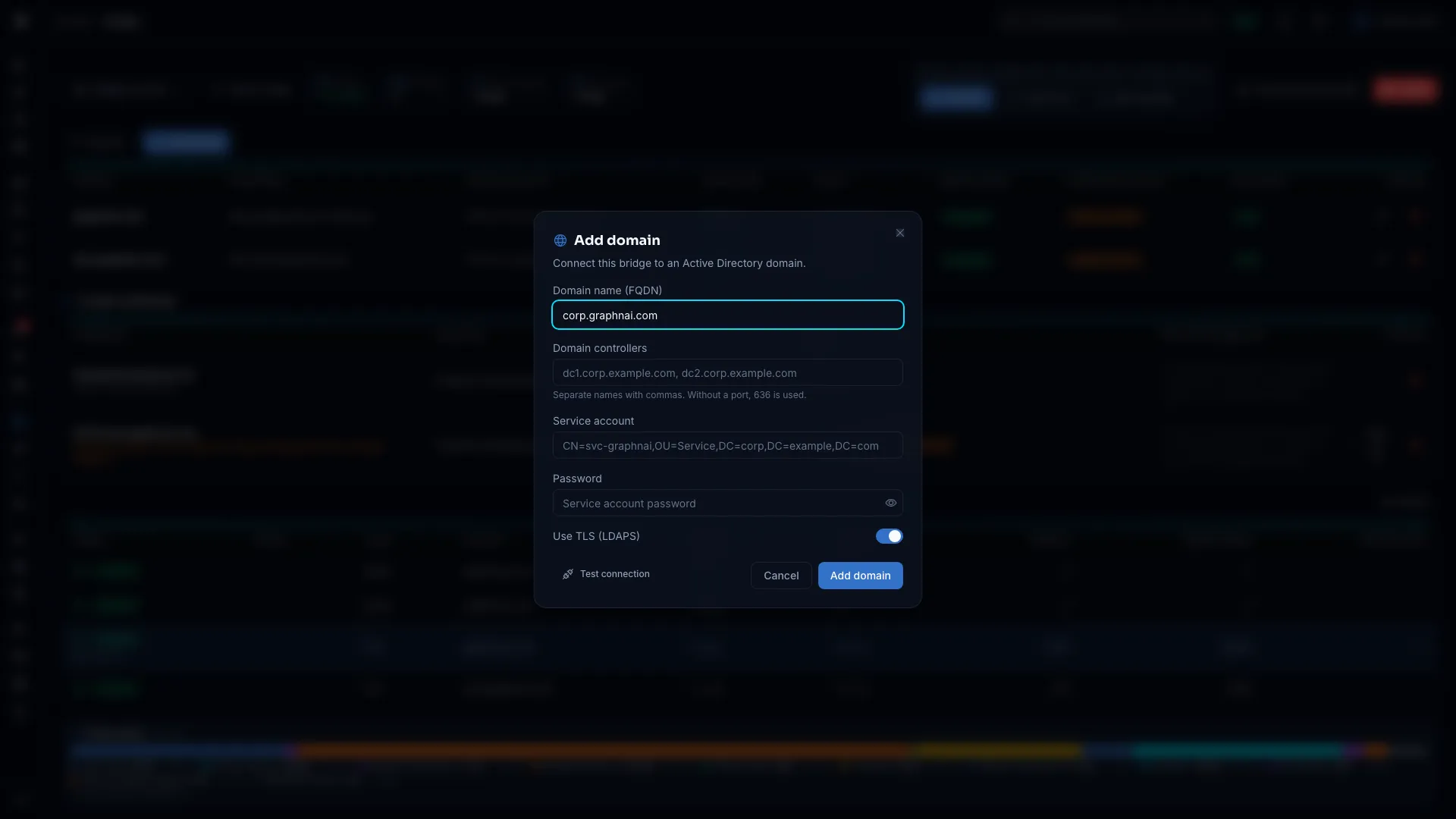
- On the bridge's page, select Add domain.
- Enter the domain name, the domain controllers, the service account and its password. Keep Use TLS (LDAPS) on.
- Select Test connection.
- Select Add domain.
GraphnAI encrypts the password and sends the settings to the bridge over its existing connection. For every field and message, see Bridge Configuration.
Discover Domains
Select Discover above the domain table to have the bridge look up domain controllers in DNS. It tests each one it finds, and you add the ones you pick through the domain form. See Domain Auto-Discovery.
Multi-Domain Support
Select Add domain once for each domain. The bridge keeps a separate LDAP connection for each domain and syncs its domains one after another. Each domain has its own sync history, USN watermark and Group Policy collection state.
The bridge sends each remediation action to the domain named in the target's distinguished name. For example, an action on CN=john.doe,DC=corp,DC=local goes to the corp.local domain.
Sync Behavior
Sync Types
The bridge uses two kinds of sync to keep the identity graph current.
Full sync reads every directory object, page by page. A domain's first sync is a full sync, and a scheduled sync becomes a full sync when the full sync interval has passed.
Delta sync reads only the objects that changed since the last sync, using Active Directory's change tracking (update sequence numbers, or USNs). It's much faster than a full sync and runs every hour by default.
To set the schedule, see Sync Scheduling.
Reconciliation
A delta sync can't see a deleted object. Active Directory moves deleted objects to its Deleted Objects container, outside the range a delta sync reads. A full sync handles deletions.
During a full sync, the bridge sends GraphnAI the IDs of every live directory object. GraphnAI compares that list with the graph and removes the objects that are gone. The row in Sync history shows how many it removed.
On-Demand Sync
Operators and Admins can start a sync now:
- On the bridge's page, select Delta sync or Full sync.
- The sync runs in the background, and Sync history updates as it runs.
To stop a running sync, select Stop. The bridge stops the collection cleanly.
What the Bridge Collects
Identity Objects
The bridge maps these Active Directory object classes to identity types in the graph:
| AD object class | Graph type | Key attributes collected |
|---|---|---|
user (not a computer) |
User | sAMAccountName, adminCount, servicePrincipalName, userAccountControl |
msDS-GroupManagedServiceAccount, msDS-ManagedServiceAccount |
ServiceAccount | sAMAccountName, servicePrincipalName, msDS-GroupMSAMembership |
group |
Group | sAMAccountName, memberOf |
computer |
Computer | sAMAccountName, servicePrincipalName |
organizationalUnit |
OU | name, distinguishedName |
container |
Container | name, distinguishedName |
builtinDomain |
BuiltinDomain | name |
domainDNS |
Domain | name |
groupPolicyContainer |
GPO | displayName, gPCFileSysPath |
To choose which other attributes the bridge collects, see Attribute Sync Configuration.
Relationships
The bridge sends only objects. GraphnAI builds the graph's edges (relationships) from their attributes:
| Edge | Between | How it's determined |
|---|---|---|
| MemberOf | A user, group or computer and a group | The memberOf attribute |
| MemberOf (primary group) | A user and its primary group | The primaryGroupID attribute and the domain SID |
| ContainedIn | Any object and its parent | The parent in the object's distinguished name |
| GPLink | A GPO and the OU or domain it's linked to | The gPLink attribute |
| OwnerOf | An owner and the object | The owner SID in the object's security descriptor |
| AllowedToDelegate | An account and a service it can delegate to | The msDS-AllowedToDelegateTo attribute |
| AllowedToAct | An account and a resource that trusts it for delegation | The msDS-AllowedToActOnBehalfOfOtherIdentity attribute |
| HasSIDHistory | An account and the SID it carries from a migration | The sIDHistory attribute |
Permission Edges (ACL Analysis)
The bridge reads every object's Windows security descriptor (the nTSecurityDescriptor attribute). GraphnAI turns its access control entries (ACEs) into permission edges that show who can do what to each object. They include:
| Permission edge | What it means |
|---|---|
| GenericAll | Full control over the object |
| GenericWrite | Can write any property on the object |
| WriteDacl | Can change the object's DACL (its permission list) |
| WriteOwner | Can take ownership of the object |
| AllExtendedRights | Every extended right, including password resets and directory replication |
| ForceChangePassword | Can reset the user's password without knowing the current one |
| AddMember | Can add members to the group |
| DCSync | Holds the replication rights (GetChanges and GetChangesAll) that copy password data from a domain controller |
Others include AddSelf, WriteSPN, AddKeyCredentialLink, ReadLAPSPassword and ReadGMSAPassword. GraphnAI uses these edges to find toxic combinations and attack paths.
GPO Policy Data
The bridge connects to the SYSVOL share on a domain controller and reads each Group Policy Object. It authenticates with Kerberos and falls back to NTLMv2. For each GPO, it reads:
- GptTmpl.inf (Security Settings): User rights assignments such as "Deny log on locally" (
SeDenyInteractiveLogonRight), "Deny access to this computer from the network" (SeDenyNetworkLogonRight) and "Deny log on through Remote Desktop Services" (SeDenyRemoteInteractiveLogonRight), plus restricted group memberships and audit settings. - Groups.xml (Group Policy Preferences): Local group memberships the policy sets on computers.
GraphnAI uses the local group settings to find who is a local administrator on which computers, on the Local Administrators page. It also uses the Deny log on rights. When the GPO that wins on a computer denies an account the logons its access needs, that access is marked blocked, and attack paths through it rank last. See Blocked by a Deny log on right.
On a delta sync, the bridge skips GPO files that haven't changed since the last policy sync.
Read-Only Mode
With read-only mode on, the bridge makes no changes to the directory:
- Directory collection (LDAP sync and Group Policy collection) runs as usual.
- The bridge skips every remediation action GraphnAI sends, such as disabling a user or removing a member. It makes no LDAP write.
- Remediation history records the action as Read-only bridge.
Use this mode for a first deployment, to check collection before you allow changes. It also suits a service account that has no write permissions on purpose.
Sync History and Monitoring
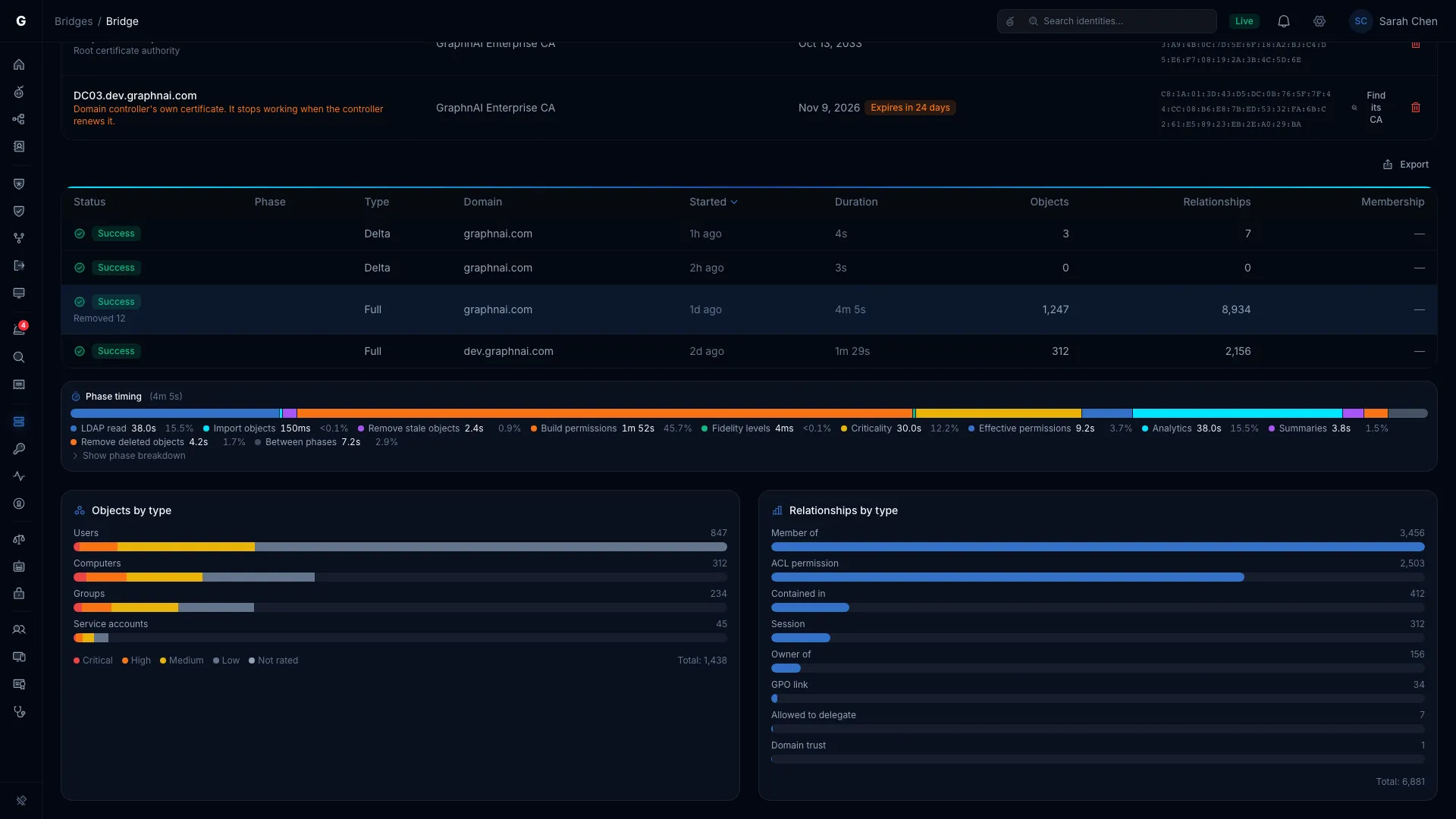
The Sync history table on the bridge's page shows each sync with its status, type, domain, start time, duration, and the counts of objects collected and relationships (edges) built. Select a row for its phase timing and counts by type. See Sync History.
Troubleshooting
The Bridge Doesn't Show Online
Check the container logs:
docker compose logs -fPossible causes and fixes:
-
FATAL: required environment variable ... is not set: The Compose file doesn't set a required setting. Check that the file wasn't changed after you extracted it from the ZIP file. -
websocket dial: ...: The bridge can't reach GraphnAI. Check that:- The host reaches the server on port 8443:
nc -zv graphnai.example.com 8443 - The server address in the Compose file starts with
wss://. - No firewall rule blocks outbound connections on port 8443.
- The host reaches the server on port 8443:
-
Failed to load mTLS KeyPair:cert.pemorkey.pemis missing, or the container user can't read it. Check the files and their permissions. -
Failed to parse Root CA PEM:ca.crtis empty or corrupt. Select Download setup bundle on the bridge's page and replace all three certificate files from the new bundle.
Test Connection Fails
When you select Test connection, the bridge connects to the domain controller and makes an LDAP bind with the service account. The message names what failed:
- Rejected the service account: The account name or password is wrong, or the account is locked or disabled. Use the UPN form (
[email protected]) or a distinguished name (CN=user,...). - Couldn't reach the domain controller: Check the controller name, and that the bridge host reaches it on port 636 (LDAPS) or 389 (LDAP).
- Doesn't trust the certificate: Select Review certificate and trust the root certificate authority. See Trusting Custom Enterprise CAs.
Every message and its fix: Test a Connection.
A domain that fails the check stays configured. The next sync tries each of its listed controllers in order.
The Sync Finishes but No Objects Appear in the Graph
Check that the sync ran: In Sync history, check that the sync reads Success or Partial, and read its Objects count.
Check the domain name: If the sync succeeds with zero objects, the search may have covered an empty part of the directory. The bridge reads the domain's naming context from the directory, and falls back to the configured domain name if it can't. Check that the domain name matches your real Active Directory domain.
Wait for processing: After collection, GraphnAI processes the data in steps. The row reads Running until they finish, and the Phase column shows the current step. A large full sync can take several minutes.
Changes in Active Directory Don't Show in the Graph
A delta sync picks up changes at the next delta interval (1 hour by default). To pick them up now:
- Open the bridge's page.
- Select Delta sync.
An object deleted from Active Directory stays in the graph until the next full sync. Select Full sync to remove it now.
SYSVOL or GPO Collection Fails
domain config not found in the bridge log: The domain wasn't configured when the policy collection ran. Add the domain and let its first sync finish.
smb ntlm session: ...: SMB authentication failed. The bridge tries Kerberos first, then NTLMv2. If both fail, check that the service account can open the SYSVOL share on the domain controller.
mount sysvol: ...: The bridge connected to the domain controller but couldn't open the SYSVOL share. Check that SMB (port 445) is open from the bridge host: nc -zv dc01.corp.local 445.
If your environment needs a custom Kerberos configuration, put a krb5.conf file in the bridge's working directory: the binary's directory, or /app in the container. The bridge loads it before it authenticates.
Access Denied (403 Forbidden)
Cause: Your account doesn't have the role the action needs.
- Viewing bridges and starting syncs takes the Operator role.
- Creating bridges, saving settings, and trusting or removing certificates takes the Admin role.
Fix: Ask an Admin to change your role on Admin > Users.
Best Practices
-
Deploy one bridge per network segment. For isolated segments, such as a perimeter network or an OT network, deploy a bridge inside each one. Don't open firewall paths between segments.
-
Start in read-only mode. Turn on read-only mode for the first week to check collection before you allow remediation.
-
Always use LDAPS (port 636). Plain LDAP (port 389) sends credentials and directory data unencrypted. Keep the insecure LDAP setting for isolated labs with no network exposure.
-
Protect
key.pemwith file permissions. The private key is the bridge's identity. On Linux, restrict it:chmod 600 key.pem. -
Keep the bridge's data volume. It holds
state.jsonand the trusted certificates. For the standalone binary, keep its working directory. A bridge that loses them gets them back from GraphnAI when it reconnects. -
Match the delta interval to how often your directory changes. With frequent provisioning, use 15 minutes. In a stable directory, the default 1 hour is enough. The bridge never syncs more often than once a minute.
-
Review sync history weekly. Repeated failures point to a connection or credential problem. Fix it before the graph goes stale.