Quick Start: Self-Hosted Deployment with Docker Compose
Deploy GraphnAI in your environment with Docker Compose in under 10 minutes. Extract the bundle, start the stack, then follow the setup wizard.
On this page
- What You Receive
- Prerequisites
- Step 1: Extract the Bundle
- Step 2: Start the Stack
- Step 3: Complete the Setup Wizard
- 4a. Import Your License
- 4b. Choose How Your Team Signs In
- Step 4: Connect an Identity Bridge (Optional)
- Deploying a Bridge
- Configuring Domains
- Hybrid Entra Environments
- TLS Configuration
- Enabling Remediation Actions
- Outbound Connectivity
- Upgrading
- Update notices
- Back up before upgrading
- Going back to an older version
- Architecture Overview
- Troubleshooting
- Can't pull Docker images
- The platform shows a read-only banner after setup
- "That file isn't a valid license"
- "Setup was already completed"
- I can't find the setup link
- The setup link's address doesn't open
- Setup Wizard doesn't appear
- "That isn't the setup administrator email for this server"
- Browser shows certificate warning
- Database connection errors in server logs
- Remediation actions won't run
- Next Steps
- Support
What You Receive
Your GraphnAI account representative provides two items:
| Item | Description |
|---|---|
| Deployment bundle | An AES-256 encrypted zip file (graphnai-<name>-<version>.zip) with a pre-configured docker-compose.yml, your license file, a database start-up script and a README |
| Zip password | A one-time password to extract the bundle |
You don't edit anything before the first start, and docker-compose.yml holds no secrets. The database generates its own password on the host at first boot, and the server generates its own encryption keys. Your license is a file you import in the setup wizard. There's no license environment variable.
Prerequisites
- Hardware: see the Hardware Sizing Guide for RAM, CPU and storage by the number of identities in your environment.
- Docker Engine 24+ and Docker Compose v2+ on the host machine.
- Network access from the host to
ghcr.io, to pull the images. - A way for your team to sign in. The setup wizard asks you to choose one. You can add another method later (see Managing Sign-In Methods After Setup). Decide which applies before you start:
- A cloud identity provider: Microsoft Entra ID, Okta, AWS (Amazon Cognito), or another OpenID Connect provider. For Microsoft Entra ID, you need Global Administrator or Application Administrator rights in your tenant, and network access from the host to
login.microsoftonline.com. - On-premises Active Directory over LDAPS: no cloud identity provider needed. The host needs to reach a domain controller on port 636 and a Global Catalog server on port 3269. You also need a dedicated read-only service account for sign-in. See On-Premises Directory Sign-In for the full list.
- A cloud identity provider: Microsoft Entra ID, Okta, AWS (Amazon Cognito), or another OpenID Connect provider. For Microsoft Entra ID, you need Global Administrator or Application Administrator rights in your tenant, and network access from the host to
Step 1: Extract the Bundle
Extract the deployment bundle with the zip password you received:
# On Linux/macOS (with p7zip or unzip supporting AES)
7z x graphnai-<name>-<version>.zip -p<ZIP_PASSWORD>

# On Windows
# Right-click the zip file > Extract All, then enter the password when prompted
After extraction you should see:
docker-compose.yml       # Pre-configured stack definition
license.key              # Your platform license, imported in the setup wizard
arango-entrypoint.sh     # Generates the database password on this host at first boot
README.md                # Deployment-specific instructions
Step 2: Start the Stack
docker compose up -dThis starts two containers:
| Container | Purpose | Ports |
|---|---|---|
| server | GraphnAI Platform (API + UI) | 443 (HTTPS), 8443 (Bridge mTLS) |
| arangodb | Graph database | Internal only |
The server generates a self-signed TLS certificate on first boot. To use a CA-issued certificate, see TLS Configuration below.
Wait for the server to become healthy, usually 15 to 30 seconds:
docker compose logs -f serverLook for the log line "Starting HTTPS API Server".
Step 3: Complete the Setup Wizard
On its first start, the server prints a one-time setup link in its log. Only someone who can read the server's log or data folder can finish setup. To find the link, run:
docker compose logs server | grep -o 'https\?://[^" ]*/setup#k=[0-9a-f]\{64\}' | tail -n 1The log line looks like this (the server writes JSON logs):
{"level":"WARN","msg":"Finish setup: https://graphnai.yourcompany.com/setup#k=3f9c…"}The server also keeps the same link in /app/data/setup-link.txt. To print it from there, run docker compose exec server cat /app/data/setup-link.txt.
Open the link in your browser. It starts the Setup Wizard. If you open the server without the link, the wizard asks you to open or paste it.
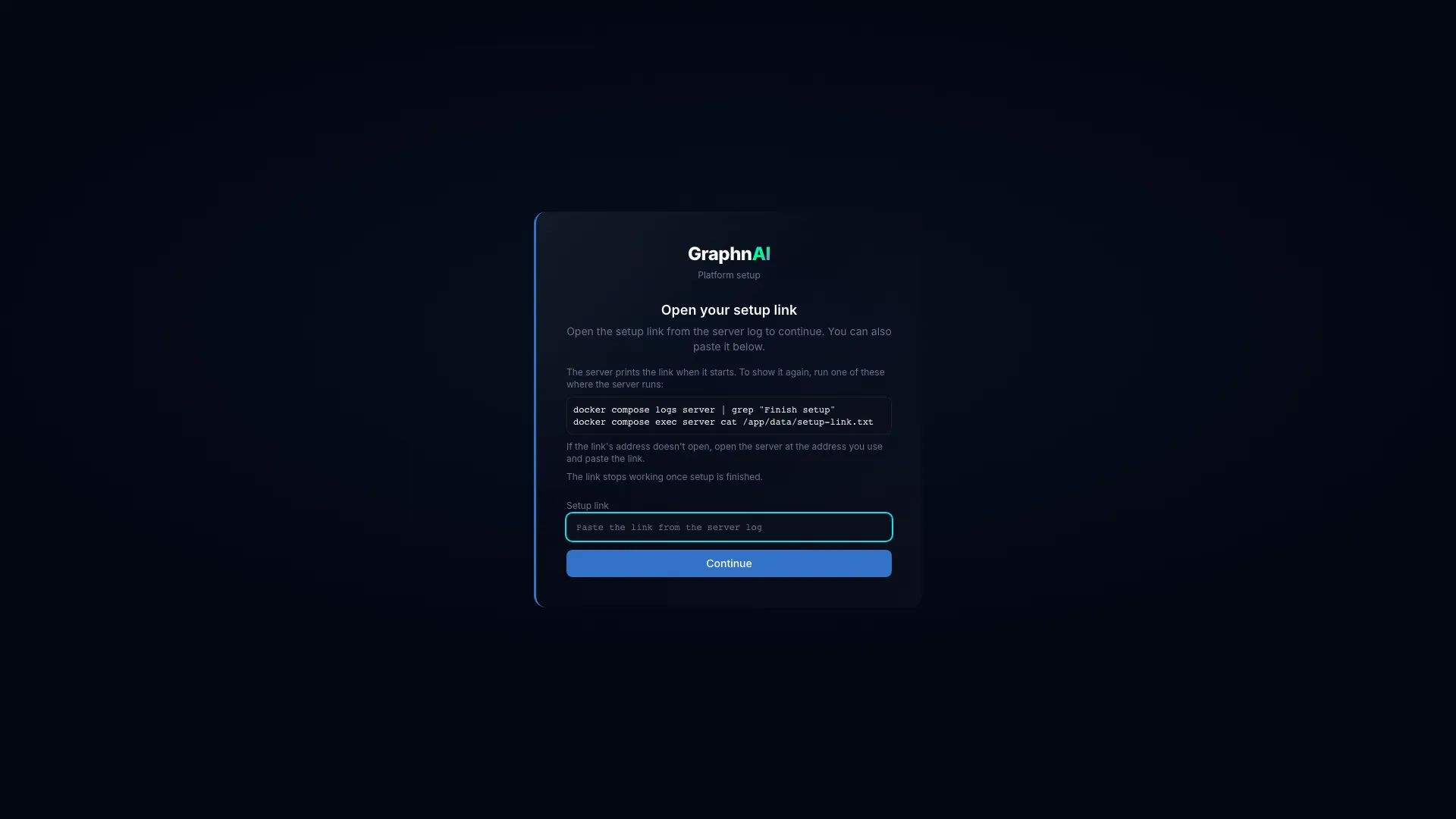
[!NOTE] The link stops working when setup finishes. If the link's address doesn't open, for example because it uses the default
graphnai.localname, open GraphnAI at the address you use and paste the link into the wizard.If you started setup in another browser, the wizard asks whether to start setup over in this one. Confirm to continue here. Progress from the other browser is lost.
[!NOTE] A browser certificate warning is expected with the self-signed certificate. Accept the warning to continue. For production, configure a CA-issued certificate (see TLS Configuration).
4a. Import Your License
The wizard's first step is Import your license.
- Select Choose your license file, or drag the
license.keyfile from your extracted bundle onto the box. - Wait for the wizard to verify it. License imported then shows your plan, user limit and expiry date. The limit row reads "Users: Up to 1,000" or "Users: Unlimited". A license issued before the user count shows "Identities" instead.
- Select Continue.
[!TIP] Don't have the file to hand? Select Continue without a license to finish setting up sign-in. GraphnAI then stays read-only until you import a license on Admin > License.
4b. Choose How Your Team Signs In
The Choose how your team signs in step offers five options:
| Option | What it needs |
|---|---|
| Microsoft Entra ID | Cloud single sign-on through your Microsoft tenant. The wizard creates the app registration for you. |
| Okta | Your Okta org's issuer URL and client credentials |
| AWS (Amazon Cognito) | A Cognito user pool. Works with IAM Identity Center through federation. |
| Generic OIDC provider | Any standards-compliant OpenID Connect provider, such as Google Workspace |
| Active Directory (LDAPS) | On-premises sign-in. No cloud identity provider needed. |
Pick the one that matches your environment, then follow the matching section below.
Signing In With Microsoft Entra ID
-
Enter the setup administrator email. Type the address set as
GRAPHNAI_SEED_ADMIN_EMAILin your bundle'sdocker-compose.yml, then select Continue. Only this person can complete setup.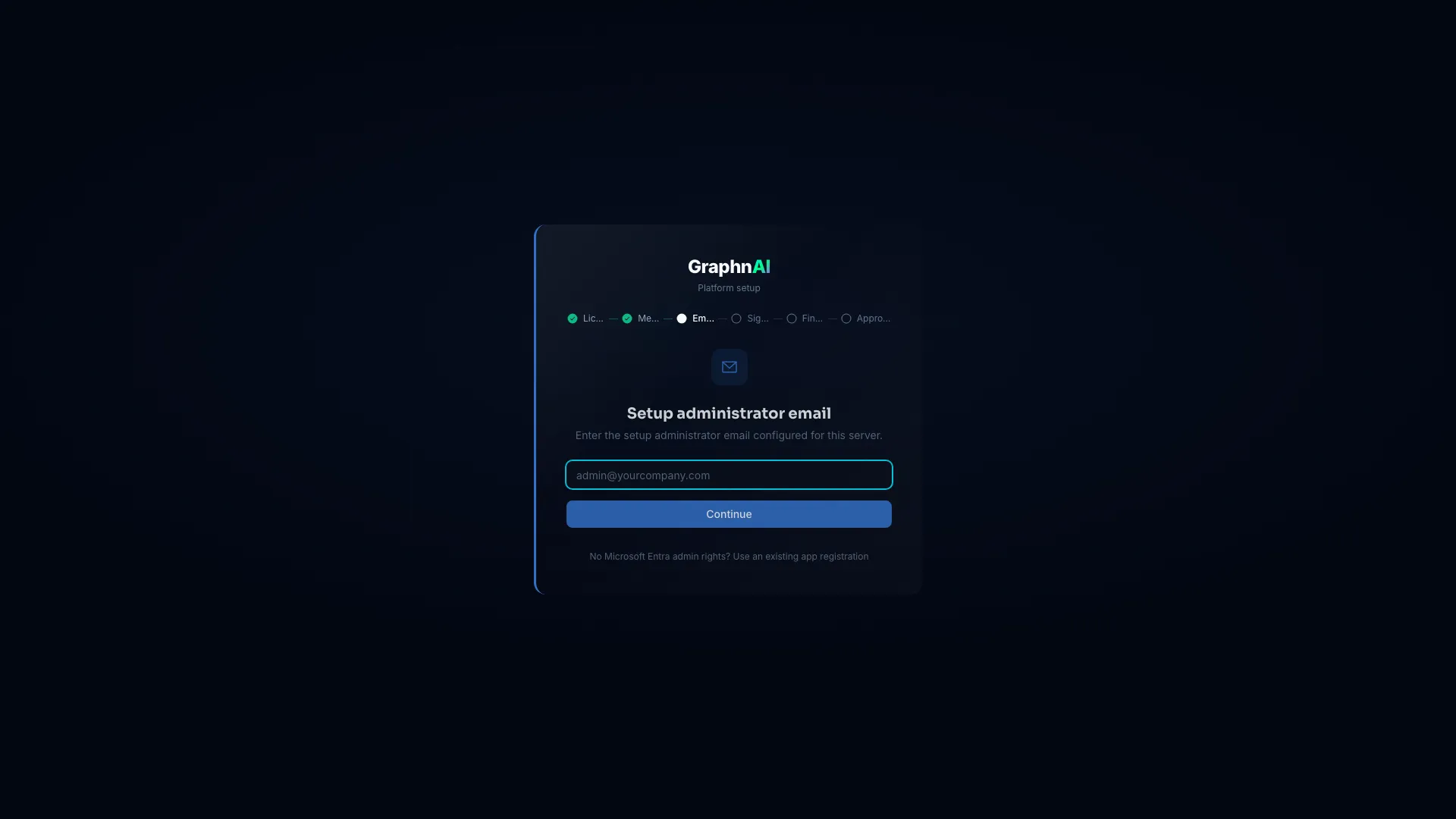
-
Sign in to Microsoft. Select Sign in with Microsoft. A pop-up window opens.
- Sign in with the setup administrator's Microsoft Entra ID account.
- Accept the GraphnAI Setup permission request if Microsoft asks.
- If your browser blocks the pop-up, allow pop-ups for the GraphnAI address and select Try again.
This step needs a valid license and a browser that can reach
https://api.graphnai.com. If it can't, use Use an existing app registration instead.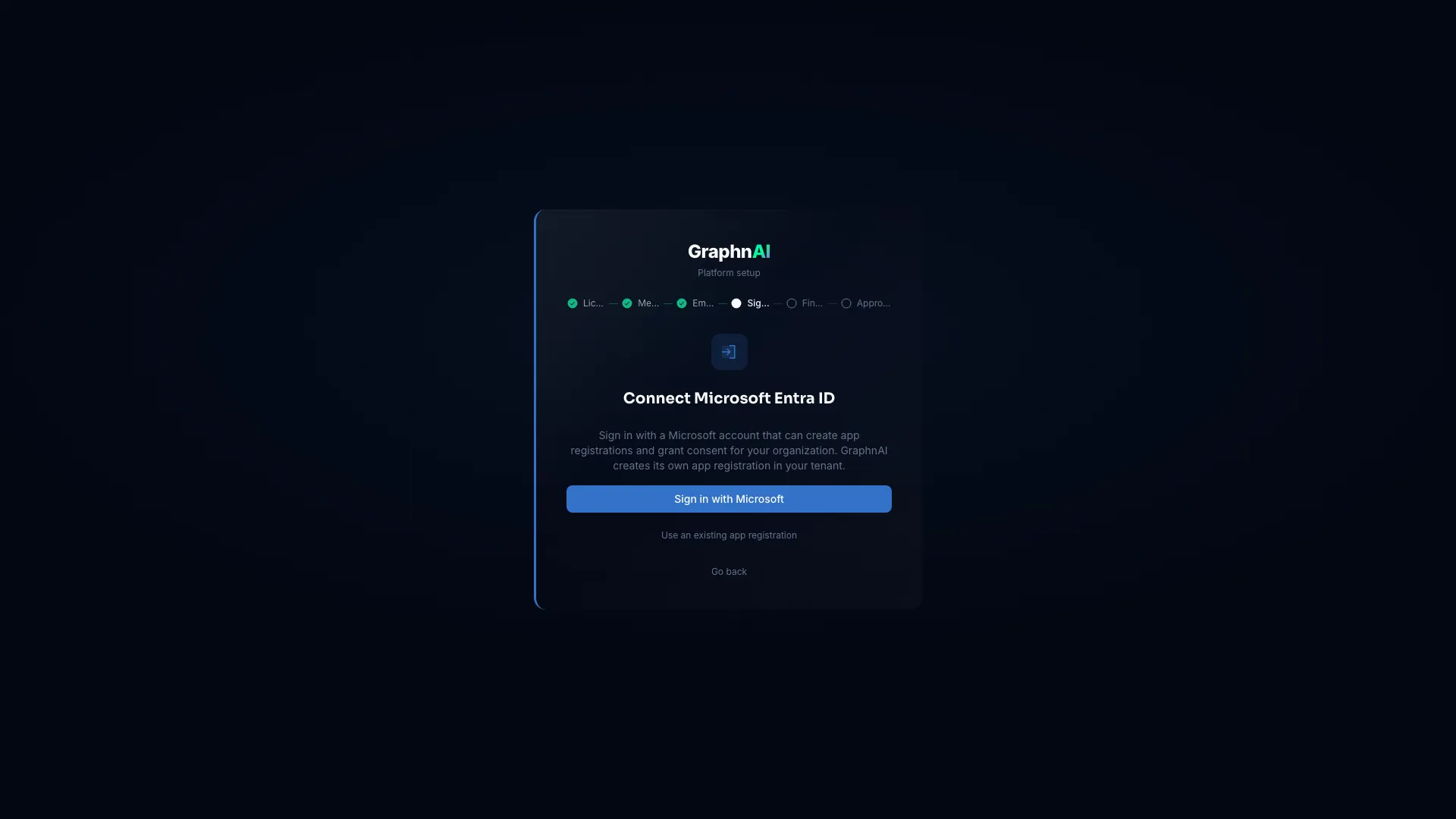
-
Let the wizard finish. Finishing setup… appears while it:
- Creates an app registration named GraphnAI Platform in your tenant.
- Generates and uploads a client certificate for it.
- Sets the redirect URI for your server's address.
- Saves the sign-in settings and turns them on, with no restart.
Microsoft usually takes 10 to 30 seconds to make the new app registration available.
-
Approve directory access. Setup complete offers Approve directory access. It opens Microsoft's admin consent page for the new app registration, so GraphnAI can read your directory. If you skip it, Admin > Identity Providers shows a Directory access needs approval card with the same button.
-
Sign in. Select Continue to sign in, then sign in with your Microsoft account. Your account becomes the first Admin.
No Entra ID admin rights? On the email step, select No Microsoft Entra admin rights? Use an existing app registration and enter the details of a registration someone else created.
Signing In With Active Directory (LDAPS)
This path needs no Microsoft Entra ID tenant, Okta org or other cloud identity provider. GraphnAI checks your team's sign-ins against your on-premises directory with an LDAP bind over LDAPS.
-
Connect your directory. On Connect your Active Directory, fill in:
- Directory hosts: one or more
hostorhost:portentries. The default port is 636. GraphnAI tries the hosts in order. - Base DN: for example,
DC=acme,DC=local. - Service account and Service account password: the distinguished name and password of a dedicated read-only account. Don't reuse your Identity Bridge collection account.
- Certificate authority (PEM, optional): paste your domain controller's CA certificate. Allow unverified certificates (testing only) skips the check while you evaluate.
- Setup administrator email: the email or UPN of the AD account that becomes the first Admin.
- Auto-create accounts on first sign-in (optional), with a Default role of Viewer or Operator.
- Directory hosts: one or more
-
Test the connection. Select Test connection. The checklist shows each stage: the host connected, the service account's LDAP bind, the base DN found, and the Global Catalog. Fix any failed row, then test again.
-
Save. Select Save and continue. It's available once the test passes. The settings are saved turned off, and a verification window opens for 24 hours.
-
Verify and finish. Sign in with the setup administrator's own Active Directory username and password, then select Sign in and finish. GraphnAI confirms the account against the directory. It then turns directory sign-in on, makes you the first Admin, and opens the dashboard.
For group-to-role mapping, certificates, and adding AD sign-in to a deployment that already uses cloud sign-in, see On-Premises Directory Sign-In.
Signing In With Okta, AWS Cognito, or Another OIDC Provider
These follow the same wizard. Enter your provider's issuer URL and client credentials, review what the wizard discovers, then complete a test sign-in before setup finishes. See Managing Sign-In Methods After Setup for the fields each provider needs.
Step 4: Connect an Identity Bridge (Optional)
The Identity Bridge agent collects Active Directory data from your on-premises environment. If your organization uses on-premises Active Directory, deploy a bridge so GraphnAI can analyze your full identity landscape.
[!NOTE] AD sign-in and the Identity Bridge are separate. AD sign-in lets your team sign in to GraphnAI. The bridge collects your directory's structure and permissions to build the graph. Each uses its own account, and you can use either, both or neither.
Deploying a Bridge
- Select Admin > Bridges in the sidebar.
- On the empty Bridges page, select Deploy bridge.
- Enter a Bridge ID, then select Create and download. The bridge's setup bundle downloads.
- Copy the setup bundle to your on-premises VM.
- Start the bridge agent from the downloaded bundle.
Once the bridge connects, it finds the Active Directory domains on its network through DNS. See Domain Auto-Discovery.
Configuring Domains
After the bridge connects:
- Select Admin > Bridges to open the bridge's page.
- Above the domain table, select Discover.
- In Discover domains, select the domains and domain controllers to sync.
- Select Add selected. The Add domain form opens for each domain in turn.
- Enter the service account credentials, then select Add domain.
For domain settings, sync schedules, certificates and troubleshooting, see the Bridge Configuration Guide.
Hybrid Entra Environments
If your Entra ID tenant syncs with on-premises Active Directory through Entra Connect, GraphnAI finds those on-premises domains after the first Entra sync. The On-premises domains without a bridge prompt lists them with their user counts and leads you to deploy a bridge. See Domain Auto-Discovery > Entra Hybrid Detection.
TLS Configuration
By default, GraphnAI generates a self-signed certificate for HTTPS. For production, mount a CA-issued certificate:
-
Place your certificate and key files in a
certs/directory next todocker-compose.yml:certs/ server.crt # Your CA-issued certificate (PEM format) server.key # Corresponding private key -
Uncomment the TLS lines in
docker-compose.yml:environment: TLS_CERT_FILE: "/app/certs/server.crt" TLS_KEY_FILE: "/app/certs/server.key" volumes: - ./certs:/app/certs:ro -
Restart the server:
docker compose restart server
Enabling Remediation Actions
Select Fire, Semi-Auto Execution and Full-Auto Execution are open for review and simulation as soon as setup finishes. Running a remediation plan is a separate, deliberate step. It ships turned off, so a new deployment can't change your directory before an administrator decides it should.
To turn on remediation, open docker-compose.yml and find the line under # --- Remediation (Optional) ---. Remove the # at its start and change "false" to "true". Then recreate the server container:
docker compose up -d serverUntil then, you can preview and simulate plans, but you can't run them. The platform also can't store the per-domain write credentials that remediation needs. Setting the value and recreating the container is the whole step.
Outbound Connectivity
GraphnAI runs without outbound internet access. Collection, analysis and remediation all happen in your environment. It connects to the services you set up, such as Microsoft Entra ID, your identity provider or an AI provider. Beyond those, it makes outbound connections of its own to one address:
api.graphnai.com:443(HTTPS): counts-only usage reporting. It sends product counters once a day: versions, counts and feature usage. It also sends a report at startup and a one-time report after your first successful sync. It carries no identity data: no names, domains, SIDs, hostnames or IP addresses. See every field on the Usage Reporting page, or in the app under Admin > License > Usage reporting > View today's report.api.graphnai.com:443(HTTPS), update check: once a day, the server asks whether a newer release is out. It sends only the request and the server version in its User-Agent, with no license, install ID or identity data. To turn it off, addGRAPHNAI_UPDATE_CHECK: "off"to the server'senvironment:section indocker-compose.ymland recreate the container. See Update notices.api.graphnai.com:443(HTTPS), sign-in service: automatic Microsoft Entra setup only. During setup, adding an Entra ID tenant and updating an app registration, the server sends your license and the return address of your GraphnAI server, which can contain an internal host name. This isn't counts-only, and the usage reporting setting doesn't control it. See Usage Reporting.
Preview and free plans report by default, as part of their license terms. Paid plans report only if an administrator turns it on. Air-gapped and strict-firewall deployments need no exception for reporting. If api.graphnai.com is unreachable, GraphnAI keeps working and nothing is blocked. Only automatic Microsoft Entra setup needs it, and the manual path (Use an existing app registration) doesn't. On a plan that requires reporting, after 14 days without a report, administrators see a banner they can dismiss. If the update check can't reach api.graphnai.com, it shows nothing and GraphnAI keeps working.
Upgrading
Your bundle's docker-compose.yml follows the preview channel. The preview image tag always points at the newest release, so an update needs no file edits.
To upgrade, run these commands from the folder with your docker-compose.yml:
docker compose pull
docker compose up -d
If your docker-compose.yml names an exact version, change the image: line to ghcr.io/graphnai-security/server:preview first. Exact tags have no v: use ghcr.io/graphnai-security/server:0.5.1, not v0.5.1.
Your data and settings persist across upgrades in Docker volumes. Keep the server_data volume: it holds the encryption key the server generated at first boot. Without it, stored settings such as identity provider secrets and bridge credentials can't be read.
Bridges keep running their current version. To update a bridge, download its setup bundle again from Bridges.
The first start after an upgrade can take longer while the new version updates your data or builds database indexes. Meanwhile, a browser that opens GraphnAI shows a progress page instead of the app. You don't need to do anything.
- GraphnAI is finishing an upgrade shows the current step and how far along it is. The page opens GraphnAI when the upgrade is done.
- Upgrade finished appears when the upgrade changed your data. GraphnAI opens a moment later.
- GraphnAI stopped before the upgrade finished appears if the server stops partway. The server log says why. Restart the server to continue from where it stopped. If it stops again, restore the backup you took before upgrading and contact support.
Update notices
GraphnAI checks once a day for a new release. When one is out, administrators see a strip at the top of the page: "GraphnAI {version} is available. You're running {version}."
- What's new opens the release notes.
- How to update opens a dialog with the two commands and copy buttons.
- The dismiss button hides a routine notice until a newer release comes out.
- A security release shows an amber strip that you can't dismiss: "GraphnAI {version} is a security release. You're running {version}. Update as soon as you can."
Admin > License has a Software card, visible to every role. It shows your running version, "Checking the preview channel", when GraphnAI last checked and the latest release. Administrators can select Check now to look right away. If the check failed, the card says so, for example "Couldn't reach api.graphnai.com". To turn the check off, see Outbound Connectivity.
The card also has a line about data upgrades. Every role sees it:
- "Data upgrades last ran {time}, in GraphnAI {version}" means the last upgrade changed your data.
- "Data upgrades last ran {time}. None needed to change your data." means upgrades ran but had nothing to convert.
- "No data upgrades have run on this database yet" appears on a new install.
Select Show details to list each upgrade with its date, the GraphnAI version and how long it took. Select Hide details to close the list.
Back up before upgrading
Back up before every upgrade. To back up:
- Stop the stack so the files are consistent:
docker compose stop - Copy the three named volumes, or snapshot the host filesystem that holds them. The volumes are:
server_data: the encryption key and the server's files.arango_data: the graph database.arango_secrets: the database password.
- Start the stack again, or go on to upgrade:
docker compose up -d
Keep the three volumes together. A database restored without the matching server_data volume can't be read, because its stored settings are encrypted with the key in that volume.
Going back to an older version
GraphnAI doesn't support running an older release on a database that a newer one already used. If you try, the server refuses to start and logs: "This database was last run by GraphnAI {version}, and this server is {version}. Running an older release on it isn't supported."
If an update causes trouble, update again when a fix is out. To go back, restore the backup you took before the upgrade. Only if your GraphnAI representative tells you to, you can override the guard and start the older release anyway. The server logs a warning each time it starts that way.
Architecture Overview
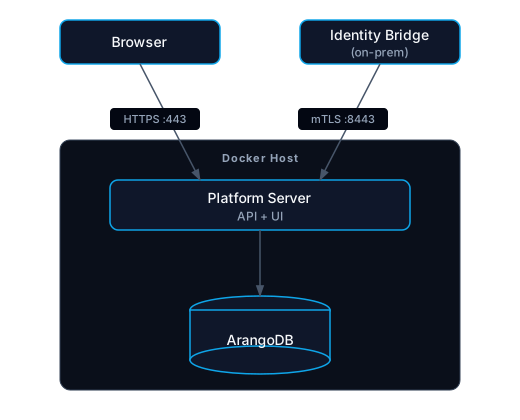
- Port 443: platform UI and REST API (HTTPS)
- Port 8443: mTLS listener for Identity Bridge connections
- Bridges run on-premises and connect outbound to port 8443. You manage them entirely from the platform UI.
Troubleshooting
Can't pull Docker images
The images are public, so pulling them needs no sign-in. Work through these checks:
- Confirm the host can reach
ghcr.ioon port 443 (HTTPS). Firewalls and web filters often block it. - If your network uses a proxy, check that the Docker daemon is set to use it. Setting it in your shell isn't enough.
- Check that the image tag exists. Copy the tag from the
image:line indocker-compose.yml, then pull it:
docker pull ghcr.io/graphnai-security/server:<tag from docker-compose.yml>If the pull fails with "denied", an old docker login ghcr.io may have left expired credentials behind. Remove them and pull again:
docker logout ghcr.ioThe platform shows a read-only banner after setup
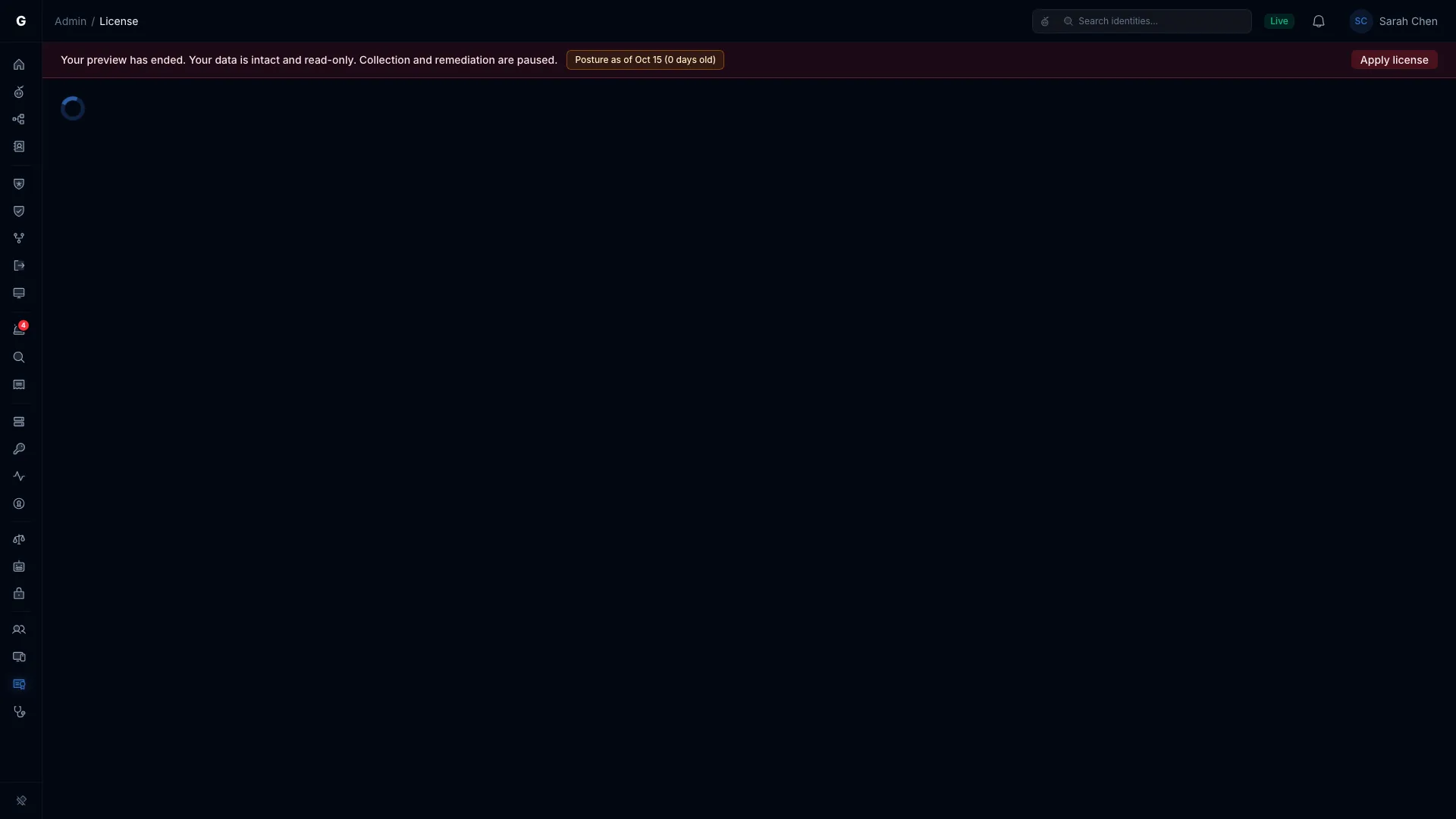
No valid license is applied. Either you skipped the license step, or the license has expired. The platform stays reachable in this state. Open Admin > License and upload your license.key file, or a renewed one. The banner clears at once, with no restart. See License Management & Feature Gating.
"That file isn't a valid license"
The file you chose isn't an unmodified license file. Extract license.key from your original bundle again and choose that file itself. Don't copy its contents by hand, and don't choose the zip. If it still fails, contact your GraphnAI account representative.
"Setup was already completed"
Someone finished setup while you were on the license step. Sign in, then import your license on Admin > License.
I can't find the setup link
Run the grep command from Step 3 against the server log, or run docker compose exec server cat /app/data/setup-link.txt. The server prints the link again each time it starts while setup is open. If no link exists, a sign-in method is already set up, or the server couldn't load it and is retrying. Check the server log.
The setup link's address doesn't open
The link uses the address the server knows, such as the default graphnai.local name, or a certificate your browser doesn't trust. Open GraphnAI at the address you use, then paste the whole link into the wizard when it asks.
Setup Wizard doesn't appear
The wizard runs only until a sign-in method is set up. After that, the server opens the sign-in page.
"That isn't the setup administrator email for this server"
This applies to the Microsoft Entra ID path only. The email you entered doesn't match GRAPHNAI_SEED_ADMIN_EMAIL in the bundle's docker-compose.yml. Check the address there, or contact your GraphnAI representative. The wizard sends the address in lowercase, so the value in docker-compose.yml must be lowercase too. The Active Directory path checks the setup administrator's directory credentials instead.
Browser shows certificate warning
This is expected with the self-signed certificate. For production, configure a CA-issued certificate as described in TLS Configuration.
Database connection errors in server logs
The server waits for ArangoDB to become healthy before it starts. If you see repeated connection errors, check that the arangodb container is running:
docker compose ps
docker compose logs arangodb
Remediation actions won't run
Remediation is off by default. Turn it on as described in Enabling Remediation Actions.
Next Steps
After you finish setup:
- Add users: select Admin > Users in the sidebar to invite users and assign roles (Viewer, Operator, Admin). See User Management & RBAC.
- Deploy a bridge: connect your on-premises Active Directory to start collecting identity data. See Bridge Configuration.
- Explore the graph: once identity data syncs, use the Graph Explorer to see edges and attack paths and find security risks.
Support
Contact your GraphnAI account representative for help.