Over-Permission Analytics: Find Outliers Against Peer Groups
Find identities whose permission count is a statistical outlier in their peer group, measured in standard deviations above the peer average.
On this page
- Overview
- Prerequisites
- How It Works
- Identity Scope
- Peer Group Formation
- Permission Counting
- Detection Sensitivity
- Peer Group Size
- Accessing the Over-Permissioned Preset
- Toolbar Controls
- Understanding the Summary
- Table Columns
- Filtering and Sorting
- Detail Flyout
- Peer Group Explorer
- Accessing the Explorer
- What You'll See
- Use Cases
- Interpreting Peer Group Baselines
- High-Variation Groups
- Zero-Variation Groups
- Example Use Cases
- 1. Quarterly Access Review
- 2. Service Account Audit
- 3. Nested Group Mistakes
- 4. Insider Risk Monitoring
- 5. Peer Groups Full of "Unknown"
- Troubleshooting
- No outliers at any sensitivity
- Too many outliers, for example 100 or more at the default sensitivity
- "Unknown" peer groups dominate
- The flyout says an identity is within its normal range, but it's an outlier
- Best Practices
- Limitations
- Related Features
- Support
Overview
Over-Permission Analytics finds identities that hold more permissions than others in the same role. It doesn't use a fixed permission limit. It groups identities with their peers (by type, department and title for people), works out each peer group's mean and standard deviation, and flags the outliers far above them.
It's the Over-permissioned preset on the Identity Inventory table. It counts effective permissions: those granted to the identity directly, plus those it holds through group memberships up to five levels deep. A nested group mistake, such as Domain Computers added to Domain Admins, shows up as an outlier for the members it affects.
Use it to find:
- Privilege creep: people who kept access through several role changes
- Emergency grants: temporary elevated access nobody removed
- Broad service accounts: service accounts with far more access than their job needs
- Nested group mistakes: group nesting that passes on too many permissions
- Insider risk: people with unusually broad access who may need closer monitoring
There's nothing to set up. Peer groups come from the directory attributes each sync collects from Active Directory and Entra ID.
Prerequisites
- Role: Operator or Admin
- Data sync: At least one full sync, so identities and their permissions are in the graph
- Directory attributes: Useful peer groups need
departmentandtitle(or the per-type attributes below) filled in your directory
How It Works
Identity Scope
The analysis covers five identity types:
- User: people's accounts
- Group: security and distribution groups
- Computer: machine accounts
- ServiceAccount: on-premises service accounts
- ServicePrincipal: Entra ID application identities
A group is analyzed like any other identity. Its permissions are the rights it holds on other objects (GenericAll or WriteDacl, for example) plus what it inherits through its own nesting, up to 5 levels. Membership doesn't count as a permission, so a group is an outlier only for rights it holds. A group's permissions also count as inherited permissions for its members.
Peer Group Formation
Every peer group sits inside one domain and one identity type. Within that, each type is grouped by the attributes that give the most useful comparison:
| Identity type | Grouped by | Example peer group |
|---|---|---|
| User | Department and title | User / Engineering / Senior Engineer [graphnai.com] |
| ServiceAccount | Department and title | Service Account / IT / Backup [graphnai.com] |
| Computer | Operating system, and whether it's a domain controller | Computer / Windows Server 2022 (DC) [graphnai.com] |
| Active Directory group | Group category, group scope and parent container | Group / Security / Global / IT [graphnai.com] |
| Entra ID group | Security, Microsoft 365, Team, Dynamic or Distribution, and whether it's cloud-only or synced from on-premises | Group / Security (cloud) [your tenant] |
| ServicePrincipal | Service principal type, and whether assignment is required | Service Principal / Application (assignment-required) [your tenant] |
For example, every User in dev.lab with the department "Engineering" and the title "Senior Engineer" is one peer group. The same attributes in another domain make a separate group, so identities in unrelated security boundaries are never compared.
[!NOTE] Some identities are left out of the analysis. Their access is broad by design, and counting them would skew the baselines:
- The well-known Tier 0 groups: Domain Admins, Enterprise Admins, Schema Admins, Administrators, Account Operators, Server Operators, Backup Operators, Print Operators, Domain Controllers, Key Admins, Cert Publishers and the rest of the Tier 0 list
- The built-in Administrator and krbtgt accounts
- Domain Users, Domain Computers, and groups that hold very large numbers of grants
Their members are still analyzed.
A missing department or title reads as "Unknown" in the peer group name, and those identities are still analyzed. A peer group full of "Unknown" values often points to accounts nobody documented.
Permission Counting
Each identity's count is its effective permissions: direct plus inherited.
Direct permissions are the permission relationships that start at the identity:
HasPermission, with the Active Directory rights it carries, such asGenericAll,GenericWrite,WriteDacl,WriteOwner,AllExtendedRights,ForceChangePasswordandAddMember. Each right counts.OwnerOf, ownershipHasRole, Entra ID role assignmentsAppRoleAssignment, application role assignments
Inherited permissions are the permissions held by the groups the identity belongs to, followed up to 5 levels of nesting.
These relationships describe structure and don't count as permissions: MemberOf, ContainedIn, GPLink, AppliedPolicy, TrustedBy, HasTrustKeys, HasSession, SyncedTo, EligibleForRole, GPOAbuse, RunsAs and the certificate services relationships. Two more don't count because they aren't rights the identity holds: HasAlert, which marks an identity that has a detection alert, and OwnedBy, which links an app or service principal to its owner. The owner's control of the app counts, as OwnerOf. Inherited Active Directory ACEs granted to well-known system trustees, or matching the schema defaults, don't count either.
Detection Sensitivity
For each peer group, the analysis works out the mean permission count and the standard deviation (σ) around it. An identity is an outlier when its count sits more than N standard deviations above the peer average: a z-score above N. Detection Sensitivity is that N, shown in σ.
At the default, 2.0σ, an identity is an outlier when it's more than two standard deviations above its peers. Lower values flag more identities. Higher values flag only the most extreme ones.
| Detection Sensitivity | What it flags |
|---|---|
| 0.5σ to 1.0σ | Anyone noticeably above the peer average |
| 1.0σ to 1.5σ | Moderate deviations, useful for a first audit |
| 1.5σ to 2.5σ | A balance, for routine reviews |
| 2.5σ to 3.5σ | Large deviations only |
| 3.5σ to 5.0σ | Extreme cases only |
Peer Group Size
A peer group needs at least 3 members to be scored, so there's a baseline to compare with. Groups and service principals are the exception: their peer groups are split by more attributes and come out smaller, so they're scored from 2 members.
Accessing the Over-Permissioned Preset
- Select Identity Inventory in the sidebar.
- Select the tab to review: Users, Groups, Computers, Service accounts or Service principals.
- Select Filters, then Over-permissioned under Posture.
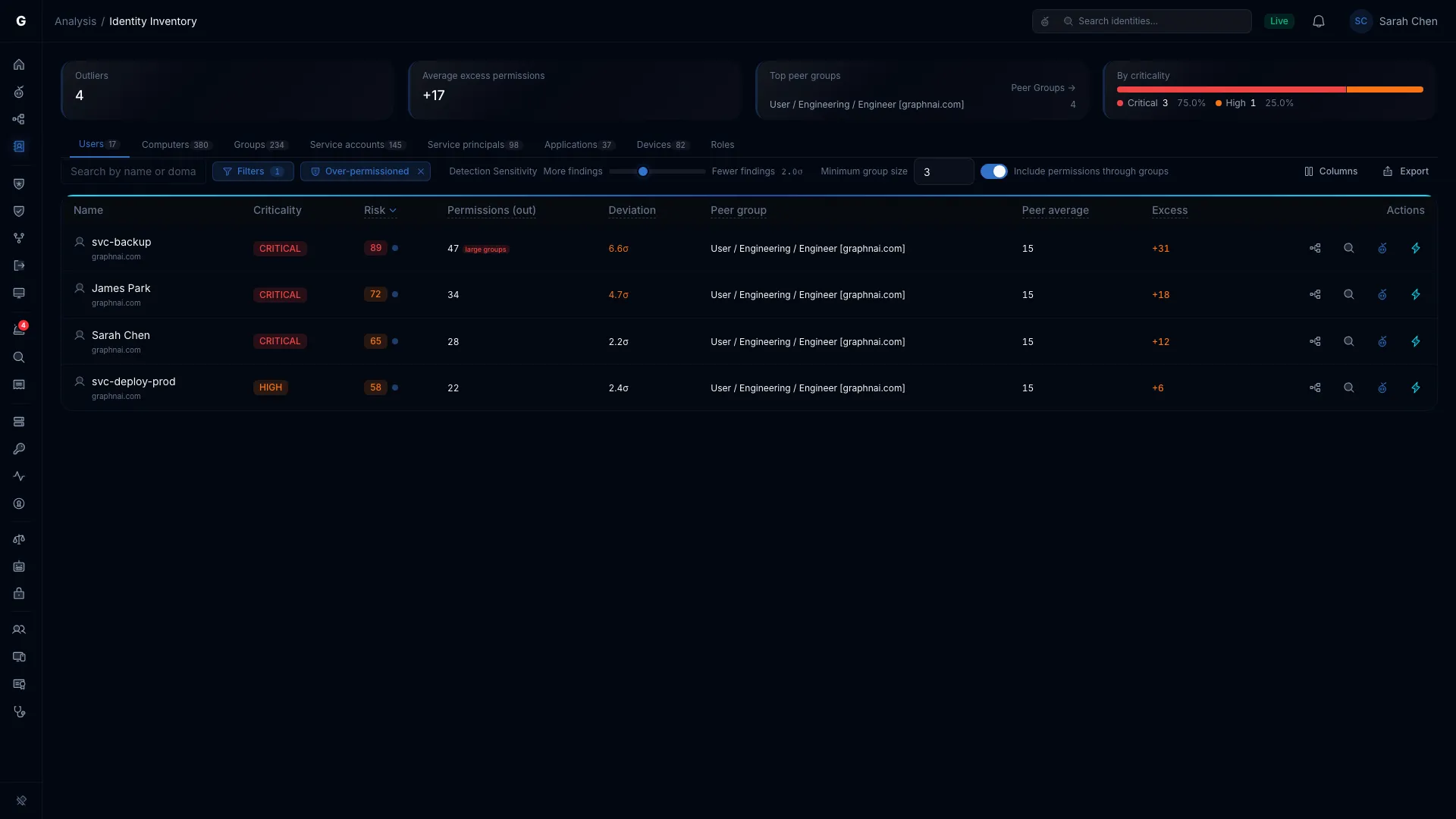
The table narrows to the outliers on that tab at the current sensitivity and minimum group size, and the over-permission summary cards replace the usual ones.
You can also link straight to the preset. For over-permissioned Users:
/analysis/inventory?tab=User&filter=over-permissionedAdd &sensitivity=3.0 and &minGroup=5 to start with other values than the defaults.
The Permission load card on the Risk Posture Dashboard opens the same preset on the Users tab.
Toolbar Controls
The preset adds two controls to the toolbar:
- Detection Sensitivity: a slider from 0.5σ to 5.0σ, in steps of 0.1, with its value beside it, such as "2.0σ". The default is 2.0σ. Higher values show only the most extreme outliers. Lower values show more.
- Minimum group size: a whole number from 3 to 100. The default is 3. Raise it to leave out small teams, where a wide standard deviation is normal. Groups and service principals are always compared at 2 or more, whatever you set.
Both apply as you change them.
Understanding the Summary
While the preset is on, four cards describe the current tab, sensitivity and minimum group size:
| Card | Description |
|---|---|
| Outliers | Identities on this tab flagged at the current settings |
| Average excess permissions | How far the outliers sit above their peer average, on average, as "+N" |
| Top peer groups | The three peer groups with the most outliers, each with its count, and a Peer Groups → link to the Peer Group Explorer |
| By criticality | A bar of the outliers by criticality, with the count for each level |
If one peer group keeps topping the list, look at access hygiene in that department or role as a whole.
Table Columns
The preset opens with Name, Criticality, Risk, Permissions (out) and four columns of its own. The inventory's other columns are in the Columns chooser. See Table Columns.
| Column | Description |
|---|---|
| Deviation | How many standard deviations above its peer group's average the identity sits, with each permission weighted by severity. For example, "4.2σ". Orange above 3σ. The tooltip says "standard deviations". |
| Peer group | The peer group the identity was compared with, as a short name. Hover for the full name and the member count. |
| Peer average | The average permission count across the identity's peer group on this tab |
| Excess | Permissions above the peer average, as "+N". A dash means the identity has no peer group to compare with. |
The preset keeps its own column layout, so changes here don't affect the unfiltered table. See Choosing columns.
Filtering and Sorting
Switch tabs to move between Users, Groups, Computers, Service accounts and Service principals. Each type is compared only within its own peer groups, so Users are never compared with Computers.
To bring the highest criticality to the top, sort the Criticality column, or read the By criticality card.
The domain list and the search box are the inventory's own. See Search & Filtering.
Deviation, Peer average and Excess sort from highest to lowest on the first select.
Detail Flyout
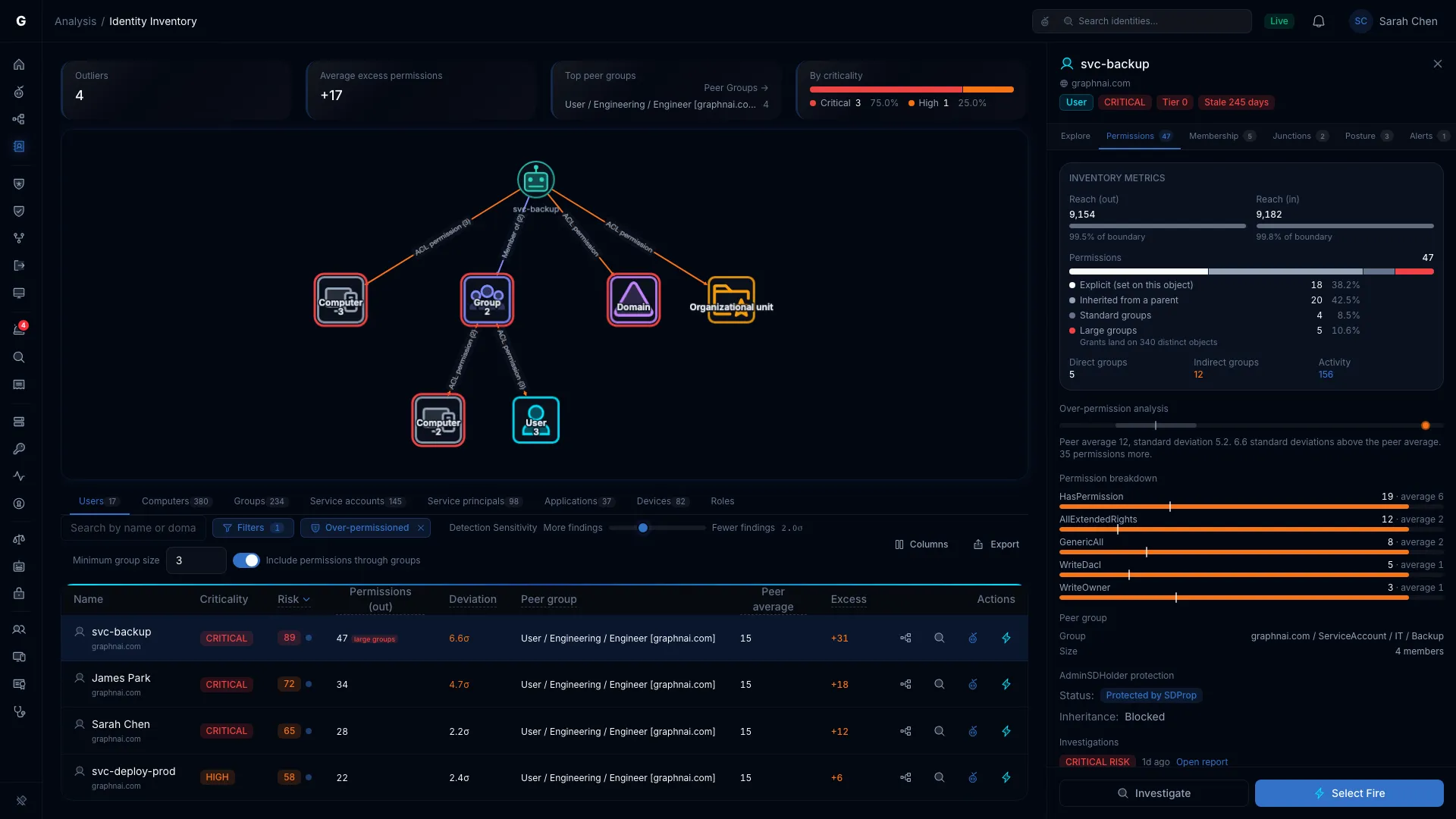
Select a row to open the identity's flyout, with its permission graph above the table. An identity with a scored peer group gets three sections:
- Over-permission analysis: a strip that places the identity's permission count against its peers, and a line such as "Peer average 8.3, standard deviation 3.2. 12.1 standard deviations above the peer average. 39 permissions more." The count itself is in Inventory metrics, above the section.
- Permission breakdown: each permission type with the identity's count and the peer average for that type, drawn as a meter. A type more than one and a half times the peer average is orange. Permissions held through privileged groups count toward the total but aren't broken down by type, and the section says so.
- Peer group: the group's short name and its size.
The flyout compares plain permission counts. The Deviation column weights each permission by severity, so the two numbers can differ.
When there's no breakdown to show, the Permission breakdown section says why:
- "This identity is within its peer group's normal range."
- "Couldn't load the peer-group breakdown." Select Retry.
- "This peer group has more findings than fit here. Open Peer Groups for the full list."
An identity with no peer group has none of these sections.
Peer Group Explorer
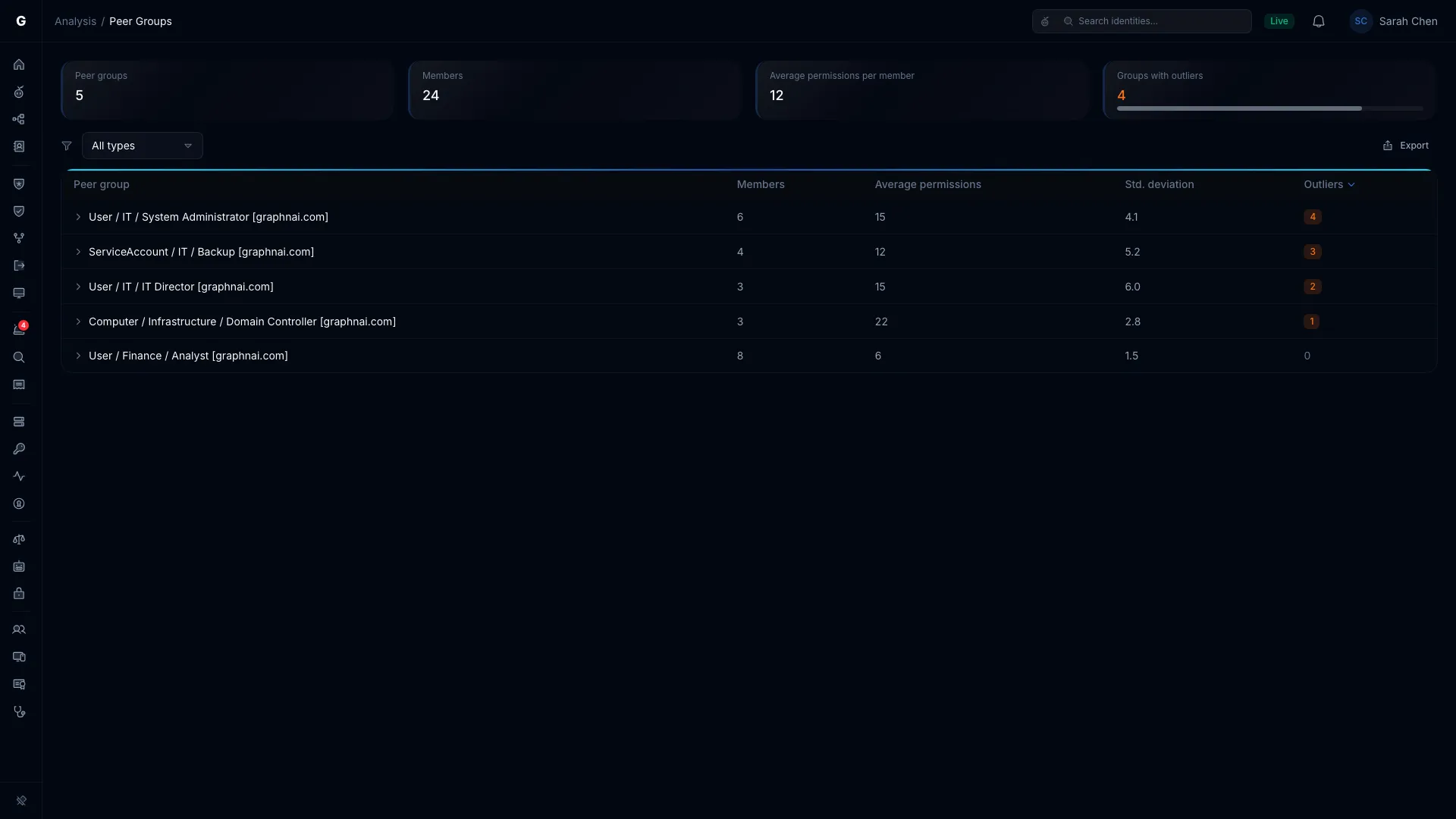
The Peer Groups page lists every peer group in your environment.
Accessing the Explorer
- Turn on the Over-permissioned preset in the Identity Inventory.
- Select Peer Groups → on the Top peer groups card.
What You'll See
Four cards sit at the top: Peer groups, Members, Average permissions per member and Groups with outliers. A type list narrows the table to one identity type.
Each peer group row shows:
- Peer group: the full peer group name, for example "Computer / Windows Server 2022 (DC) [graphnai.com]"
- Members: how many identities are in it
- Average permissions: the mean effective permission count
- Std. deviation: the standard deviation of the counts inside the group
- Outliers: how many members are over-permissioned
The table opens sorted by Outliers. Select a row to expand its Top outliers: up to five members, each with its permission count, how far it sits above the average, and its criticality. The explorer counts outliers at the default Detection Sensitivity, 2.0σ.
Use Cases
- Find problem peer groups. A group with many outliers may point to a wider access problem.
- Check the grouping. Confirm that peer groups match real boundaries in your organization.
- Watch group health. A group with a very large standard deviation may need splitting, or a standard set of access.
Interpreting Peer Group Baselines
High-Variation Groups
A peer group with a large standard deviation, such as an average of 10 with a standard deviation of 8, means access varies a lot within that role. The reasons are usually:
- A loosely defined role: the job title doesn't match one set of duties
- Several levels of seniority: junior and senior staff share the title
- Old access: some members kept permissions after changing roles
Split the group with more attributes, such as manager or cost center, or tidy up the department and title values.
Zero-Variation Groups
When every member of a peer group has the same permission count, the standard deviation is zero and the group produces no outliers. That's normal for:
- Service account groups: service accounts in one role often get identical access by design
- New hires: a batch of hires set up from the same template
- Tightly controlled roles: compliance roles with strict access templates
Example Use Cases
1. Quarterly Access Review
Scenario: You need a list of accounts for an access review before an audit.
Steps:
- Select the Users tab, then Filters > Over-permissioned.
- Leave Detection Sensitivity at 2.0σ.
- Sort Deviation to review the largest outliers first.
- Open each outlier's flyout to see whether inherited permissions drive it.
- For confirmed outliers, use the permission graph to pick the permissions to remove.
2. Service Account Audit
Scenario: Find service accounts with more privilege than they need, which an attacker could use.
Steps:
- Select the Service accounts or Service principals tab.
- Lower Detection Sensitivity to about 1.0σ to 1.5σ, because service accounts should be tightly scoped.
- Sort Deviation.
- Open each flyout to see which permission types are above the peer average.
- Work with the application owners to cut each account to least privilege.
3. Nested Group Mistakes
Scenario: Find group nesting that passes on too many permissions, such as Domain Computers added to Domain Admins.
Steps:
- Select the Computers tab to find machines with unexpected admin access.
- Leave Detection Sensitivity at 2.0σ.
- Look for a high Excess. It often comes from group nesting.
- Open the flyout and check the Permission breakdown for admin-level permission types.
- Select the identity's Membership (indirect) count to trace the nesting chain and find the mistake.
4. Insider Risk Monitoring
Scenario: Find people with unusually broad access in sensitive departments, for closer monitoring.
Steps:
- Raise Detection Sensitivity to about 2.5σ to 3.5σ, to see large deviations only.
- Sort the Peer group column to find Finance, Legal or HR peer groups.
- Sort the Criticality column to take HIGH and CRITICAL outliers first.
- Add confirmed outliers to extra logging, multifactor authentication enforcement, or regular recertification.
5. Peer Groups Full of "Unknown"
Scenario: Many outliers sit in peer groups with no department or title.
Steps:
- Sort the Peer group column. A short name with no department or title, such as "User [corp.example.com]", is a group whose members lack both. Hover it for the full name.
- Open each flyout and check what the identities are. They're often former staff or retired services, accounts missing department or title in Active Directory, or guests and service principals with no organization data.
- Fill in the missing attributes in your directory, or review these identities separately.
Troubleshooting
No outliers at any sensitivity
Cause: Access in your organization may be very uniform, or most identities lack department and title.
Resolution:
- Check that at least half of your identities have
departmentandtitlefilled in your directory. - Run a sync to confirm the attributes are collected.
- Set Minimum group size to 3, the lowest, so small peer groups aren't left out.
Too many outliers, for example 100 or more at the default sensitivity
Cause: Access varies widely, or the peer groups are too broad.
Resolution:
- Raise Detection Sensitivity to see only the most extreme cases.
- Raise Minimum group size to 5 or 10 to leave out small, varied groups.
- Refine your department and title values for tighter peer groups.
"Unknown" peer groups dominate
Cause: Many identities lack department and title.
Resolution:
- Fill in the missing attributes in Active Directory or Entra ID.
- Review orphaned or external identities on their own if they skew the results.
- Review service accounts without organization data on the Service accounts tab.
The flyout says an identity is within its normal range, but it's an outlier
Cause: The table's Deviation weights permissions by severity. The flyout compares plain counts. An identity with a few very dangerous permissions can be an outlier by weight while its plain count sits close to its peers.
Resolution: Read the identity's permissions in the permission graph above the table, and judge the outlier by the rights it holds.
Best Practices
- Review every quarter. Use the default sensitivity (2.0σ) to catch access creep before an audit.
- Combine with criticality. Sort by Criticality to take HIGH and CRITICAL identities first.
- Check inherited permissions. A high Excess often points to a nesting problem best fixed at the group.
- Question the baseline. If one peer group has many outliers, the baseline itself may be too generous.
- Revisit after each sync. Check whether access hygiene is getting better or worse.
- Feed your access reviews. Export outliers to your IAM ticketing system, or send them to department managers to confirm.
- Don't skip "Unknown" groups. Identities without directory data may be orphaned accounts or mistakes worth a look.
Limitations
- Attribute quality. The analysis is only as good as your directory data. Poor department and title values make weak peer groups.
- Severity weighting. The Deviation column weights each permission type by its severity, so a GenericAll counts for more than a ReadProperty. A permission type with no weight counts as 1.
- Point in time. Results reflect the graph as of the last sync. There's no history of when an identity became over-permissioned.
- Domain-scoped peer groups. Identities in separate forests or unconnected Entra tenants are never compared. Comparing peers across trusts is planned for a later release.
- Nesting depth. Inherited permissions are followed up to 5 levels of group nesting.
Related Features
- Stale Identity Detection: find unused accounts to disable
- Critical Junctions: find high-risk paths in the graph
- Asset Criticality: assign the criticality that ranks over-permission outliers
- Select Fire: test the effect of removing permissions before you make the change
Support
If you have trouble with Over-Permission Analytics, or questions about the results, contact your GraphnAI support team.