Identity Graph Data Model and Change Simulation
See how GraphnAI models identities as nodes and edges with a fidelity level, and simulate an access change without touching live data.
On this page
- Overview
- Prerequisites
- How the Graph Is Organized
- Identity Types
- Edge Types
- Membership and Structure
- Permissions
- Delegation and Local Access
- Observed Activity
- Tiered Fidelity™
- Criticality and Tier
- Viewing the Graph
- Graph Explorer Without a Focus
- Graph Explorer Focused on an Identity
- Searching for Identities
- Change Simulation (Differential State Engine™)
- Run a Simulation
- Simulation Limits
- What the Graph Shows, and Why
- An edge you expect isn't on the canvas
- A recent change isn't in the graph
- An identity has no edges
- Troubleshooting
- Search returns no results
- Graph Explorer says "Couldn't load the boundary map"
- Graph Explorer says "No identities yet"
- A simulation shows no change
- Every edge is Theoretical
- Best Practices
Overview
GraphnAI stores your identity environment as a directed graph. Each user, group, computer, application and service account is a node. Each membership, permission or delegation is an edge that points from one node to another.
Every analysis reads this graph: stale identity detection, over-permission analytics, critical junctions and remediation recommendations. Knowing what the graph holds helps you read the Graph Explorer, find the right identity, and plan a simulation that matches the change you have in mind.
Prerequisites
- At least one sync from an Active Directory bridge or an Entra ID provider has finished.
- You need the Viewer role to explore the graph and search it.
- You need the Operator or Admin role to simulate a change.
How the Graph Is Organized
The graph holds three kinds of objects:
| Category | What it holds | Examples |
|---|---|---|
| Identities | Accounts, and the directory objects that organize them | Users, groups, computers, service accounts, service principals, roles, organizational units, domains |
| Resources | Things an identity can reach | Applications, databases |
| Policies | Rules that govern access | Group Policy Objects (GPOs) |
Edges connect them. Each edge has a direction, from one object to another, and a type that says what kind of access or membership it is.
Identity Types
Every object in the graph has a type. The Graph Explorer, the identity panel and search results show the label. The API returns the value.
| Label | Value in the API | Description |
|---|---|---|
| User | User |
A person's account, such as an employee or contractor |
| Group | Group |
A security or distribution group that passes its access to its members |
| Computer | Computer |
A domain-joined workstation or server |
| Service account | ServiceAccount |
An account that an application or automated process runs as |
| Service principal | ServicePrincipal |
A cloud workload identity in Entra ID, such as an app's service principal or a managed identity |
| Application | Application |
An application registered in a cloud directory |
| Device | Device |
A device registered in Entra ID, such as a phone or tablet |
| Role | Role |
A directory role, such as Global Administrator or Intune Administrator |
| Tenant | Tenant |
The root object of an Entra ID tenant |
| Organizational unit | OrganizationalUnit |
An Active Directory organizational unit |
| Container | Container |
A generic Active Directory container |
| Group Policy Object | GPO |
A Group Policy Object in Active Directory |
| Built-in domain | BuiltinDomain |
The Builtin container of an Active Directory domain |
| Domain | Domain |
An Active Directory domain |
| Forest | Forest |
An Active Directory forest, the root of a security boundary |
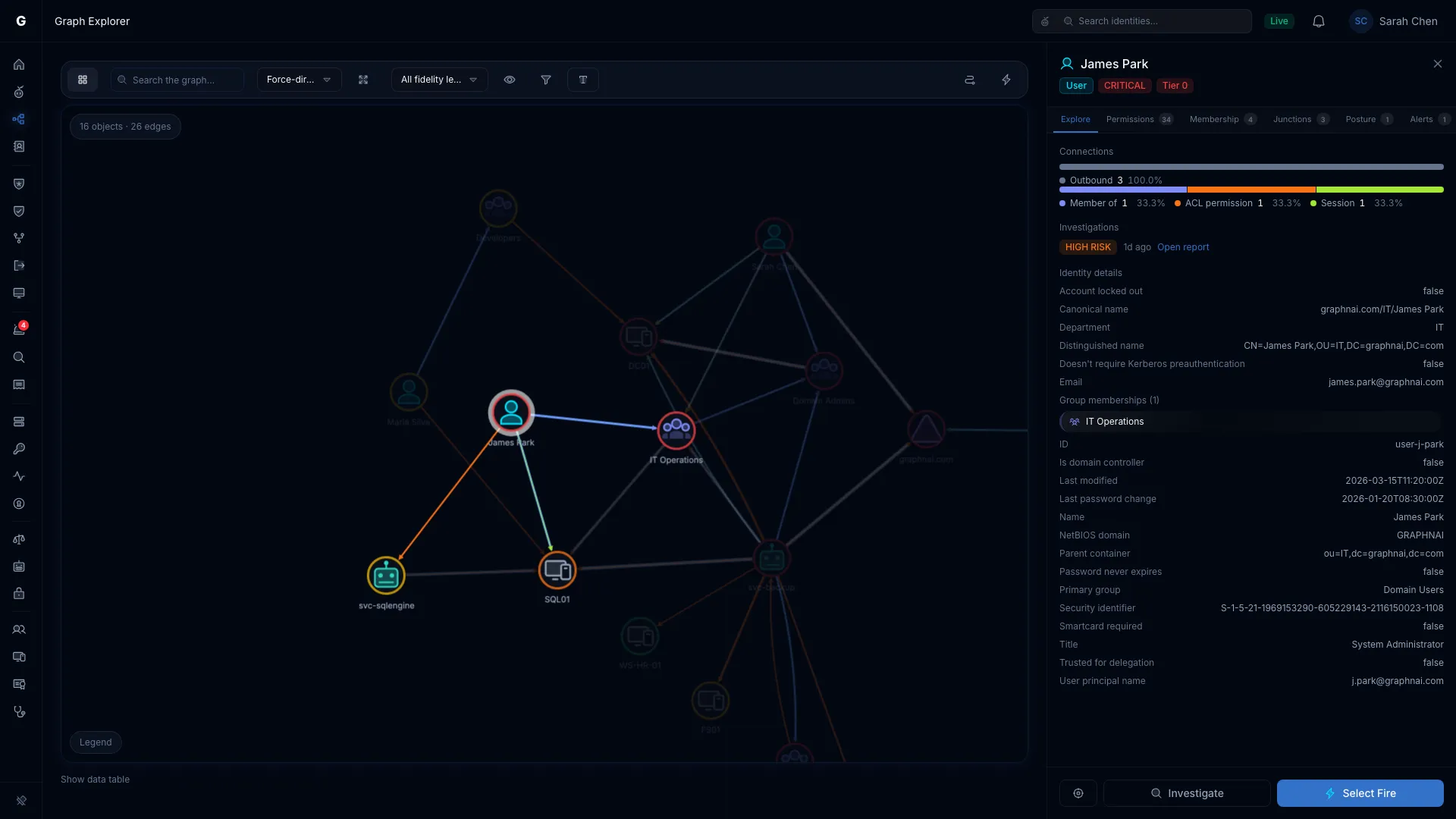
Edge Types
Every edge has a type. Graph Explorer shows the label on edges, in panels and under Edge types in the Legend. The API returns the value, for example MemberOf.
Membership and Structure
These edges say how objects are organized and how access is inherited.
| Edge type | Label | Meaning |
|---|---|---|
| MemberOf | Member of | A is a member of group B and inherits B's access |
| ContainedIn | Contained in | Object A sits inside container, OU or domain B |
| OwnerOf | Owner of | A is the owner of object B in Active Directory |
| HasRole | Has role | A holds directory role B |
| GPLink | GPO link | A Group Policy Object is linked to an OU or domain |
| TrustedBy | Domain trust | Domain A trusts domain B. Panels word it as "A trusts B". |
| SyncedTo | Sync link | An on-premises identity is synchronized to its Entra ID account |
Permissions
| Edge type | Label | Meaning |
|---|---|---|
| HasPermission | ACL permission | A holds one or more permissions on B. The edge lists them by name. |
| AppRoleAssignment | App role assignment | A is assigned an application role |
A HasPermission edge carries every permission A holds on B, so one edge can stand for several grants. The Active Directory permissions it can carry include:
| Permission | What it lets the holder do |
|---|---|
| GenericAll | Take full control of the target object |
| GenericWrite | Write any unprotected property of the target |
| WriteDacl | Change the target's permissions |
| WriteOwner | Take ownership of the target |
| AllExtendedRights | Use every extended right on the target, including resetting a password |
| ForceChangePassword | Reset the target user's password without knowing the current one |
| AddMember | Add members to the target group |
| AddSelf | Add itself to the target group |
| DCSync | Replicate password data from a domain controller (GetChanges and GetChangesAll) |
| ReadLAPSPassword | Read the local administrator password that LAPS manages (ms-Mcs-AdmPwd or msLAPS-Password) |
| ReadGMSAPassword | Read the password of a group managed service account (msDS-ManagedPassword) |
| WriteSPN | Set a servicePrincipalName on the target account, which makes it open to targeted Kerberoasting |
| AddKeyCredentialLink | Write msDS-KeyCredentialLink on the target (Shadow Credentials), which lets the holder authenticate as it with PKINIT |
| WriteAccountRestrictions | Change the target's account restrictions, including who can delegate to it (RBCD, through msDS-AllowedToActOnBehalfOfOtherIdentity) |
| WriteGPLink | Link Group Policy Objects to the target OU or domain (gPLink) |
A HasPermission edge from Entra ID carries Microsoft Graph permissions instead, such as Directory.ReadWrite.All.
A chain of MemberOf edges that ends in a WriteDacl permission can be a complete attack path from a low-privilege user to administrative access.
Delegation and Local Access
| Edge type | Label | Meaning |
|---|---|---|
| AllowedToDelegate | Allowed to delegate | A can impersonate users to the services on B (Kerberos constrained delegation, msDS-AllowedToDelegateTo) |
| AllowedToAct | Allowed to act | A can impersonate users to B (resource-based constrained delegation, RBCD) |
| HasSIDHistory | SID history | A carries B's security identifier in its sIDHistory |
| AdminTo | Local administrator | A is in the local Administrators group on computer B |
| CanRDP | Remote Desktop access | A is in the local Remote Desktop Users group on computer B |
| CanPSRemote | Remote management access | A is in the local Remote Management Users group on computer B |
| GPOAbuse | Group Policy control | A controls a Group Policy Object that applies to computer B |
Observed Activity
Telemetry adds these edges when events arrive. See Graph Explorer.
| Edge type | Label | Meaning |
|---|---|---|
| HasSession | Session | A has logged on to computer B (event 4624) |
| HasPrivilege | Privilege | A held elevated Windows privileges on computer B (event 4672) |
| HasAlert | Alert | A detection alert names this identity |
Tiered Fidelity™
Every edge carries a fidelity level: Theoretical, Constrained or Validated. It says how well the access is evidenced.
| Level | What it means |
|---|---|
| Theoretical | The access is configured in the directory, for example a group membership or an ACL entry. Nothing else has been checked. |
| Constrained | A constraint on the access has been evaluated, such as a disabled account or a Group Policy setting. The level is the same whether the constraint blocks the access or allows it. |
| Validated | Telemetry shows the access in use, for example a logon to that computer. |
An edge that a constraint blocks is dormant. It's drawn dashed and dimmed, and its label ends in "(blocked)". A blocked edge stays in every count. Pathfinding prices it higher, so it ranks last.
When you decide what to fix first, weigh Validated access above Theoretical access. Theoretical access may never have been used.
In the Graph Explorer detail view, filter by fidelity level with the toolbar list: All fidelity levels, Constrained or higher or Validated only.
Criticality and Tier
GraphnAI sets these fields on identities after each sync. You don't set them by hand.
| Field | Values | Meaning |
|---|---|---|
| Criticality | None, Low, Medium, High, Critical | How much damage the identity could do, based on its access, group memberships and administrative flags. See Asset Criticality. |
| Tier | Tier 0, or empty | Tier 0 is the most privileged tier: domain controllers, Domain Admins, Enterprise Admins. Every other identity leaves the field empty. GraphnAI never assigns Tier 1 or Tier 2, so a filter for them returns nothing. |
| IsCritical | true or false | True when the identity is a high-value target |
| IsJunction | true or false | True when the identity links low-privilege and high-privilege parts of the graph. See Critical Junctions. |
| JunctionScore | 0 to 10 in the product, 0.0 to 1.0 in the API | How central the identity is to attack paths between privilege zones. It combines closeness centrality (how near the identity is to Critical assets) and betweenness centrality (how often it sits on shortest paths, which makes it a chokepoint). |
Viewing the Graph
Graph Explorer Without a Focus
Open Graph Explorer in the sidebar. With no identity in focus, it shows the boundary map: each Active Directory forest and Entra ID tenant as a card, with the trusts, sync links, permissions and escapes between them. See Graph Explorer.
Graph Explorer Focused on an Identity
When you focus an identity, Graph Explorer shows its river view first. The river groups everything the identity can reach, or everything that can reach it, into buckets by type and by hop. Each bucket shows an exact count. See Streaming River Rendering and Exact Counts.
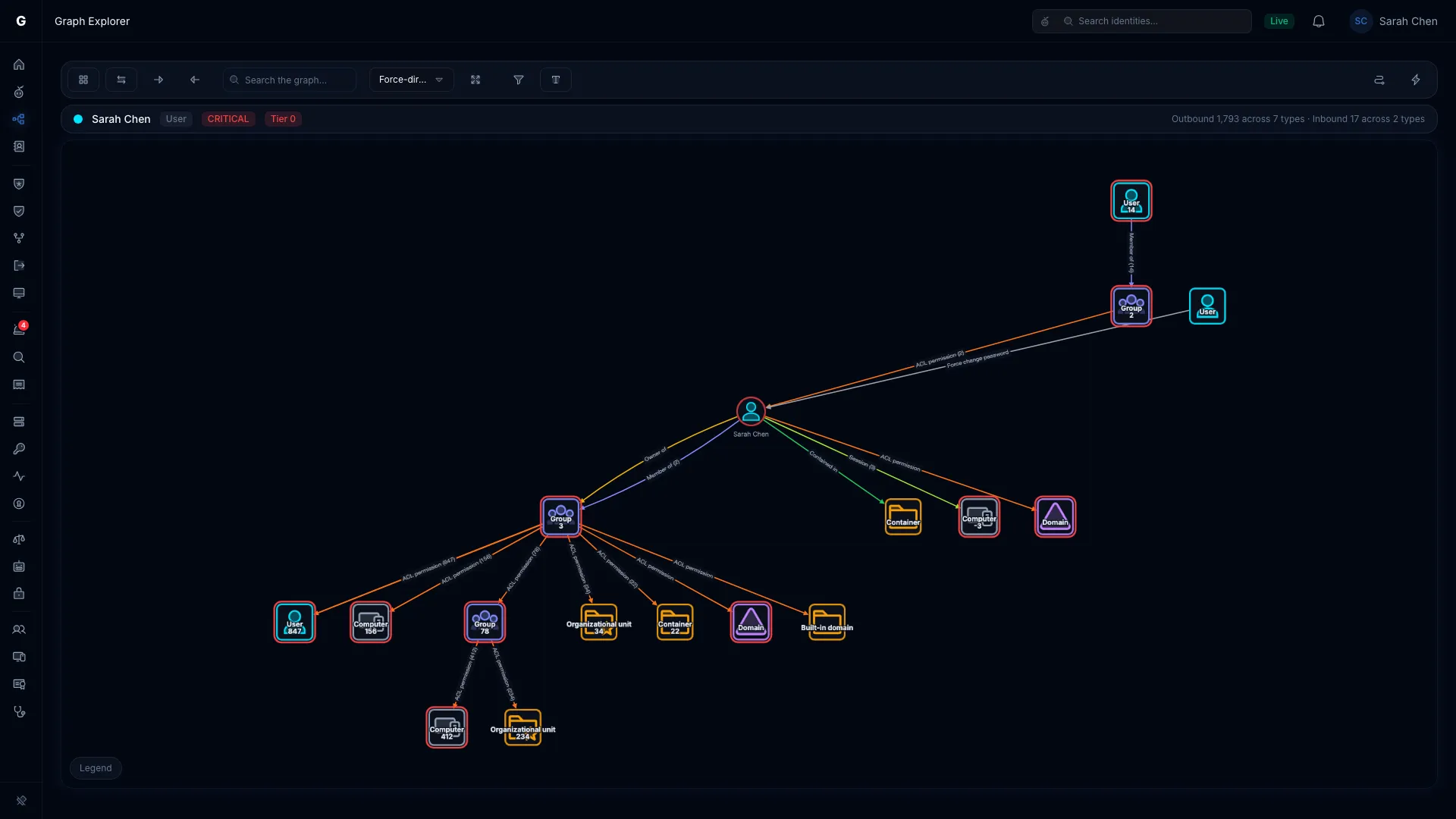
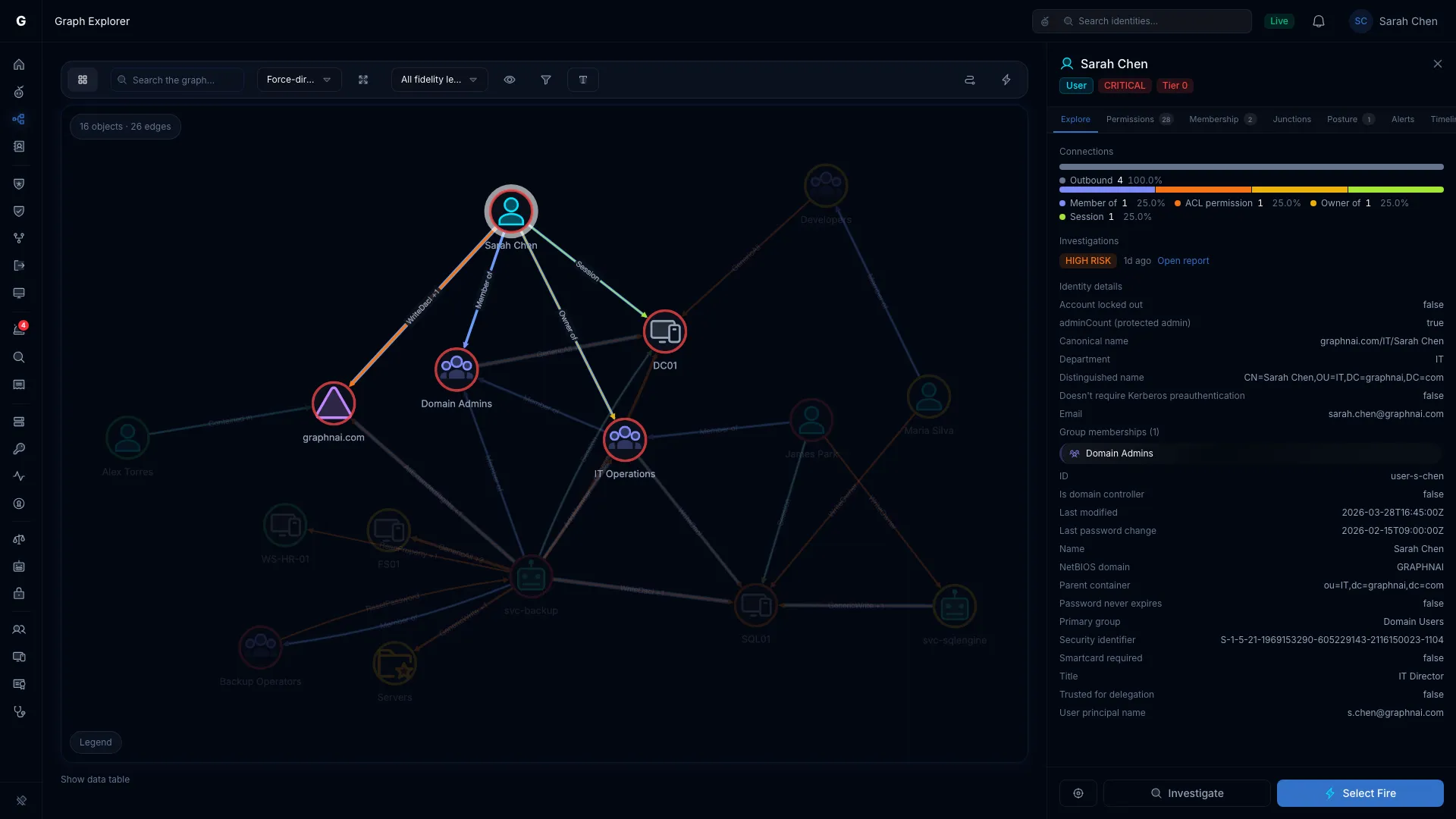
To see the identity's direct edges one by one, select Switch to detail view in the toolbar. The detail view shows:
- Up to 2,000 membership and structure edges in each direction.
- Up to 100 inbound and 100 outbound permission, session, privilege and alert edges, heaviest first.
- The identity's criticality, tier and junction status in its panel.
When an identity holds more than 2,000 edges in one direction, the summary bar above the canvas ends with "showing the first 2,000 links each way". A large group such as Domain Users reaches that limit.
Searching for Identities
- Select the Search identities box in the top bar.
- Type at least 2 characters of a name.
- Select a result.
Graph Explorer opens focused on that identity, with its panel open. Search matches display names, sAMAccountName and userPrincipalName, and lists the first 8 matches. When nothing matches, the list reads "No identities match" and your search.
The Search the graph… box in the Graph Explorer toolbar is different. It highlights matches among the objects already on the canvas.
Change Simulation (Differential State Engine™)
The Differential State Engine™ lays a change over the live graph and shows its effect. Nothing is written to Active Directory, Entra ID or any other source system, and the live graph stays as it is.
A simulation lasts 1 hour by default, then expires. Closing Select Fire discards it sooner.
Run a Simulation
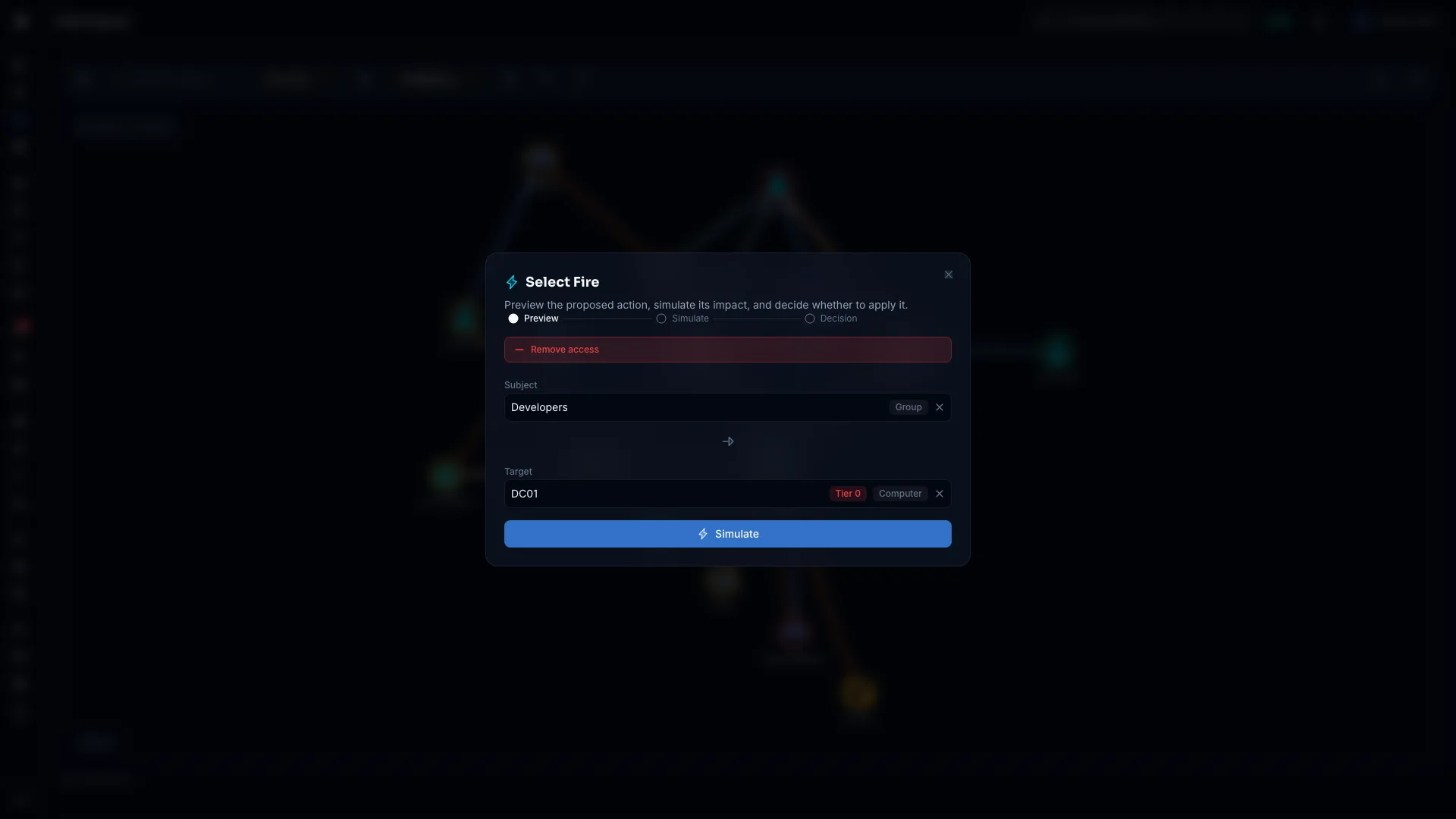
In the product, you simulate removing access through Select Fire:
- Open Graph Explorer.
- Select the Select Fire button (lightning icon) at the right of the toolbar. You can also right-click an identity and choose Select Fire.
- Search for the Subject, the account whose access you want to change.
- Search for the Target, the group or object it has access to.
- Select Simulate.
Select Fire shows the blast radius: the objects affected, the Operational Safety Metric™ and your options for the change. See Select Fire for the full workflow.
Simulation Limits
- A simulation expires after 1 hour by default. An administrator can change this in the server configuration.
- Each address can run 10 simulations a minute.
- A simulation never writes to Active Directory, Entra ID or any source system.
What the Graph Shows, and Why
An edge you expect isn't on the canvas
Graph Explorer limits what it draws so the canvas stays readable:
- River view: Edges are grouped into buckets. Select a bucket to list its members. See River Drill-Down.
- Detail view: Up to 2,000 membership and structure edges each way, and up to 100 permission edges each way.
- Filters: The fidelity level list and the edge types you hide in the view menu both remove edges from the canvas.
To find one edge between two objects, focus one of them, switch to the detail view, and clear the filters.
A recent change isn't in the graph
The graph reflects the last sync from each bridge and Entra ID provider. A change made in Active Directory or Entra ID after that sync appears after the next one.
To sync now, open Bridges in the sidebar, open the bridge, and select Full sync or Delta sync.
An identity has no edges
An identity can be in the graph with no edges when:
- It was removed from every group, and the last sync removed those memberships.
- A filter hides its edges. Set the fidelity level list to All fidelity levels and show every edge type.
In the detail view, Hide unconnected objects in the toolbar hides objects with no edges. Select Show unconnected objects to show them again.
Troubleshooting
Search returns no results
- Cause: The query is shorter than 2 characters, the name is spelled differently in the directory, or no sync has finished yet.
- Fix: Type more of the name, or try the sign-in name (
jdoe) in place of the display name (John Doe). Check the bridge's sync history on its page under Bridges.
Graph Explorer says "Couldn't load the boundary map"
- Cause: The server couldn't read the graph, or your session expired.
- Fix: Select Try again. If it keeps failing, ask an administrator to check the server's health check. Any answer other than
200 OKmeans the server can't reach its database.
Graph Explorer says "No identities yet"
- Cause: No sync has finished.
- Fix: Run a sync from the Bridges page.
A simulation shows no change
- Cause: The edge you removed didn't exist, so removing it changes nothing.
- Fix: Focus the subject, switch to the detail view, and confirm the edge is there before you simulate its removal.
Every edge is Theoretical
- Cause: Validated needs telemetry, such as Windows logon events. Without a telemetry source, edges stay Theoretical or Constrained.
- Fix: Ask an administrator to set up telemetry. See Telemetry Pipeline.
Best Practices
- Investigate in the detail view. The river view counts what an identity reaches. The detail view shows each of its direct edges.
- Check the fidelity level before you act. Theoretical access may never have been used. Validated access has been used.
- Simulate before you revoke. Read the blast radius in Select Fire before you change the directory.
- Search by sign-in name. Display names repeat. A
sAMAccountNameoruserPrincipalNamefinds one identity. - Start with Tier 0 identities and junctions. Review who holds permissions on them first.